Statistics Reports
Statistics reports are pre-defined sets of statistics that can be selected as a group for collection during simulation. These reports can contain one or more statistics and are similar to the top results available in the GUI (see Find Top Statistics). The collected statistics can be viewed in the GUI using the Results Browser or used to generate a Statistics Web Report.
Defining a Statistics Report
When a report is defined, it is not associated with any particular project or network model. To collect the statistics specified in a statistics report, you must associate the report with a scenario (see Choosing Statistics Reports) and then run the simulation.
Procedure 147: Defining a Statistics Report
-
Open the detailed Configure/Run DES dialog box.
-
Select Reports: Statistic Groups/SLAs in the treeview.
-
Click the Define Statistics Report… button.
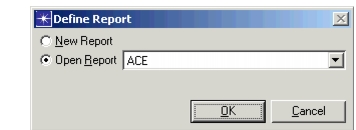
The Define Report dialog box displays.
-
Select New Report to start with an empty report, or select from the Open Report pull-down menu to edit an existing report.
-
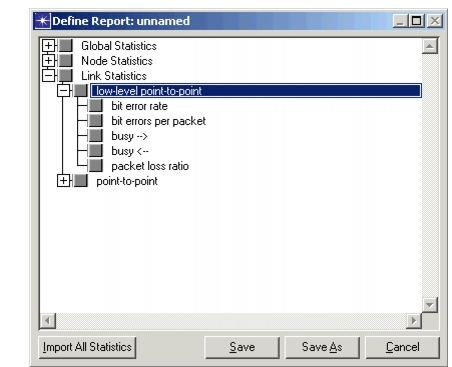
Choose the desired statistics from the statistic browser. The Import All Statistics button searches through all models listed in your "mod_dirs" directories and adds any statistics not already listed in the browser.
-
Click on Save or Save As and name this report if necessary.
Note: To make a new report appear in the Statistics Reports pane, close and reopen the Configure/Run DES dialog box.
If you need to delete a Statistics report, use the "Delete Model Files" operation. The file type and suffix is "Report Probe Model (.prb.m)".
Choosing Statistics Reports
You can collect data for one or more Statistics reports during each simulation. The Reports page in the detailed Configure/Run DES dialog box is used to specify which statistic reports will be collected for the current scenario. The collected statistics can be viewed in the Results Viewer or used to generate a Statistics web report.
Procedure 148: Choosing Statistics Reports
-
Open the detailed Configure/Run DES dialog box.
-
Select Reports: Statistic Groups/SLAs in the treeview.
-
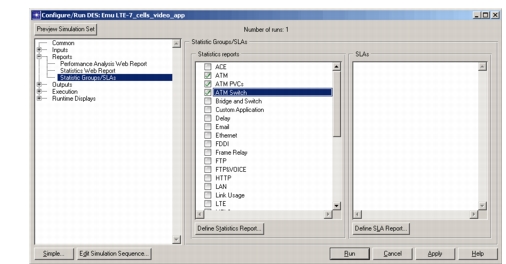
Select the desired reports from the list in the Statistics Reports pane. (To add a report to the list, click the Define Statistics Report… button. See Defining a Statistics Report for details.)
-
Click Apply to make the changes, or click Run to make the changes and run the simulation immediately.