Using the Traffic Center
The Traffic Center (Traffic > Traffic Center) provides a central window that helps you navigate, view, analyze, create, and edit network traffic. This window provides a central interface for all background traffic in the network.
This section is divided into the following subsections:
- Opening the Traffic Center
- Navigation/Selection Pane
- Visualization Panes
- Editing Traffic in the Traffic Center
- Viewing Business Group Traffic Flows in the Traffic Center
- Viewing VPN-Aware Traffic Flows
Opening the Traffic Center
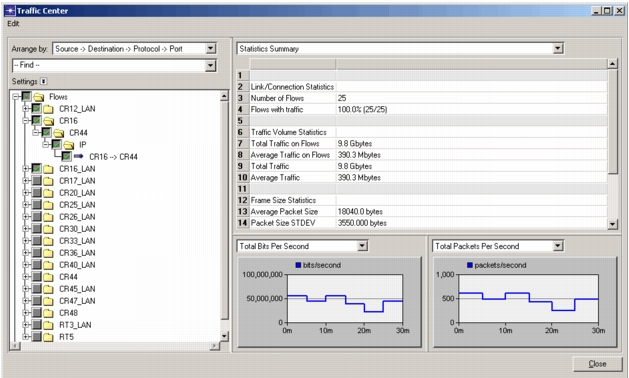
To open the Traffic Center, choose Traffic > Traffic Center from the Project Editor. The Traffic Center has one Navigation Pane (left) and three Visualization Panes (right).
Figure 22: Traffic Center
Navigation/Selection Pane
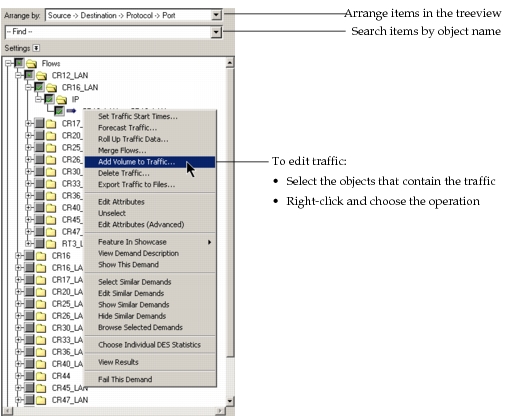
Use the Navigation Pane to view, organize, and select network objects that have associated traffic.
To select traffic, you must select the network objects that contain the traffic of interest. To select a network object, set the “Arrange by:” menu so that the object is visible in the treeview; then check the checkbox next to the object. When an object is selected, the traffic on that object is also selected (end-to-end traffic on flows and baseline loads on links, connections, and paths). You can view information about the selected traffic in the Visualization Panes.
For information about editing traffic, see Editing Traffic in the Traffic Center. For information about other available operations, see Editing Traffic in the Traffic Center.
Figure 23: Navigation Pane
Visualization Panes
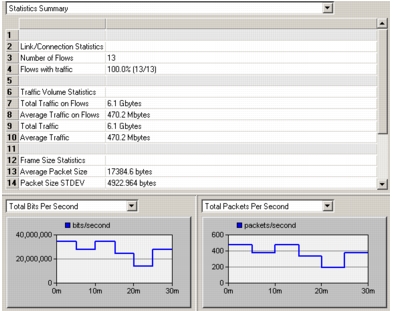
You can view relevant information about your network and traffic using the three visualization panes on the right (Figure 24). Each pane has a pull-down menu with options for viewing different types of information.
Figure 24: Visualization Panes
You can select one of the following options in the pull-down menu for each visualization pane:
Table 7: Traffic Center: Visualization Options
| Menu Item | Description |
|---|---|
| Network Domain | Network topology, as shown in the Project Editor |
| Network Showcase | View for emphasizing specific areas of interest. |
| Statistics Summary | Summary statistics about the traffic on all selected objects |
| Total Bits/Packets Per Second | Traffic volume on all selected objects |
| Top N by Volume | Source/sink nodes that send or receive the most traffic. To specify the number of nodes shown, set the traffic_center.top_n_talkers preference. |
| Top N Ports by Volume | Pie chart showing the breakdown of traffic by port number. To specify the number of ports (Top N for Ports) shown, set the traffic_center.top_n_ports preference. |
| Top N Source VLANs by Volume | Pie chart showing the breakdown of traffic by Source VLANs. To specify the number of Source VLANs (Top N for Source VLANs) shown, set the traffic_center.top_n_source_vlans preference. |
| Top N Destination VLANs by Volume | Pie chart showing the breakdown of traffic by Source VLANs. To specify the number of Destination VLANs (Top N for Destination VLANs) shown, set the traffic_center.top_n_destination_vlans_ preference. |
| Top N Applications by Volume | Pie chart showing the breakdown of traffic by Application. To specify the number of Application (Top N for Applications) shown, set the traffic_center.top_n_applications preference. |
| ToS Breakdown by Volume | Pie chart showing the breakdown of traffic by ToS. To specify the number of ToS shown in breakdown (ToS Breakdown), set the traffic_center.top_n_cos preference. |
| CoS Breakdown by Volume | Pie chart showing the breakdown of traffic by CoS. To specify the number of CoS shown in breakdown (CoS Breakdown), set the traffic_center.top_n_cos preference. |
| Voice CODEC Breakdown by Volume | Pie chart showing the breakdown of traffic by CODEC. To specify the number of CODECs shown (CODEC Breakdown), set the traffic_center.top_n_codecs preference. |
Editing Traffic in the Traffic Center
To run one of these operations, select the objects with the traffic of interest in the Navigation/Selection Pane. Then choose the operation you want from the Edit menu (or simply right-click and choose the operation).
Table 8: Traffic Center: Operations for Editing Traffic
| Menu Item | Description |
|---|---|
| Set Traffic Start Times | Specify a calendar start time for traffic on all selected objects |
| Forecast Selected Traffic | Create future traffic by forecasting trends in current traffic. You can append the new traffic to the current traffic or overwrite the current traffic entirely. Note: To forecast traffic for logical or unconnected interfaces, see “Forecasting Traffic for Logical or Unconnected Interfaces“. |
| Roll Up Traffic Data | Roll data up into equal sized buckets in traffic profiles attributes of selected objects. This is useful if you need to reduce system resources required to run simulation studies. The trade-off is a reduction in the data granularity. |
| Merge Flows | Combine selected traffic flows that have common endpoints only or common endpoints and specific characteristics. This operation is useful when you have multiple flows between the same node/destination and you want to reduce the number of flow objects in the scenario. |
| Add Volume to Selected Traffic | Increase traffic on selected objects by scaling (percent of current traffic) or addition (new traffic in bits per second). |
| Delete Traffic | Delete traffic on selected objects. Note: This operation cannot be undone. - If a traffic flow is selected, this operation deletes the object entirely. - If a link, connection, or path is selected, this operation clears the traffic data on that object. |
| Export Traffic to Files | Export traffic on selected objects to external traffic files, which you can edit (if desired) and import into other scenarios. Traffic on flows can be exported to: - TR2 (*.tr2) files – For more information about the TR2 files, see “Traffic Flow Specification for “tr2” Formats—IP and Ethernet Traffic Flows“. - Spreadsheet files – Export traffic flows to an ASCII file and view the results in a text editor or spreadsheet program, such as Microsoft Excel. Traffic on links, connections, and paths is exported to a .gbu2 file. For more information, see ““gbu2” File Format“. |
Note: In addition to operations for editing traffic (described in Table 8), the right-click menu includes a number of operations for editing individual objects.
Viewing Business Group Traffic Flows in the Traffic Center
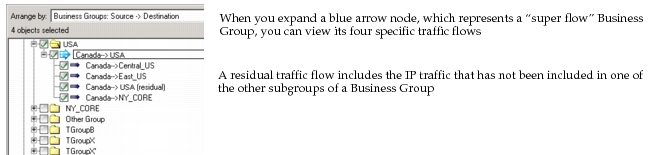
Open the Traffic Center by choosing Traffic > Open Traffic Center. In the “Arrange by” list, choose one of the Business Groups Arrange by options. You can then view Business Group traffic flows in the Traffic Center, as shown in the following figure.
The Traffic Center uses a super flow—shown as blue arrow node in this example—to represent an aggregate of multiple smaller Business Group flows as a hierarchy. Traffic flows within the hierarchy that include "(residual)" in their names account for the traffic volume not counted by other Business Groups in the hierarchy.
Figure 25: Business Groups in Traffic Center
Viewing VPN-Aware Traffic Flows
When you import traffic flows from AppResponse Xpert, the IP traffic flows with associated VPNs include the VPN information in the flow attributes.
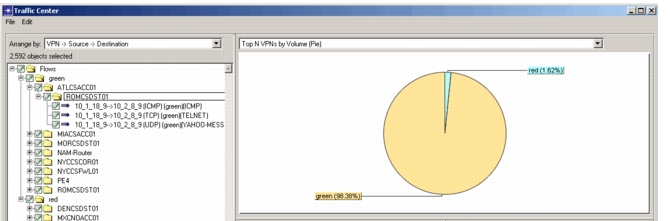
After importing IP traffic that includes VPN information, you can use the Arrange By option in the Traffic Center to view IP traffic by VPN in the left pane and view a Top N VPNs By Volume Pie Chart in one of the right panels, as shown in the following figure.
Figure 26: Arrange By Option for VPNs in the Traffic Center
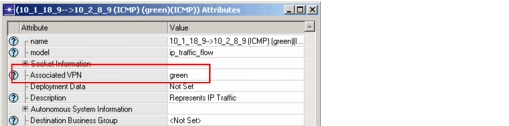
The VPN attribute for the IP traffic flows is shown in the following figure.
Figure 27: New VPN Attribute for Traffic Flows
Support for Importing VPN Traffic Flows Only from AppResponse Xpert
You have the option to import only IP traffic flows associated with VPNs from AppResponse Xpert. Set the preference, “Import VPN Traffic Flows Only” to TRUE to exclude IP traffic flows that have not been associated with VPNs. Default Value = FALSE.