Import from Configlets
You can import a subset of device configurations, called configlets, to Cisco or Juniper device configuration files. A configlet can contain anything that a device can accept through the command line, such as access lists, access list changes, “no” versions of commands, and modifications to routing protocols, for example. By using a configlet, you can enact a small change to your network model to determine how it will impact your operational network.
Note: For Juniper devices, only a subset of “set” and “delete” commands are supported. For more information contact Technical Support.
WARNING: Do not make changes to the hostname or to the interface name in a configlet file. Doing so will result in the creation of a new device or interface without applying your intended changes to the original. Configlet contents are case-sensitive.
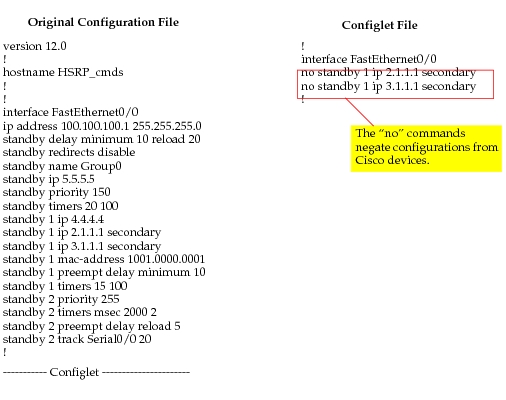
An example of a configlet file that could be applied to an original Cisco device configuration file is shown below. Note that the configlet file uses the “no” commands to remove the secondary virtual address information from the standby group.on interface FastEthernet0/0.
Figure 48: Cisco Configlet File Example
An example of a configlet file that could be applied to an original Juniper router configuration file is shown below. Notice that, while the original configuration file for a Juniper router is in a hierarchical format, the configlet file is a flat file that has commands shown just as they would be entered from the command line. The configlet file in this example uses the “set” and “delete” commands to modify the status of interfaces.
Note: For Juniper devices, only “set” and “delete” commands are supported.
Figure 49: Juniper Configlet File Example
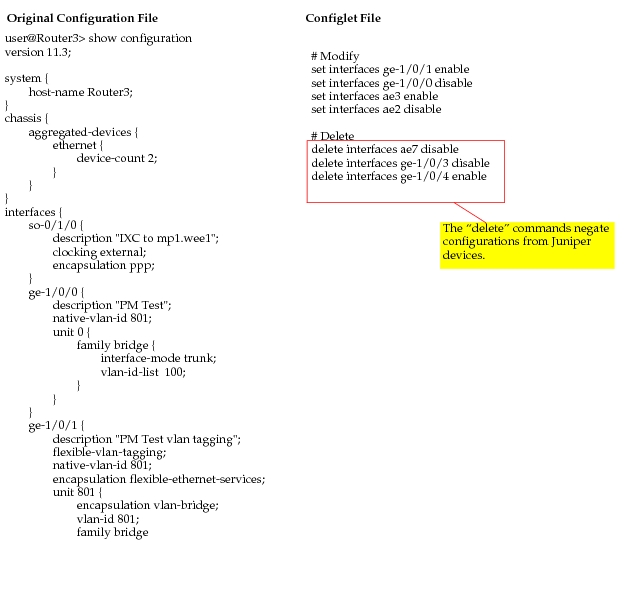
Figure 50: Apply Configlets Dialog Box
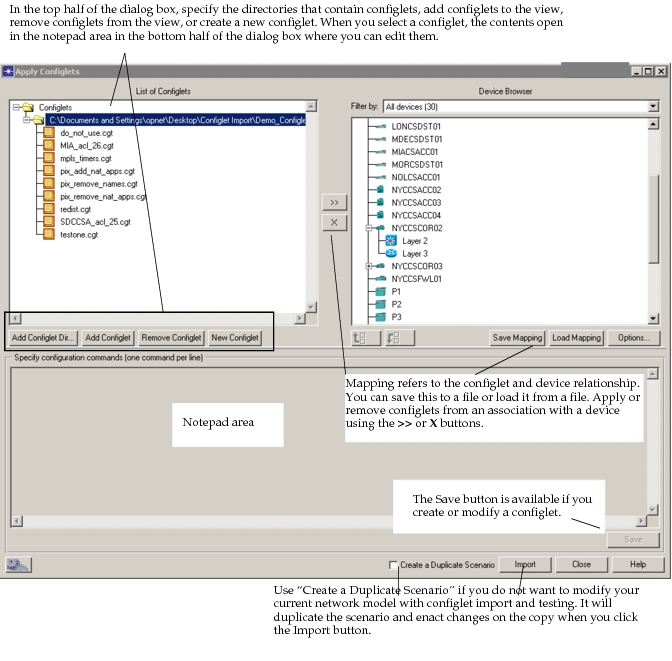
Through the use of the Apply Configlets dialog box, you can create and manage configlets, create and load mappings between configlets and devices, and import the configlets into your network model. The important elements of the Apply Configlets dialog box are listed in the following table.
Table 8: Elements of Apply Configlets Dialog Box
| Feature | Description |
|---|---|
| List of Configlets | Displays a view of directories you have added, which can be expanded to show files contained within. |
| Add Configlet Dir... | Opens a directory browser that lets you locate and select directories that contain configlets and that you want to view in the List of Configlets pane. |
| Add Configlet | Opens a file browser that lets you locate and select configlet files that you want to view in the List of Configlets pane. |
| Remove Configlet | Removes selected configlets from the view in the List of Configlets pane. This does not remove the configlet file from its storage directory. Likewise, if you select a directory and click Remove Configlet, you only remove it from the view. |
| New Configlet | Specifies a name and location for a new configlet, and edit it in the notepad area of the dialog box. |
| Device Browser | Displays a list of Cisco and Juniper devices in the current network model. |
| Filter by | Lets you filter the view of devices by, for example, device type or operating system (OS). The default is to view All devices. |
 |
Assigns a configlet file from the List of Configlets to a selected device in the Device Browser. |
 |
Removes a configlet file association from a selected device in the Device Browser. |
 |
• Up arrow moves the configlet to a prior position on the device to which it has been applied, in reference to the other configlets. Changes the order in which the configlet is applied during import. • Down arrow moves the configlet to a later position on the device to which it has been applied, in reference to the other configlets. Changes the order in which the configlet is applied during import. |
| Notepad/Display area | Displays the contents of a configlet. Provides a scratchpad for editing or creating configlets. If you select a configlet file in the Device Browser window, however, this area is Display only and does not allow you to edit the configlet. |
| Save Mapping | Saves the mapping created between the configlet(s) and device(s) as a .gdf file that can then be shared with another user or used for later modeling. |
| Load Mapping | Loads a previously saved .gdf mapping file. |
| Options... | • Copy configlets – lets you save a copy of the configlets in the same directory in which you have stored the device configuration files for the device. • Show Configlets Path – Specifies whether the full path or only the configlet file name is displayed in the Import Configlets dialog box. |
| Create as Duplicate Scenario | Creates a copy of the current scenario before importing the configlets, which preserves your original network model. |
| Import | Imports the configlets to the devices you specified. |
Procedure 7: General Workflow for Updating from Configlets
- Choose Topology > Import Topology > Import from Configlets…
- Select a configlet from the List of Configlets pane in the Apply Configlets dialog box.
- Select one or more devices in the Device Browser pane.
- Add configlets to selected devices.
- Click the Import button to make the change to the configuration file and network model.
- Note the changes in the device attributes for modified devices.