Common Import Issues
Occasionally, you may encounter an unexpected problem during an import or in the results after the import. Some common issues are presented in this section.
Multi-Layer Switch with Dual MSFCs Missing from Model
If you have multi-layer switches with dual MSFCs in your network that do not appear in your imported network model, you may be missing certain “show” commands in your configurations.
- Hybrid Devices: In a non-native IOS configuration, you must have the following output in your configuration files:
- Supervisor:
show moduleandshow version - MSFC:
show versionandshow redundancy
- Supervisor:
- Native IOS Devices: In a native IOS configuration, you must have the output of
show module.
Links with Mixed Technologies
By default, all simple links with mixed technologies are converted to serial links during import from NetCollector. In clouds with a mixture of serial, ATM and/or Frame Relay, the interfaces are also mapped to serial switches. Interfaces on the connected devices are also changed to serial to prevent a red X from appearing on the link, as though it were unreachable.
If the “Create Serial Cloud” preference is set to TRUE, links with mixed technologies are imported and the information necessary to create the serial cloud is written to a Model Assistant file. For more information about Model Assistant Files, see “Model Assistant“ on page 1.
The preference “Show Message to Create MA File for Interface Conversion” controls whether a dialog box, shown in Figure 56, appears. When the preference is set to TRUE, this dialog box prompts you to specify a file name and directory. When the preference is set to FALSE, a default name and directory is used.
Figure 56: Prompt to Create Model Assistant File
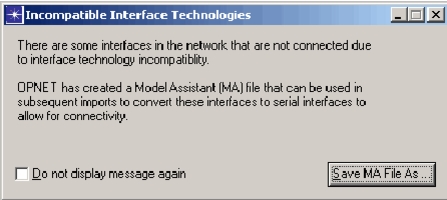
After you complete the first import, you must re-import the network model, using the .ma file you just created. When the second import is complete, the inconsistent non-serial interfaces are converted to serial interfaces and are properly connected.
If you want to disable this default behavior, change the “Create Serial Cloud” preference to FALSE.
If the Create Serial Cloud preference is set to FALSE, links with a mixture of Frame Relay plus ATM are imported as a Frame Relay-ATM service interworking (FRASI) switch. The following types of clouds are skipped:
- Serial + anything other than serial
- (Ethernet | FDDI | Token Ring) + (ATM | Frame Relay)
The import log contains a list of clouds that are created or are skipped during import.
Inferred Layer-3 IP Clouds
After an import, the network model may contain Layer-3 IP clouds that were not in your configuration. These inferred IP clouds are created when there is no information about Layer-2 connectivity, but there is sufficient IP tunnel information to infer an IP connection between two interfaces. NetCollector uses an IP cloud model to connect the interfaces.
The IP clouds that appear in your network model after an import are created based on imported configuration files and the setting for the environment Create Tunnel Clouds preference. There are two possible settings for this preference:
- TRUE – This is the default value, which will infer Layer-3 IP clouds based on the tunnel interface information in the import file.
- FALSE – This option will not infer Layer-3 IP Clouds. Tunnel interfaces will not be connected in the network model when there is no information about Layer-2 connectivity between the interfaces.
Note: During import, if you selected “Incrementally update network using the most recent NetCollector data, the expected Layer-3 IP Clouds will not be inferred.
Failure to Connect to NetCollector During Import
You may encounter a problem connecting to your NetCollector during an import. There are several reasons this can happen.
- NetCollector is not up or its services are not running.
- You did not specify the correct NetCollector hostname or did not specify a fully-qualified hostname and port, if applicable. Refer to the beginning of this section for more information on fully-qualified hostnames.
- You may not have connectivity to the NetCollector. Perform basic network troubleshooting to determine if connectivity exists.
- You may have a firewall between your machine and the NetCollector.
Operational Status “Not Present”
If you perform an import and see a red X on an interface that is operational in the production network, it may be due to a known bug in a Cisco MIB for the interface. When NetCollector performs an SNMP query on the ifOperStatus object or the propPointToPointSerial encapsulation for a High Speed Serial Interface (HSSI) running PPP or propPointToPointSerial encapsulation, the value returned may be “6”, meaning the interface is “not present”. This bug is fixed in Cisco IOS 12.2(14.3), but there are workarounds, as well.
There are two ways you can block MIBs from setting the ifOperStatus. You can do this globally by setting a hierarchical priority scheme that applies to all interfaces or by using import blocker on the adapters for each specific interface.