Distributed Simulation
Distributed simulation lets you run multiple discrete event simulations at the same time on one or more computers (or multiple processors in the same computer). You can use distributed simulation for several purposes, such as:
- Performing parametric studies more quickly by executing multiple simulations concurrently
- Using a powerful remote computer to run simulations that need more memory or processing power than are available on your local computer
When running a simulation with distributed simulation enabled, Modeler tries to start the specified number of simulations on each specified computer. As each processor finishes a simulation, Modeler uses it to start another one. This process continues until all simulations have been run. Simulation progress is reported in the DES Execution Manager dialog box (see DES Execution Manager).
Requirements and Limitations for Distributed Simulations
Consider these items when running a distributed simulation:
- Modeler (or other Riverbed analysis software capable of discrete event simulation) must be installed on each computer used for distributed simulation. On remote computers, the op_des_server utility normally will use the same preferences file as the Riverbed analysis software on that computer.
- The directory containing the model being simulated must be shared by the local and remote computers. The output (.ov) files produced by the simulation are created in the shared model directory.
- Distributed simulation requires either a simulation site license or one simulation runtime license for each CPU. If the simulation uses licensed modules or specialized models, each CPU requires licenses for these products as well.
- Distributed simulation is intended to speed up production runs; therefore, debugging with ODB is disabled.
- Distributed simulations can be run across platforms (for example, Windows on the local computer and Linux on a remote computer) provided that both platforms have the same endianness.
- There are several preferences which, if specified on the command line when launching Modeler on the local computer, are passed to op_des_server on the remote computers. These preferences are “prefs_file”, “opnet_dir”, “opnet_user_home”, “license_server”, and “license_port”. The local and remote computers must all be configured to deal with the effects of any of these preferences that you specify on the command line. For example, if you specify the “prefs_file” preference on the command line, all computers (local and remote) must be able to access the preferences file in the specified location and also must be able to access all paths in the “mod_dirs” preference (which is specified in the preferences file). Thus, in this case, the paths for core directories and model installation directories must be identical on all computers.
- Riverbed analysis software and models can be installed in different locations on the local and remote computers (unless the “prefs_file” preference is specified on the command line when launching Modeler, as discussed in the preceding item). The only restrictions concern the model directory that contains the network and associated models to be simulated. This directory
- must be in a shared location (to ensure that simulation results are available to the GUI), and
- must be specified in the “mod_dirs” preference on all computers (local and remote)
Running Distributed Simulations
Use this procedure to execute a discrete event simulation with multiple runs on two or more processors of the same or different computers.
Procedure 188: Running Distributed Simulations
Note: Modeler (or other Riverbed analysis software that supports discrete event simulation) must be installed on every computer used for distributed simulation.
-
Configure distributed runs for the simulation in one of the following two ways, either by configuring the simulation or by setting preferences individually:
Option 1: Configuring the simulation
1.1 In the Configure/Run DES dialog box, click the Configure Distributed or Multicore Runs… button.
*Result:* The Configure Distributed or Multicore Runs dialog box opens. This dialog lets you set all necessary preferences in one place. **Figure 175: Configure Distributed or Multicore Runs Dialog Box** 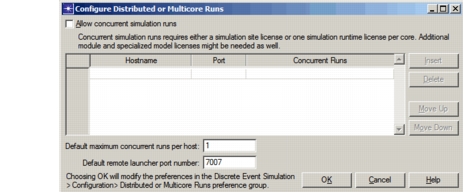1.2 Select the “Allow concurrent simulation runs” checkbox. 1.3 Enter the name, port number, and maximum number of concurrent runs for each computer that should be used for distributed simulation. 1.4 If desired, set the default values for port number and maximum concurrent runs. 1.5 Click OK.
Option 2: Setting preference values individually
1.1 On the local computer, set the following preference values:
- Set [Allow Concurrent Simulation Runs](#allow-concurrent-simulation-runs) to TRUE. - Set [Simulation Execution Host Computers](#simulation-execution-host-computers) to a list of the computers available to run distributed simulations. If desired, also specify the port and number of concurrent runs for each server. Example: `localhost::2, wtn11166:7012:3` The preceding specification lets up to five simulations run concurrently, two on the local computer (using the default port) and three on wtn11166 (using port 7012). - If desired, change the [Default Remote Launcher Port Number](#default-remote-launcher-port-number) and [Default Maximum Concurrent Simulation Runs per Host](#default-maximum-concurrent-simulation-runs-per-host) preferences. -
On every remote computer listed in Simulation Execution Host Computers:
- Run op_des_server. This program is located in the
<reldir>/sys/<arch>/bindirectory.
Note: You must restart this program after a computer is rebooted.
- Run op_des_server. This program is located in the
-
On every computer listed in Simulation Execution Host Computers (including the local computer):
- Set the “mod_dirs” preference to include the directory on the local computer that contains the project being simulated.
Note: The directory containing the model being simulated must be shared by all computers running a distributed simulation. You might need to set permissions on the model directory to allow this.
-
On the local computer, configure and run the simulation.
Preferences for Distributed Simulation
The distributed simulation feature uses these preferences.
Allow Concurrent Simulation Runs
Specifies whether discrete event simulations are run sequentially on the local computer or simultaneously on one or more processors (local or remote). When TRUE, distributed simulation is enabled and simulations are run simultaneously on the computers listed in the Simulation Execution Host Computers preference.
| Tag | Type | Default Value |
|---|---|---|
des.distributed_mode |
boolean | FALSE |
Simulation Execution Host Computers
Specifies a list of host computers on which to execute distributed simulation runs. The list can contain the local computer and any number of remote computers. Each entry in the list comprises a computer name optionally followed by the port on which the op_des_server process is listening and the maximum number of simultaneous executions that can take place on that computer. If the port and maximum runs are omitted, Riverbed Modeler uses the default values specified by the Default Remote Launcher Port Number and Default Maximum Concurrent Simulation Runs per Host preferences. The format of each entry is <name>:<port>:<runs>; for example, “wtn1234:7012:2”.
This preference has no effect unless the Allow Concurrent Simulation Runs preference is set to TRUE.
| Tag | Type | Default Value |
|---|---|---|
des.distributed_server_host_info |
string list | “” |
Default Remote Launcher Port Number
Specifies the port number to use when connecting to the DES server process on a remote host computer if the number is not specified in the Simulation Execution Host Computers preference.
This preference has no effect unless the Allow Concurrent Simulation Runs preference is set to TRUE.
| Tag | Type | Default Value |
|---|---|---|
des.distributed_server_port_default |
integer | 7007 |
Default Maximum Concurrent Simulation Runs per Host
Specifies the maximum number of simultaneous simulations to run on a host computer if the number is not specified in the Simulation Execution Host Computers preference. Ideally, the number of concurrent simulations to run on a computer should not exceed the number of processors available on that computer. You can run more, but performance will suffer.
This preference has no effect unless the Allow Concurrent Simulation Runs preference is set to TRUE.
| Tag | Type | Default Value |
|---|---|---|
des.distributed_server_num_runs_default |
integer | 1 |
Prompt for Multicore Execution
Specifies whether Modeler should prompt the user about using multiple cores for simultaneous execution of simulation runs. Prompting applies only if the simulation has multiple runs, the local computer has multiple cores, and the Allow Concurrent Simulation Runs preference is FALSE.
Figure 176: Multicore Execution Prompt
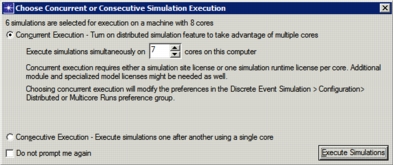
Multicore execution uses the distributed simulation mechanism by setting the Allow Concurrent Simulation Runs preference to TRUE and the Simulation Execution Host Computers preference to “localhost::<runs>”, where <runs> is the number of concurrent simulations chosen by the user.
| Tag | Data Type | Default Value |
|---|---|---|
des.choose_multiple_runs_mode |
boolean | TRUE |