Service Level Agreements
A service level agreement (SLA) is a contract negotiated between a network service provider and an organization. It typically specifies certain levels of service—server response time, router processing delay, link utilization—that the provider promises.
Within Riverbed Modeler, an SLA is a set of thresholds applied to specified statistics. Threshold violations are shown in analysis panels and web reports. For example, you might specify the threshold “response time is below 0.5 seconds 95 percent of each hour.” and apply it to the statistic FTP Download Response Time. A violation is reported if that threshold is reached.
Defining a Service Level Agreement
This operation enables you to define the thresholds that are applied against the results collected from a particular simulation. Thresholds are applied against a particular statistic.
Note: To select SLAs to be applied in a simulation, go to the Statistic Groups/SLAs page in the detailed Configure/Run DES dialog box.
Procedure 149: Defining the Thresholds for a Service Level Agreement
-
Choose DES > Expert Service Prediction > Define Service Level Agreement…
Or, click the Define SLA Report… button on the Reports: Statistic Groups/SLAs page of the detailed Configure/Run DES dialog box.
The Define Service Level Agreement dialog box appears.
Figure 125: Define Service Level Agreement Dialog Box
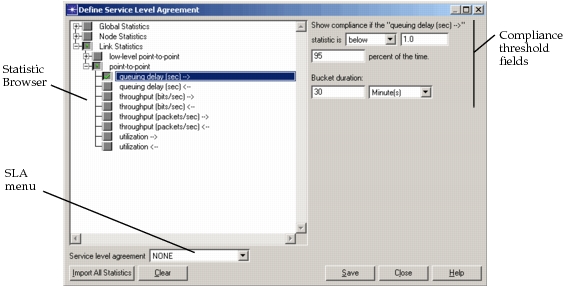
The Define Service Level Agreement dialog box has the following components:
-
Statistic Browser – Select the statistic to be included in the SLA. By default, this windows displays all available statistics for the current scenario. Clicking Clear deselects all statistics and resets the Statistic Browser to the top-level treeview. Clicking Import All Statistics displays statistics for all models listed in your “mod_dirs” preference.
Note: The Import All Statistics operation could take five minutes or more, depending on the extent of your model directories.
-
Service Level Agreement menu – To edit an existing SLA, select it from this menu.
-
Compliance Threshold fields – Specify the values for the selected statistic that define the compliance threshold.
-
-
Select a statistic in the Statistic Browser and define a threshold compliance.
In the example, the system is in compliance if FTP Download Response Time is below 0.5 seconds 95 percent of each hour (in simulation time). This means that an SLA violation will be shown if the FTP Download Response Time is above 0.5 seconds more than five percent of each hour.
An SLA can include thresholds for multiple statistics. To view a statistic’s compliance, select it in the Statistic Browser. You must set each statistic’s threshold individually; if you select multiple statistics and set a threshold, the threshold applies only to the last statistic you selected.
If a statistic has a bucket-capture mode set to time average, sum/time, or count, the SLA measures compliance for the entire simulation run. For all other statistics, the total simulation run is divided into buckets (set by the Bucket Duration: field) and measures compliance for each bucket.
Any statistic with a default bucket mode of time average or sum/time retains its default mode; all other statistics have bucket modes set to summary.
For more information about statistic collection and bucket modes, see Change Collection Mode.
-
Save and close the SLA.
If you need to delete an SLA definition, use the “Delete Model Files” operation. The file type and suffix is “SLA Probe Model (.pbs.m)”.
Information about viewing SLA results is given in Viewing SLA Violations.