Edge Connectivity Wizard
When your network contains sites that are connected by a network in which you do not have the configuration information to maintain IP connectivity throughout your model, you can use the Edge Connectivity Wizard to specify the IP connectivity you want to model.
Key Concept—After you specify the IP connectivity you want to include in your network model, you can save a model assistant file that you can use whenever you import the same network. Make sure you click “Save” in the last step of the wizard to save the model assistant file. You can then add this model assistant file as part of your topology import configuration.
Use the following procedure to add and manage IP connectivity throughout your network model.
Procedure 6: Using the Edge Connectivity Wizard
-
Open the Project Scenario where you want to add IP connectivity.
-
Choose Topology > Open Edge Connectivity Wizard.
Result: The Welcome screen opens.
-
Click Continue.
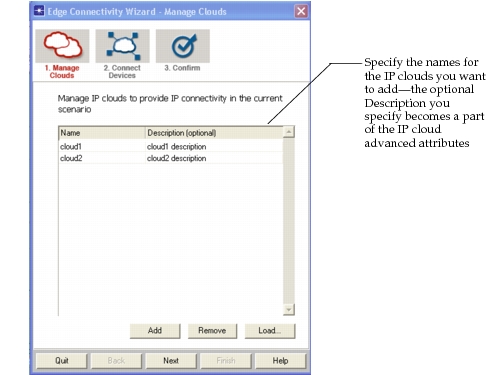
Figure 45: Step 1—Manage Clouds
-
Click Next.
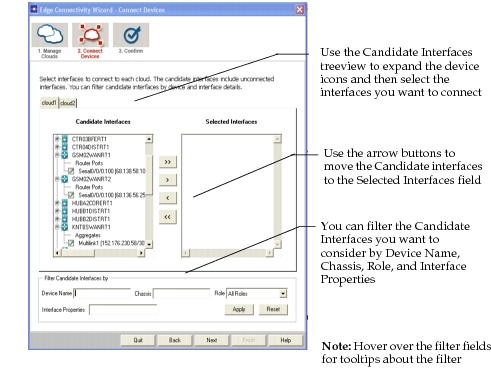
Figure 46: Step 2—Connect Devices
-
Click Next.
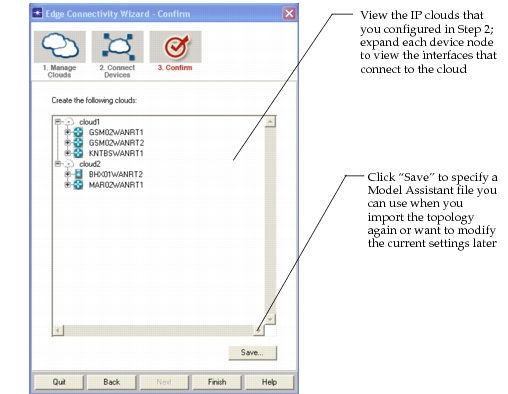
Figure 47: Step 3—Confirm
-
Click “Save” to create a Model Assistant file that you can use later to import the current network model and re-use the IP connectivity.
-
Click “Finish” to add the IP clouds to the current scenario.