Configuring a Simulation
The Configure/Run Discrete Event Simulation operations let you set the values of simulation attributes and control how a simulation runs. Initially, all simulation parameters (such as duration and random number seed) are set to default values by the scenario. You can use these default values or set them yourself prior to running a simulation.
There are three ways to configure a simulation. When you first open a simulation sequence, the method used depends on the value of the “des.configuration_mode” preference, as follows:
-
If the preference value is “simple” or “detailed”, a simple or detailed version of the Configure/Run DES dialog box appears.
The simple Configure/Run DES dialog box presents a reduced set of controls for configuring a simulation; it lets you configure only one simulation run at a time. The detailed dialog box presents a full set of controls and lets you configure multiple runs for a simulation set.
-
If the preference value is “advanced”, the Simulation Sequence Editor opens.
The Simulation Sequence Editor gives you full control over all simulation sets in the sequence, letting you edit each one and select which simulation runs to execute.
The default value of the des.configuration_mode preference is detailed. You can temporarily switch between the simple and detailed modes, or from the detailed to advanced mode, by clicking a button in the Configure/Run DES dialog box.
If a simulation was previously configured in a higher mode and its configuration is incompatible with the current configuration mode, the simulation is opened automatically in a higher mode. For example, a simulation configured with multiple runs opens in the detailed Configure/Run DES dialog box, even if the configuration mode is “simple”.
The following table lists the maximum configuration allowed for each configuration mode.
Table 73: Simulation Sequence Limits for Using Configuration Modes
| To Use This Configuration Mode: | The Simulation Sequence Must Contain No More Than: |
|---|---|
| simple | 1 simulation set with 1 simulation run (the run must be enabled for execution) |
| detailed | 1 simulation set (any number of runs; all runs must be enabled for execution) |
| advanced | <no limits> |
Follow one of these procedures to configure a simulation.
- Simple mode – Procedure 180
- Detailed mode – Procedure 181
- Advanced mode – Procedure 182
Procedure 180: Configuring a Discrete Event Simulation in Simple Mode
-
Choose DES > Configure/Run Discrete Event Simulation…
The simple Configure/Run DES dialog box opens. See Configure/Run DES Dialog Box (Simple) for a description of this dialog box.
-
Set the “Duration” and “Values per statistic” attributes to the desired values.
Note: Click the Help button in the dialog box for a description of the dialog box controls.
-
If you need to set values for additional attributes, select the desired page and set the necessary values.
-
Click Apply to save the configuration changes. Changes affect only the current scenario. (To save changes and immediately run the simulation, click Run.)
Procedure 181: Configuring a Discrete Event Simulation in Detailed Mode
-
Choose DES > Configure/Run Discrete Event Simulation…
The detailed Configure/Run DES dialog box opens. See Configure/Run DES Dialog Box (Detailed) for a description of this dialog box.
-
Set the Common page attributes to the desired values.
Note: Click the Help button in the dialog box for a description of the dialog box controls.
-
If you need to set values for additional attributes, select the desired page in the treeview and set the necessary values.
-
Click Apply to save the configuration changes. Changes affect all runs in the current scenario only. (To save changes and immediately run the simulation, click Run.)
Procedure 182: Configuring a Discrete Event Simulation in Advanced Mode
-
Choose DES > Configure/Run Discrete Event Simulation…
Note: If the “des.configuration_mode” preference is not set to Advanced, choose DES > Configure/Run Discrete Event Simulation (Advanced).
The Simulation Sequence Editor opens.
-
Right-click on the simulation set you want to edit and choose Edit Attributes from the pop-up menu.
The Simulation Set dialog box (an enhanced version of the detailed Configure/Run DES dialog box) opens. See Configure/Run DES Dialog Box (Detailed) for a description of this dialog box.
-
Set the Common page attributes to the desired values.
Note: Click the Help button in the dialog box for a description of the dialog box controls.
-
If you need to set values for additional attributes, select the desired page in the treeview and set the necessary values.
-
Click OK to save the configuration changes.
-
If desired, repeat steps 2–5 to edit other simulation sets.
See Chapter 16 “Simulation Sequence Editor” on page 579 for information about creating additional simulation sets or selecting runs for simulation.
Configure/Run DES Dialog Box (Simple)
The Configure/Run DES dialog box lets you configure and run a discrete event simulation for the current scenario. The simple version of the dialog box, (shown in the following figure), which appears when the DES configuration mode is set to “simple”, presents a reduced set of controls to simplify configuration and execution of discrete event simulations. Only single simulation runs are supported.
Figure 157: Configure/Run DES Dialog Box (Simple)
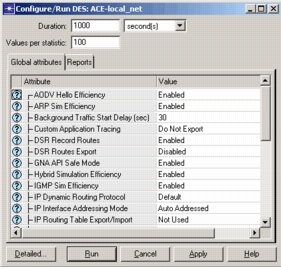
The simple Configure/Run DES dialog box has two pages of controls. These controls are organized by type and can be selected by clicking the corresponding tab. The following table lists the controls in this dialog box.
Table 74: Controls in the Configure/Run DES Dialog Box (Simple)
| Element | Description |
|---|---|
| Basic controls | Duration field – Sets the duration of the simulation. Specify units with the pull-down menu following this field. This value sets the “duration” simulation preference. Values per statistic field – Sets the maximum number of values collected for each statistic. This value sets the “num_collect_values” simulation preference. |
| Global Attributes page | Use this page to define the values of global simulation attributes. This page is similar to the Global Attributes page – Used to define the values of global simulation attributes for the simulation. seen in Detailed mode, except that you cannot set multiple values for an attribute or automatically reset the default value. |
| Reports page | Use this page to select Statistic reports and Service Level Agreement (SLA) reports for the simulation. Reports are predefined sets of statistic probes. This page is identical to the Configure/Run DES Dialog Box (Detailed)—Report Controls seen in Detailed mode. |
| Dialog box controls | Detailed… button – Switches temporarily to detailed mode and the detailed Configure/Run DES dialog box, as described in Configure/Run DES Dialog Box (Detailed). (This button does not change the “des.configuration_mode” preference.) Run button – Saves the current settings, closes the dialog box, and runs the simulation. Running a simulation from here opens the Simulation Execution Dialog Box. Cancel button – Closes the dialog box without saving any changed settings. Apply button – Saves the current settings and keeps the dialog box open. Help button – Opens a help file for the dialog box. |
Configure/Run DES Dialog Box (Detailed)
The Configure/Run DES dialog box lets you configure and run a discrete event simulation for the current scenario. The detailed version of this dialog box, which appears when the DES configuration mode is set to “detailed”, presents a full set of controls for configuration and execution of discrete event simulations. Both single and multiple runs are supported.
Note: The Simulation Sequence Editor uses this dialog box, slightly modified, to edit simulation set attributes in the advanced configuration mode. In this context, it is called the Simulation Set dialog box.
Figure 158: Configure/Run DES Dialog Box (Detailed)
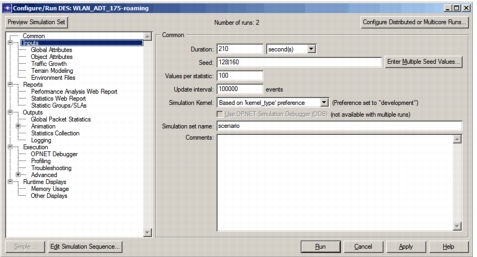
The detailed Configure/Run DES dialog box has multiple pages of controls. These controls are organized by type and can be selected from the treeview in the left-hand pane. Basic controls for a discrete event simulation appear on the Common page (shown in Figure 158). Click the Help button in the Configure/Run DES dialog box for details about each page.
The remaining control pages are described in the following topics:
- Configure/Run DES Dialog Box (Detailed)—Input Controls
- Configure/Run DES Dialog Box (Detailed)—Report Controls
- Configure/Run DES Dialog Box (Detailed)—Output Controls
- Configure/Run DES Dialog Box (Detailed)—Execution Controls
- Configure/Run DES Dialog Box (Detailed)—Runtime Display Controls
The controls at the top and bottom of the detailed Configure/Run DES dialog box appear on every page. The following table lists these shared controls.
Table 75: Shared Controls in the Configure/Run DES Dialog Box (Detailed)
| These controls are available in both Detailed and Advanced modes: - Preview Simulation Set button – Opens a window showing the simulation invocation, contents of the environment file, and any varying attribute values that will be used for the simulation runs being configured. - Number of runs label – Shows the number of simulation runs to be executed. This number depends on the number of multiple seed values, multiple attribute values, and traffic growth iterations. The total number of runs is equal to the product of the number of values for each. If all have a single value, only one simulation run is executed. - Configure Distributed or Multicore Runs… button – Opens a window for configuring how multiple runs will be executed. Disabled unless number of runs is greater than 1. - Cancel button – Closes the dialog box without saving any changed settings. - Help button – Opens a help file for the dialog box. |
| These buttons are available only in Detailed configuration mode: - Simple… button – Switches temporarily to simple mode and the simple Configure/Run DES dialog box, as described in Configure/Run DES Dialog Box (Simple). Simple mode is available only when the simulation sequence has a single simulation set with a single selected run. (This button does not change the “des.configuration_mode” preference.) - Edit Simulation Sequence… button – Switches temporarily to advanced mode and the Simulation Sequence Editor, as described in Chapter 16 “Simulation Sequence Editor” on page 579. Advanced mode lets you create additional simulation sets and choose a subset of runs within a set for execution. (This button does not change the “des.configuration_mode” preference.) - Run button – Saves the current settings, closes the dialog box, and runs the simulation. Running a simulation from here opens either the Simulation Progress Dialog Box (for single runs) or the DES Execution Manager (for multiple runs). - Apply button – Saves the current settings and keeps the dialog box open. |
| This button is available only in Advanced configuration mode: - OK button – Saves the current settings and closes the dialog box. (The simulation does not run.) |
Configure/Run DES Dialog Box (Detailed)—Input Controls
The input control pages let you configure various inputs to a discrete event simulation.
-
Global Attributes page – Used to define the values of global simulation attributes for the simulation.
The global attribute table displays names and assigned values of all simulation attributes declared by models involved in the scenario to be simulated. Click on the question mark in the first column of a row to see information about the attribute in that row. Click on an attribute value to edit the value.
-
Object Attributes page – Used to define the values of object attributes for the simulation, including multiple values for parametric studies.
The object attribute table displays all promoted network-object attributes that have values assigned to them. Click on the question mark in the first column of a row to see information about the attribute in that row. Click on an attribute value to edit the value.
-
Traffic Growth page – Used to define a set of simulations with increasing traffic levels in each simulation.
Traffic growth is useful for predicting network behavior as traffic increases over time, because you do not need to duplicate a scenario or manually scale network traffic. For example, you can evaluate when service level agreements (SLAs) might start to fail by setting traffic growth on this page and selecting one or more SLA reports on the Reports page. See Types of Traffic Growth for more information.
-
Terrain Modeling page – Use this page in conjunction with the Wireless and Terrain Modeling functionality to configure the use of terrain data in path-loss calculations.
-
Environment Files page – Used to choose the set of environment (
.ef) files to be parsed by the simulation.Environment files are text files used to set simulation options or values for promoted attributes. This page displays a list of all environment files found in the directories specified by the “mod_dirs” preference. Each selected value is added to the “ef” simulation preference.
Configure/Run DES Dialog Box (Detailed)—Report Controls
The report control pages let you configure various reports to be generated at the end of a discrete event simulation.
-
Performance Analysis Web Report page – Used to specify a Performance Analysis Web Report to be generated at the end of a simulation.
-
Statistics Web Report page – Used to specify that a Statistics Web Report should be generated at the end of a simulation. The generated report will be based on the reports defined on the Statistics Groups/SLAs page.
-
Statistic Groups/SLAs page – Used to specify statistics and service level agreement reports to be collected during a simulation. This page displays lists of all defined statistics reports and SLAs. You can select one or more of these reports, which cause the simulation to collect data for the reports. You also can define new reports and specify whether web reports should be generated automatically when the simulation is complete.
Configure/Run DES Dialog Box (Detailed)—Output Controls
The output control pages let you configure various outputs of a discrete event simulation.
-
Global Packet Statistics page – Used to set options for collecting statistics on packets generated by the simulation. See Global Packet Statistics for details.
-
Animation: 2D page – Used to set options for displaying and saving two-dimensional (2D) animation generated by the simulation. For details about 2D animation, see Animation.
-
Animation: 3D page – Used to set options for generating a three-dimensional (3D) representation of some network elements. 3D representations require 3DNV functionality and an available 3D Sim license. For more information about 3D animation, see "Introduction to 3D Network Visualizer" on page 67.
-
Statistics Collection page – Used to define a time window for collecting statistics and to specify how statistics are saved by the simulation.
-
Logging page – Use this page to enable and configure the discrete event simulation log.
Configure/Run DES Dialog Box (Detailed)—Execution Controls
The execution control pages let you configure the behavior of a discrete event simulation.
- OPNET Debugger page – Used to configure the Simulation Debugger.
- Profiling page – Used to control generation of run-time profiling information.
- Troubleshooting page – Used to control various execution preferences to help troubleshoot execution problems.
- Checkpoint page – Used to control generation of run-time checkpoints (Linux only). For details about using checkpoints to restart discrete event simulations, see Checkpoints.
- Advanced: Application page – Used to configure the simulation program used to execute the simulation.
- Advanced: Kernel Type page – Used to choose a simulation kernel to be used with the simulation.
- Advanced: Kernel Preferences page – Used to configure the behavior of the simulation kernel.
- Advanced: Kernel Reports page – Used to select simulation kernel reports to be generated for the simulation.
- Advanced: Compilation page – Used to review and modify the global compilation preferences.
- Advanced: Linking page – Used to review and modify the global linking preferences.
Configure/Run DES Dialog Box (Detailed)—Runtime Display Controls
The runtime display control pages let you configure the information displayed during execution of a discrete event simulation.
- Memory Usage page – Used to control what memory usage information is available in the Simulation Progress dialog box.
- Other Displays page – Used to control what information is displayed in the Simulation Progress dialog box.