Working with Report Templates
A Performance Analysis web report template describes the analyses and layouts used to generate a specific type of Performance Analysis web report. You can create new templates from scratch or customize existing templates.
Defining a Performance Analysis Web Report Template
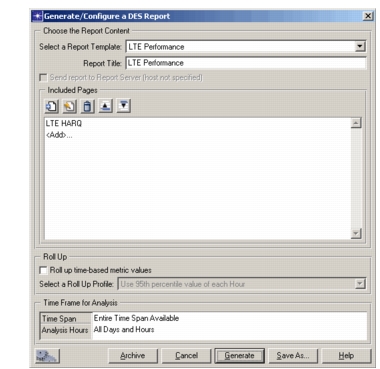
The Generate/Configure a DES Report dialog box lets you define a new Performance Analysis web report template or customize an existing one. You can save the report for automatic generation after a simulation or generate the report immediately using the most recent simulation results. You can also archive the report to save your customizations for sharing with others.
When defining a Performance Analysis web report template, begin by planning what information to show and how to organize it. It is often easier to start with an existing template and customize it to meet your needs
Procedure 156: Configuring a Performance Analysis Web Report
-
Do one of the following:
- Choose DES > Reports > Performance Analysis Web Report > Create Performance Analysis Web Report…
- Click the Edit Template… button on the Reports: Performance Analysis Web Report page of the detailed Configure/Run DES dialog box.
The Generate/Configure a DES Report dialog box opens. (This might be called Configure a DES Report, depending on how you open it.)
-
Select one of the available report templates.
-
Specify a title for the report you are configuring.
-
(Requires Riverbed Report Server functionality) Select whether you want the report sent to Riverbed Report Server.
-
(Optional) Modify the content or layout of the report (see Customizing a Performance Analysis Web Report Template).
-
Keep the default settings for Roll Up and Time Frame for Analysis.
-
When finished, you can use one or more of these buttons:
- Click Generate to generate the defined report immediately, using data from the last simulation run.
- Click Save As… to save your modified template for later use (for example, when configuring a simulation).
- Click Archive to store all files associated with the report template (see Archiving a Performance Analysis Web Report Template).
- (Requires Automation functionality) Click the Automation button (
 ) to save the report template settings for use in an automation task (see the “Automation” User Guide).
Deleting a Performance Analysis Web Report Template
If you need to delete a report template, use the “Delete Model Files” operation. The file type and suffix is “DES Report Template (.des.xrt)”.
Managing the Pages in a Report
The Included Pages area of the Generate/Configure a DES Report dialog box lets you control the high-level content and organization of a report. You can add or remove, customize, and change the sequence of pages.
Figure 130: Managing Pages
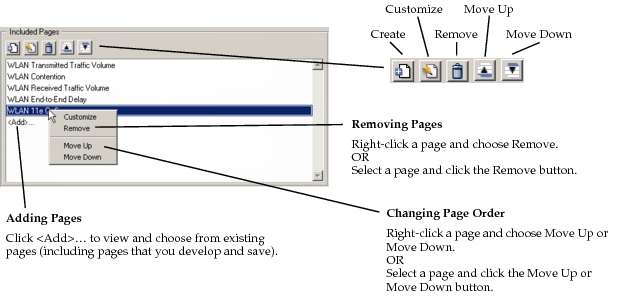
To develop a new page or customize an existing page by changing its entries, display profiles, or tabs, see Creating or Customizing a Page.