Cutting, Copying, and Pasting Connected Objects
The Cut, Copy, and Paste commands allow you to move and copy selected objects in the Project Editor workspace. You should keep in mind that when you paste connected nodes from the clipboard, you are pasting (that is, redefining) the connecting links, demands and paths as well. (Demands and paths are used for defining traffic and are discussed in detail in Chapter 5 “Modeling Network Traffic” on page 1.)
When a node or subnetwork is connected to another object by one or more links, paths, or demands, pasting the object is a multi-step process:
- Paste the selected node/subnetwork object(s) into the Project Editor workspace.
- Paste (redefine) any connecting links from the clipboard.
- Paste (redefine) any connecting paths from the clipboard.
- Paste (redefine) any connecting demands from the clipboard.
Note: If you cut or copy a node or subnetwork that is connected to a path, the path is copied to the clipboard only if the selected object is the head or tail site in the path. If you cut one or more intermediate nodes/subnets/links, these objects are removed from existing paths and you are prompted for whether you want to cancel the operation. If you proceed, only the selected sites and their connecting links are removed from the model.
Consider the following example. In this topology, the center router (rtr_paste) is connected to its neighbors by
- Three links (to routers A, C and D)
- Two paths (path A, to router D; and path B, to routers A, B, and C)
- Two demands (from router B and to router C)
Figure 28: Example Topology with Links, Paths and Demands
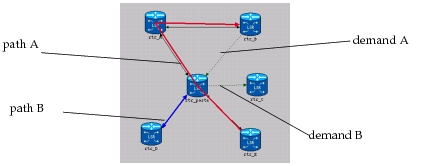
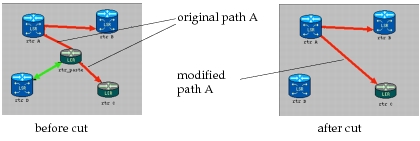
When we cut the router, it moves seven objects into the clipboard: the router, the three connecting links, path B, and the two demands. rtr_paste isn’t a head or tail for path A; therefore, this path is modified rather than cut and moved to the clipboard. (A warning dialog box appears before this occurs, so you can cancel the operation if you want.)
Figure 29: Example Path Before and After Cut Operation
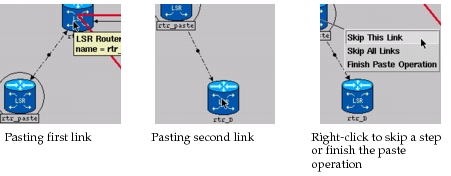
After we paste the node back into the workspace, we immediately enter link-definition mode. Note that you can check the status bar to see the current status of your paste operation. Note also that you can skip a step in the paste process, or finish the paste operation entirely, by right-clicking and choosing the appropriate option in the pop-up menu. In this example, we’ll skip pasting the third link.
Figure 30: Paste Example: Links
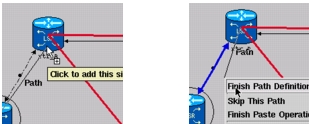
Now we automatically enter path-definition mode for path B, which was copied to the clipboard. We connect the path, right-click, and choose Finish Path Definition from the pop-up menu.
Figure 31: Paste Example: Paths
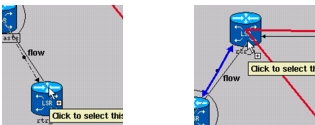
Now that we have pasted the node (step 1), links (step 2) and paths (step 3) from the clipboard, we automatically enter demand-definition mode (step 4). Since the original router had two connected flows, we now paste these demand objects. Note that both pasted demands specify the new node as the traffic source.
Figure 32: Paste Example: Demands
The following table lists the different behaviors to expect when you cut, copy and paste connected objects.
Table 18: Cut, Copy, and Paste Behavior for Connected Objects
| Selected | Cut/Copy | Paste |
|---|---|---|
| Node and link Node and flow |
Node and connector (link or flow) are copied to clipboard | 1) Paste node 2) Define link or demand |
| Link only Demand only Path only |
Connector is copied to clipboard | Define connector |
| Multiple nodes and all connecting links/demands Path and all attached links/sites |
Entire selection set is cut/copied to clipboard | 1) Paste nodes/subnets 2) Define links 3) Define demand 4) Define paths |
| Head or tail site in path | Node, connecting links, demand (if any) and connecting path are cut/copied to clipboard | 1) Paste nodes/subnets 2) Define links 3) Define demands 4) Define paths |
| Intermediate sites (with links and/or demands attached) in path | COPY: Selected nodes, links and demands (without attached path(s)) copied to clipboard CUT: If the Cut operation causes any existing paths to be changed, a dialog box asks if you want to proceed. When you proceed with the operation, the selected links and sites (without attached path(s)) are removed from the network and copied to the clipboard |
1) Paste nodes/subnets 2) Define links 3) Define demands 4) Define paths |