Find in Models…
This operation lets you search user models, Standard Library models, or both for a specified search string. In the Project Editor, you can also limit the search to models in the current scenario. The search string—which can be plain text or a regular expression—is used to find various kinds of text, such as source code, statistic names, and attribute values. Model search is available in all editors, various dialog boxes (such as the Simulation Progress dialog box), and the built-in text editor.
Procedure 35: Finding a Text String in Models
-
Choose Edit > Find in Models… (in an editor) or click the Find in Models button (in a supported dialog box).
Note: In the Simulation Progress dialog box, you can select text from a progress message before clicking Find in Models and the selected text will be entered automatically as the search string.
Result: The Find in Models dialog box opens.
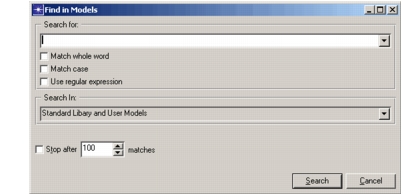
Figure 21: Find in Models Dialog Box
-
Define the search parameters:
-
Enter the search string.
-
(Optional) Select how the search string should be used:
- Match whole word
- Match case
- Use regular expression
-
Specify the search domain:
- Current Scenario (available in Project Editor only)
- User Models
- Standard Model Library
- Standard Library and User Models
-
(Optional) Specify whether the search should stop automatically after some number of matches. (You can manually stop a search at any time.)
-
-
Click Search.
Result: A dialog box opens to indicate the progress of the search.
-
Wait for the search to complete, or click Finish to stop the search and display all matches up to that time.
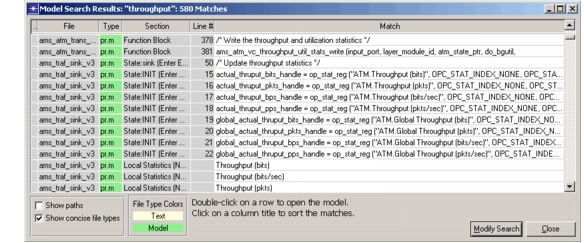
Result: The Model Search Results dialog box opens.
Figure 22: Model Search Results Dialog Box
-
Examine the results. Then do one of the following:
- Double-click a row to open the model containing a match.
- Click Modify Search to go back and change the search parameters.
- Click Close.