Preferences
There are many preferences that you can set to define variables, defaults, functionality, and system behavior. For your convenience, preferences are organized into categories, which make it easier to identify and locate specific preferences. Additionally, you can create your own categories for preferences that you frequently set.
This section includes the following topics:
For more information, see "Preferences" on page 30.
Understanding Preferences
The Preferences dialog box, which opens when you choose Edit > Preferences, is used to set preferences. A typical Preferences dialog box is shown in the following figure.
Figure 24: Preferences Dialog Box
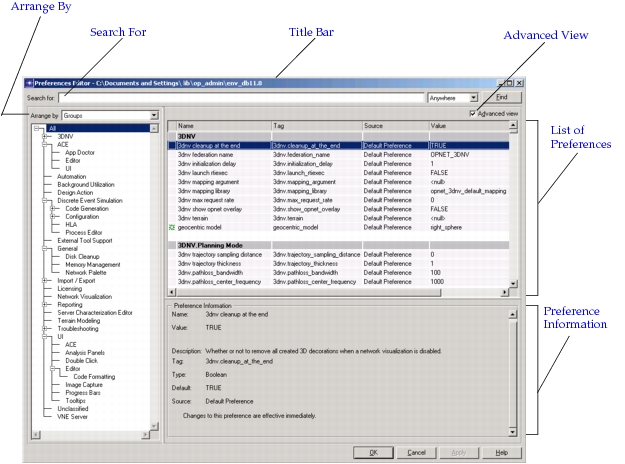
Table 14: Preferences Dialog Box Features
| Feature | Description |
|---|---|
| Title Bar | Displays the path to your configuration file. For more information, see Source. |
| Search For | Enables you to search for preferences. For more information, see Searching for Preferences. |
| Arrange By | Enables you to display preferences by category: Group or Source. For more information, see Arranging Preferences by Group or Source. |
| List of Preferences | Displays preferences by group. Display of preferences include name, value, description, tag, type, and default. For more information, see Preference Information. The first column incudes symbols to denote preference characteristics. For more information, see Preference Symbols. Click on a column to sort the preference list. For more information, see Sorting Preferences. Right-click on a column or cell to copy information and hide/display columns. For more information, see Preferences Dialog Box Right-Click Options (Column Value or Label). |
| Advanced View | Toggles the display of the advanced view. For more information, see Displaying Advanced Preference Information. |
| Preference Information | Displays information for the selected preference. For more information, see Preference Information. |
For your convenience, preferences are categorized into groups, making preferences easier to find and set.
A preference is a set of information that defines a variable, a default, functionality, or system behavior. Each preference includes the following information:
Table 15: Preference Information
| Preference Information | Description |
|---|---|
| Name | Specifies a "user-friendly" name. The "user-friendly" name is used to identify and locate a preference. |
| Value | Specifies the current setting of the preference. |
| Description | Describes the purpose of the preference. |
| Tag | Specifies the "technical" name. The "technical" name is used by advanced users for troubleshooting and customizing Riverbed Modeler software. |
| Type | Specifies the type of value used to set the preference. Common types are integer, string, and boolean. |
| Default | Specifies the default value of the preference. The default value is the value set during installation of Riverbed Modeler. |
| Source | Specifies where the preference value was obtained: • User Config File – Preferences read in from the user-specific configuration file located in the op_admin directory. This file is usually named opnet-<rel>.prefs. (The name and location of the file is displayed in the title bar of the Preferences dialog box.)Note: When the configuration file is first created (i.e., upon installation), preferences are grouped by function and commented. After being edited, the file is rewritten as a simple alphabetical list of preferences. Comments are deleted. • Environment Variable – Contains preferences read in from environment variables. • Command Line – Preferences that were specified as command-line options to this product. • Default Preference – These preferences get their values from the software product (i.e., the values have not been overridden by another source.) • Standard Input – Dynamically created preferences that were initialized by the user using the standard input. • Registry – Preferences read in from the Windows registry. • Forced – Simulation related preferences that have been set programmatically. • Changed Pref – Preferences that have been modified in this editing session. • System Config File – Preferences read in from system-wide or user-specific configuration files (files having a .ef extension.) • Parameters File – Preferences read in from the special preferences file opnet.params located in the product's directory.When a value is changed, the corresponding source value displays as "Changed Preference" until the value is saved. To reset the value, click on "Changed Preference" and choose <no change> (in advanced view). |
Note: Throughout the documentation, all references to preferences are by the technical name (tag).
For more information, see Setting Preferences.
Setting Preferences
The following procedure describes setting preference values.
Procedure 38: Setting Preference Values
-
Choose Edit > Preferences.
Result: The Preferences Dialog Box appears.
For more information, see Figure 24 Preferences Dialog Box.
-
Identify/locate the preference that you want to set.
For more information, see:
-
Click on the Value corresponding to the preferences that you want to set.
Result: A pull-down menu of valid values and/or options appears.
-
Select a value or option:
- For preferences with defined values (such as TRUE and FALSE), select a value.
- For preferences with open values, choose Edit… and enter a value.
- For preferences whose values are a list, edit the list in the dialog box that appears.
- For passwords, and Edit Passwords dialog box appears. Enter the password twice.
-
Do one of the following:
- Click Apply to apply changed settings.
- Click OK to apply change settings and close the dialog box.
The values for most preferences are effective after saving the change. However, some preferences, as identified in the Preferences Dialog Box, cannot be changed or require you to restart Modeler before the changed value takes effect. These preferences are identified with the following symbols:
Table 16: Preference Symbols
| Symbol | Description |
|---|---|
 Asterisk |
Changes to the preference are effective after restarting Modeler. |
 Lock |
Changes to the preference can only be made at the command line. To change the value of command-line-only preferences, specify the preference as a command-line flag when invoking Modeler. |
For more information, see Understanding Preferences.
Searching for Preferences
Use the search capability of the Preferences Dialog Box to locate and identify preferences.
Procedure 39: Searching for Preferences
-
In the Preferences dialog box, specify the search criteria.
-
In the "Search for" field, enter that text for which you want to search.
Note: The system searches for words or values containing the specified text in whole or in part. In other words, a wildcard search is assumed.
-
From the search scope pull-down menu, select the preference information to include in the search:
- Anywhere – Specifies to search Tags, Names, and Values.
- In Names – Specifies to search Tags and Names only.
- In Values – Specifies to search Values only.
For more information, see Preference Information.
-
-
Click Find.
Result: The search results are displayed in the Preferences dialog box.
For more information, see Setting Preferences.
Arranging Preferences by Group or Source
Use the "arrange by" capability of the Preferences Dialog Box to locate and identify preferences.
Procedure 40: Arranging Preferences by Group or Source
-
In the Preferences dialog box, select an arrange by option from the "Arrange by" pull-down menu:
- Groups – Specifies to arrange preferences by group.
- Source – Specifies to arrange preferences by source.
For more information, see Preference Information.
Result: A hierarchical tree of groups/sources appears.
-
Select the group/source to display the associated preferences in the Preferences dialog box. If defined, select subcategories to refine the list of preferences.
For more information, see Setting Preferences.
Sorting Preferences
When reviewing preferences in the Preferences Dialog Box, you can sort the preferences within groups by Name, Tag, or Source. For more information, see Preference Information.
Procedure 41: Sorting Preferences
-
In the Preferences dialog box, click on the field label by which you want to sort and select "Sort_By".
Choose one of the following field labels:
- Name
- Tag
- Source
Note: The Source field is displayed in the advanced view of preferences. For more information, see Displaying Advanced Preference Information.
Result: The list of preferences is sorted alphabetically by the selected
For more information, see Setting Preferences.
Displaying Advanced Preference Information
By default, preferences listed in the Preferences Dialog Box include preference name and value. However, advanced users may need additional information displayed in the Advanced view, including name, tag, source, and value. For more information, see Preference Information.
Procedure 42: Displaying Advanced Preference Information
-
Select the Advanced view checkbox.
Result: The list of preferences includes Name, Tag, Source, Value.
Unselect the Advanced view checkbox to return to standard view.
For more information, see Setting Preferences.
Preferences Dialog Box Right-Click Options (Column Value or Label)
The Preferences Dialog Box includes numerous options when you right-click on a column value or label. The following table lists the right-click menu options.
Table 17: Preferences Dialog Box Right-Click Options (Column Value or Label)
| Right-click Option | Description |
|---|---|
| Copy Table to Clipboard | Copies the list of preference information to the clipboard. This option is useful when you want to document or share your preference settings. |
| Copy Cell to Clipboard | Copies the preference information from the selected cell. |
| Copy Column to Clipboard | Copies the preferences information from the selected column. |
| Hide Column | Hides the selected column. |
| Restore All Columns | Restores all hidden columns. Note: Selecting this option when in standard view, displays columns shown in the advanced view. For more information, see Displaying Advanced Preference Information. |
| Exclude Matching Columns | |
| Keep Matching Columns | |
| Write (Right-click on "Changed" value in Source column.) |
Saves the changed value to the source. For more information, see Preference Information. |
For more information, see Setting Preferences.