XML<=>Binary Model Conversion
Riverbed Modeler can perform bulk conversion of model files between XML and binary (.m) forms. Binary model files are shipped with Modeler and are required when compiling models or running discrete event simulations. XML model files typically are used with configuration management systems for version control.
XML<=>binary conversion is supported for unlicensed process, link, path, demand, wireless domain, packet format, ICI, and node models. When you do a model conversion, the Modeler license you are using is reserved for your use for two hours and is not available to other users.
Model Editors and XML Model Files
Modeler’s model editors (such as the Process Editor) can open and save model files in both binary and XML form. This provides seamless behavior regardless of whether you are using version control. The model editors handle binary and XML files as follows:
-
If both binary and XML versions of a model exist, model editors open the XML file.
Exception: If the binary file has a more recent timestamp than the XML file, the binary file is opened and a warning is displayed. For details, see Effect of Mismatched Timestamps for Binary and XML Model Files.
-
When saving a model that was opened for editing, model editors save both binary and XML versions if XML is being used; otherwise, they save a binary file only. When both binary and XML files are saved, they receive identical timestamps.
-
When saving a newly created model, model editors save a binary file only. To save both binary and XML versions of new models, you must set the save_new_model_as_xml preference to TRUE.
Converting Binary Model Files to XML Form
Use this procedure to generate XML versions of model files stored in binary (.m) format.
Procedure 30: Converting Binary Model Files to XML Form
-
Choose File > Manage Model Files > Convert Binary Models to XML Form…
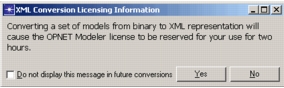
Result: Unless the message has been disabled, you will see a licensing information dialog box.
Result: If the message appears, click the Yes button to continue.
Result: The Convert Binary Models to XML Form dialog box opens. Initially, all binary models of supported types with either no XML version or with an older XML version are selected for conversion.
Note: Use the skip_xml_bin_licensing_notification preference to enable a disabled licensing information message.
-
If you do not want to convert all of the selected models, limit the selection as follows:
- Use the “Convertible model types” treeview to select the model types to consider.
- Use the “Convertible model files” treeview to select the model files to convert. This treeview lists all binary files of the selected model types. You can use the Sort files pull-down menu to arrange the files within each folder. Information about each file appears in the table to the right of the file name.
-
When the desired models are selected, click the OK button to begin the conversion.
Result: A progress dialog reports the status of the conversion. When the conversion is complete, a status dialog reports the name of each converted file and the name and reason for failure of any file that was not converted.
Converting XML Model Files to Binary Form
Use this procedure to generate binary (.m) versions of model files stored in XML format.
Procedure 31: Converting XML Model Files to Binary Form
-
Choose File > Manage Model Files > Convert XML Models to Binary Form…
Result: Unless the message has been disabled, you will see a licensing information dialog box. If the message appears, click the Yes button to continue.
Result: The Convert XML Models to Binary Form dialog box opens. Initially, all XML models of supported types with either no binary version or with an older binary version are selected for conversion.
-
If you do not want to convert all of the selected models, limit the selection as follows:
- Use the “Convertible model types” treeview to select the model types to consider.
- Use the “Convertible model files” treeview to select the model files to convert. This treeview lists all binary files of the selected model types. You can use the Sort files pull-down menu to arrange the files within each folder. Information about each file appears in the table to the right of the file name.
-
When the desired models are selected, click the OK button to begin the conversion.
Result: A progress dialog reports the status of the conversion. When the conversion is complete, a status dialog reports the name of each converted file and the name and reason for failure of any file that was not converted.
Preferences for XML/Binary Model Conversion
Save New Model Using XML Representation
Specifies whether newly created models should be saved in both XML and binary formats. When TRUE, both formats are generated (if XML is supported for the model type).
| Tag | Data Type | Default Value |
|---|---|---|
save_new_model_as_xml |
boolean | FALSE |
Skip Notification Message Before XML/Binary Model Conversion
Specifies whether a licensing information message should be displayed before model files are converted between XML and binary forms. When TRUE, the message is not displayed.
Figure 19: Licensing Information Dialog Box
| Tag | Data Type | Default Value |
|---|---|---|
skip_xml_bin_licensing_notification |
boolean | FALSE |
XML Conversion Destination Newer Color
Specifies the color used to indicate that the file to generate exists and is newer than the one being converted.
| Tag | Data Type | Default Value |
|---|---|---|
xml_conv_dest_newer_color |
color | #FFAAAA  |
XML Conversion Destination Older Color
Specifies the color used to indicate that the file to generate exists and is older than the one being converted.
| Tag | Data Type | Default Value |
|---|---|---|
xml_conv_dest_older_color |
color | #FFFF77  |
XML Conversion Tree Potential Color
Specifies the color used to indicate that a directory tree contains files that might need conversion.
| Tag | Data Type | Default Value |
|---|---|---|
xml_conv_tree_potential_color |
color | #AAFFAA  |
Effect of Mismatched Timestamps for Binary and XML Model Files
A warning appears when a model editor tries to open a model for which the binary file is more recent than the XML version (based on the file timestamps). Because the binary file typically has either the same or an older timestamp than the XML file, this situation indicates a possible violation of version control.
Figure 20: Example Warning When Binary File Is More Recent Than XML File
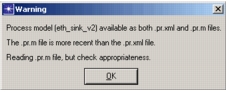
If you expected the binary file to be newer than the XML file, you can proceed to edit the model as normal. When you save it, both XML and binary versions will be generated, with identical timestamps.
If you determine that there is a version problem, do the following:
- Close the model without saving it.
- Manually delete the binary file (or otherwise remove it from your model directories).
- Reopen the model and proceed as normal.