Select Objects…
The Edit > Select Objects operation enables you to find and select objects based on object type, attributes, and other criteria. Logical object selection has two advantages over graphical selection:
-
You can select objects that are not visible in the workspace (that is, objects that are nested within subnetworks).
-
You can specify objects that are always included or always excluded from a set of selected objects. If the same object is specified in both the include and exclude lists, the object is always excluded.
-
You can specify a selection condition that considers object types, attributes, attribute settings, and possibly other characteristics of network objects.
A selection condition is a set of Boolean conditions and operators that specify the criteria used to find and select objects. The Define Selection dialog box has a graphical interface that enables you to create highly customized selection conditions based on your specific needs.
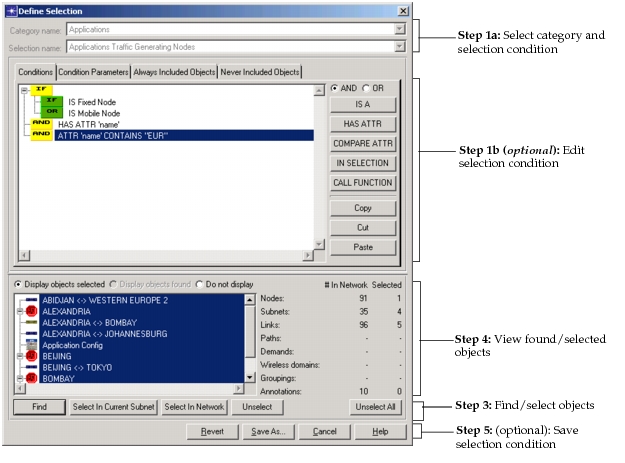
Figure 25: Define Selection Dialog Box
Procedure 43: Finding/Selecting Objects
-
Choose Edit > Select Objects.
Result: The Define Selection dialog box (Figure 25) appears.
-
Specify the selection condition that you want to edit or start from.
Modeler includes an extensive set of predefined conditions. To use a pre-defined condition, set the “Category name” and “Selection name” pull-down menus.
To edit the current selection condition, use the treeview and controls on the right side of the window. For more information, see Editing Selection Conditions.
-
Click Find.
Result: Modeler searches the network scenario; all objects that meet the specified selection condition are included in the set of found objects.
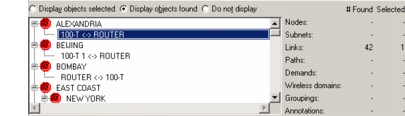
Result: If objects are found, the “Display objects found” radio button is selected and a treeview of all found objects appears in the bottom pane.
-
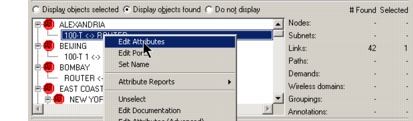
Optionally, examine the list of found objects. Note that you can right-click on any object for a context-sensitive list of operations.
-
If you are satisfied with the search results, click Select in Current Subnet or Select in Network.
Result: The “Display objects selected” radio button is selected, and the network objects are selected (in both the treeview and in the Project Editor workspace). Matching objects are selected in addition to the current selection set.
-
Optionally, save the selection condition in the treeview: click Save As, then specify the category and selection name.
For more information, see: