Paste
This operation puts a copy of objects on the clipboard at a specified location within an editor window. The objects on the clipboard are unaffected and can be pasted repeatedly at different locations or in different editor windows.
Note: You can change the default paste behavior for link objects by using the Paste Special dialog box (Edit > Paste Special).
You can undo the most recent paste operation. See Undo.
Procedure 37: Pasting Objects
-
Choose Edit > Paste or type
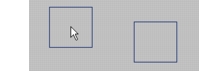
<Control>-v.Result: Outlines of each object on the clipboard appear in the editor window.
-
Move the mouse until the object outlines reach the desired location.
Result: The cursor and outlines follow the mouse’s movement.
-
Click the left mouse button.
Result: The objects are pasted in the specified location and the cursor resumes its usual appearance. If the name of an object being pasted is identical to that of an object in the editor window, a suffix is automatically added or incremented.
-
If the object being pasted had links and you don’t want to reconnect them, right-click to end the link paste operation. The object remains selected until you click elsewhere in the workspace.
-
If the object being pasted had links and you do want to reconnect them, follow these steps:
- Move the cursor to each destination node and click. If you are pasting a subnet or connecting to a subnet, you may need to specify the source and destination nodes to be connected within the subnet.
- Right-click at any time to end the paste operation. The object remains selected until you click elsewhere in the workspace.
-
If the object being pasted had connected paths and you don’t want to reconnect them, right-click in the project workspace and choose Abort Path Definition to end the path paste operation.
-
If the object being pasted had connected paths and you do want to reconnect them, follow these steps for each path:
- Click on the links and nodes you want to include in the redefined path, in accordance with the options defined by the underlying path model.
- When you have finished defining the path, right-click and choose Finish Path Definition from the pop-up menu.
For a detailed description of copying and pasting objects connected by links or paths, see Cutting, Copying, and Pasting Connected Objects.