Editing Selection Conditions
A selection condition specifies a set of Boolean conditions and operators. When you run a find operation, Modeler applies the selection condition to every network object; if the condition returns TRUE for an object, it adds that object to the set of found objects.
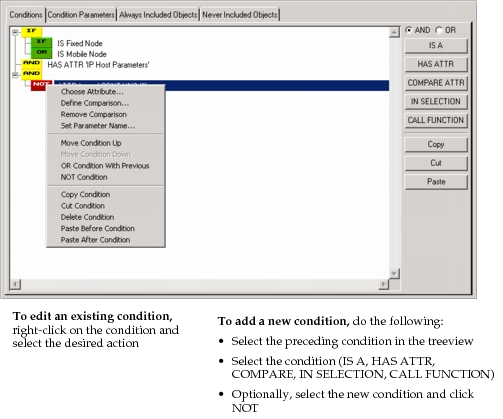
You can edit a selection condition using the treeview and controls in the top half of the Define Selection dialog box.
Figure 26: Editing a Selection Condition
Procedure 44: Editing a Selection Definition
-
Choose Edit > Select Objects.
By default, the initial selection definition has two conditions: “IS any object” and “HAS ATTR name”. This definition will match all network objects.
-
Optionally, set the “Category name” and “Selection name” pull-down menus to select a different initial condition.
-
To add a new condition to the tree:
-
In the treeview, select the condition after which you want to append the new condition. (The new condition will be added immediately after the selected condition.)
-
Click one of the following buttons, depending on the condition you want to add:
-
IS A – The condition is true if the object is of the specified type.
The initial condition matches any object type. Right-click on the new condition to select the desired type.
-
HAS ATTR – The condition is true if the object has the specified attribute.
An attribute chooser appears so you can select the attribute of interest.
-
COMPARE – The condition is true if the object has the specified attribute setting.
First an attribute chooser appears so you can select the attribute of interest.
Then a separate dialog box opens so you can select the type and arguments for the comparison.
-
IN SELECTION – The condition is true if the object passes the specified selection condition. (Use this option to combine the logic of different condition files.)
A dialog box appears so you can select the selection condition.
-
CALL FUNCTION – The condition is true if the object passes the specified Python or C/C++ function.
A dialog box appears so you can select the library and symbol name of the desired function.
-
-
Specify any additional inputs required by the condition (such as object type, attribute name, and attribute setting).
-
Click OK to confirm the input(s) for the specified condition
Result: A new node appears in the treeview.
-
-
To edit an existing condition, right-click on it in the treeview. Each condition type has its own context-sensitive menu. All menus have options for cutting, deleting, copying, and pasting conditions.
-
When you are satisfied with the condition, click Find to test it.
-
Optionally, save the condition by clicking Save As.