Comparing Models
Model comparison lets you compare different versions of a specific model or group of models and see what differences exist between versions. For example, you can compare a new version of a standard model with a customized copy of the previous version to estimate how much work is required to carry the customization forward to the new version.
You can compare the following types of models:
- Protocol models (standard, specialized, and custom)
Note— You must have a valid license to compare licensed models.
- Process models
- Node, link, path, demand, and wireless domain models (base and derived)
- Public attribute definitions
- Probe (including Report and SLA) and Simulation Sequence models
- Packet formats
- ICIs
- Modulation and antenna pattern models
- External system definition (ESD) models
- Probability density function (PDF) models
- Text files (such as .ef, .ets, .ex.c, and .gdf)
The differences that are reported can include:
- Model files that were added, changed, or removed in a directory
- Model properties that were added, changed, or removed
- Changes to node models (modules, connections, and so on)
- Changes to process models (states, transitions, code blocks, and so on)
The model versions to be compared are located in two sets of one or more directories known as the From and To directories. The model version found in the From directories is considered the baseline for the comparison. Differences in the model version from the To directories are reported relative to this baseline. You can identify the two versions being compared by associating descriptions with the From and To directories. The directory sets and version descriptions are saved in preferences (see Preferences for Model Comparison).
Each model comparison run creates a summary file plus one file for each model that was compared. As a result, the output requires approximately as much storage space as the models being compared. The output is placed in the <user_home>\op_admin\tmp directory. HTML reports, if generated, are saved in <user_home>\op_reports.
Comparing Specific Models
Use this procedure to compare two versions of a specific model.
Procedure 23: Comparing Specific Models…
-
Choose File > Compare Against…
Result: The Compare Current Model Dialog Box opens.
-
Enter a textual description for the Compare (current) model. This is a label used to identify the model version in the comparison report.
-
Specify the Against model for comparison:
-
Specify a model file by entering the model name, or click Browse… to select a model file.
Note: “<Same Model Name>” means a model with the same name, but located in the associated model directories.
-
Enter a textual description for the Against model. This is a label used to identify the model version in the comparison report.
-
Specify whether the Against model should be treated as the From or To model in the comparison. (The From model is considered the baseline for the comparison; differences in the To model are reported relative to the From model.)
-
If you selected a model by using the Browse button in step 3.1, the directory was specified automatically and you can proceed to step 4.
Otherwise, specify the associated model directories that contain the Against model by selecting the appropriate radio button:
- Select the “'From/To' directories” radio button to use the model directories specified by the corresponding preference (mdiff_from_dirs or mdiff_to_dirs). Click the “Select 'From/To' Directories…” button if you want to verify or change these directories.
- Select the “Directories in 'Model Directories' preference” radio button to use the directories listed in the “mod_dirs” preference.
-
-
If you want the comparison output to list all components found in the specified models, select the “Include unchanged elements in comparison output” checkbox. When this checkbox is unselected, only model components that differ between the From and To versions will be included.
-
Click OK to start the comparison.
Result: When the comparison is complete, the Model Differences for <model_name> Dialog Box displays the result.
Comparing Model Directories
Use this procedure to compare two versions of specific model directories (either all models in the directories or a selected subset of the models).
Procedure 24: Comparing Model Directories…
-
Choose File > Manage Model Files > Compare Model Directories…
Result: The Compare Model Directories Dialog Box opens.
-
Specify the model directories containing the From versions of the model files for comparison. (The From model is considered the baseline for the comparison; differences in the To model are reported relative to the From model.)
-
Click the Select 'From' Directories… button.
Result: The “From/To” Model Directories Dialog Box opens.
-
Edit the model directory list to include all directories that contain From versions of the models to be compared.
Result: The model list is updated to include all model files in the specified model directories.
-
Click OK to close the “From/To” Model Directories dialog box.
-
Enter a textual description for the From directories. This is a label used to identify the version in the comparison report.
-
-
Repeat step 2, this time specifying the To model directories.
-
In the Model Types tree, use the checkboxes to specify which models should be included in the comparison. Models with a selected checkbox will be compared.
-
If you want the comparison output to list all models (and their elements) found in the specified model directories, select the “Include unchanged elements in comparison output” checkbox. When this checkbox is unselected, only models that differ between the From and To versions will be included.
-
Click OK to start the comparison.
Result: When the comparison is complete, the Model Directories Differences Dialog Box displays the result.
Compare Current Model Dialog Box
Used to compare the model in the current editor against a different version of the model.
This dialog box contains the following controls:
Compare control group – Contains controls related to the current model.
- Model file label – Displays the path and name of the current model file.
- Description text field – Specifies an arbitrary label used to identify the current model in the comparison report.
Against control group – Contains controls used to specify the model to compare against the current model.
- Model file text field – Specifies the name of the model to compare against.
- Browse… button – Opens a file browser for selecting a model file.
- Description text field – Specifies an arbitrary label used to identify the model version in the comparison report.
- As: 'From' model/'To' model radio buttons – Specifies whether the model you are comparing against should be considered the From model or the To model in the comparison. (The From model is considered the baseline for the comparison; differences in the To model are reported relative to the From model.)
Associated model directories control group – Contains controls used to specify a model directory containing the version of the model to be compared against the current model.
Note: If you selected the Against model by using the Browse… button, the directory was specified automatically and you do not need to change the controls in this group.
Note: The following control names will include either 'From' or 'To', depending on which As radio button is selected.
- 'From/To' directories radio button – Specifies that the Against model is located in a directory listed in the corresponding preference (mdiff_from_dirs or mdiff_to_dirs).
- Select 'From/To' Directories… button – Opens the “From/To” Model Directories Dialog Box. Use this dialog box to select the model directories listed in the corresponding preference (mdiff_from_dirs or mdiff_to_dirs).
- Directories in 'Model Directories' preference radio button – Specifies that the Against model is located in a directory listed in the “mod_dirs” preference.
Include unchanged elements in comparison output checkbox – Specifies whether the comparison output should list all model components or only those that differ between the From and To versions. When the checkbox is selected, all model components are included (and the comparison output might be much larger).
OK button – Starts the comparison using the new preference values and closes the dialog box.
Cancel button – Closes the dialog box without performing a comparison. The model comparison preferences are not changed.
Compare Model Directories Dialog Box
Used to specify two sets of model files for comparison.
This dialog box contains the following controls:
From & To directories for comparison control group – Contains controls used to specify directories containing the models to be compared. (Model files in the From directories are considered the baseline for the comparison; differences found in the To models are reported relative to the From models.)
Model directories area
- Select 'From' Directories… button – Opens the “From/To” Model Directories Dialog Box. Use this dialog box to specify a set of directories containing the From model files.
- Select 'To' Directories… button – Opens the “From/To” Model Directories Dialog Box. Use this dialog box to specify a set of directories containing the To model files.
Textual descriptions area
- From: field – Specifies an arbitrary label used to identify the From version in the comparison output.
- To: field – Specifies an arbitrary label used to identify the To version in the comparison output.
Model Types tree – Lists all models contained in the From or To directories. Use the checkboxes to select which models should be included in the comparison.
From Path, To Path table – Lists the path of the model directory (From and To) in which each model resides, if appropriate.
Include unchanged elements in comparison output checkbox – Specifies whether the comparison output should list all model components or only those that differ between the From and To versions. When the checkbox is selected, all model components are included (and the comparison output might be much larger).
OK button – Starts the comparison using the new preference values and closes the dialog box.
Cancel button – Closes the dialog box without performing a comparison. The model comparison preferences are not changed.
Model Directories Differences Dialog Box
Used to view differences between two versions of specific model directories (either all models in the directories or a selected subset of the models).
This dialog box contains the following controls:
Model Types tree – Lists all compared models contained in the From and To model directories. (These are the models that were specified in the Compare Model Directories Dialog Box.)
You can move the cursor over the Model Types node or an individual type node (such as the C Include File node) to see a tooltip containing a summary of the differences found.
Each model name in the tree is preceded by an icon representing the result of the comparison (unchanged, modified, added, or removed). Click on the name of a changed model to open the Model Differences for <model_name> Dialog Box, which shows details about the model’s changes.
From: <description>, To: <description> table – Lists the path of the model directory (From and To) in which each model resides. For changed models, the directory containing the changed version is identified by a colored table cell.
Display tree elements representing control group – Contains controls used to specify the contents of the model types tree.
- Modified files checkbox – Specifies whether models with differences between the From and To versions are included in the model types tree. When this checkbox is selected, changed models are included.
- Unchanged files checkbox – Specifies whether models with no differences between the From and To versions are included in the model types tree. When this checkbox is selected, unchanged models are included.
- Removed files checkbox – Specifies whether models that exist only in the From directories are included in the model types tree. When this checkbox is selected, removed models are included.
- Added files checkbox – Specifies whether models that exist only in the To directories are included in the model types tree. When this checkbox is selected, added models are included.
Generate HTML Report… button – Generates an HTML representation of the comparison output, as it appears in this dialog box.
Model Differences for <model_name> Dialog Box
Used to view differences between two versions of a specific model.
This dialog box contains the following controls:
Model element tree – Lists the elements of a changed model. Each model element in the tree is preceded by an icon representing the result of the comparison (equal, different, added, or removed).
From: <description>, To: <description> table – Lists the value of each element in the From and To versions of the model. For changed elements, the value that changed is identified by a colored table cell. If the value is “<Text: # lines>” (as for function blocks and code), you can click the table cell to display the textual differences between the two versions.
Display tree elements representing control group – Contains controls used to specify the contents of the model element tree.
- Different elements or subtrees checkbox – Specifies whether model elements with differences between the From and To versions are included in the model element tree. When this checkbox is selected, changed elements or subtrees with changed, added, or removed elements are included.
- Equal elements or subtrees checkbox – Specifies whether model elements with no differences between the From and To versions are included in the model element tree. When this checkbox is selected, unchanged elements and subtrees are included.
- Removed 'From' elements or subtrees checkbox – Specifies whether model elements that exist only in the From version are included in the model element tree. When this checkbox is selected, removed elements and subtrees are included.
- Added 'To' elements or subtrees checkbox – Specifies whether model elements that exist only in the To version are included in the model element tree. When this checkbox is selected, added elements and subtrees are included.
Generate HTML Report… button – Generates an HTML representation of the comparison output, as it appears in this dialog box.
“From/To” Model Directories Dialog Box
Used to edit the value of the mdiff_from_dirs ('From' Model Directories) or mdiff_to_dirs ('To' Model Directories) preference. To open this dialog box, click the Edit 'From' Model Directories… or Edit 'To' Model Directories… button in one of the model comparison dialog boxes.
This dialog box contains the following controls:
Editing preference <name> label – Identifies which preference this instance of the dialog box will change.
Path table – Lists the directories that will be included in the preference value when you click OK. The Include Sub-directories? checkbox following each path specifies whether the subdirectories of that directory are included as well. When selected, subdirectories are included.
Insert button – Adds a line to the directory table for a new directory. You can either enter a directory path or click the folder icon to open a browser for selecting a directory.
Delete button – Removes a selected directory from the list.
Move Up button – Moves a selected directory up in the list. Use this button to move a directory earlier in the search for a specific model file.
Move Down button – Moves a selected directory down in the list. Use this button to move a directory later in the search for a specific model file.
Copy 'Model Directories' Preference button – Replaces the current directory list with all directories specified by the “mod_dirs” (Model Directories) preference.
OK button – Changes the value of the preference being edited to match the list and closes the dialog box.
Cancel button – Closes the dialog box without changing the preference value.
Model Comparison and Compound Attributes
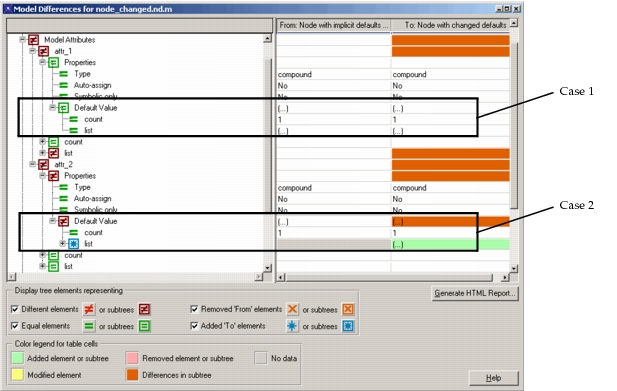
When you do a model comparison, the differences reported for the Default Value property of a compound attribute can be misleading in certain cases. This is because of the way compound attribute values are handled internally.
The default value of a compound attribute can be implicit (unassigned, and thus equal to the sub-attribute defaults) or explicit (set in the compound attribute properties). Implicit default values are always reported to model comparison as “(…)”, whereas explicit default values are reported as a value for each sub-attribute. Thus, when a compound attribute has an implicit default in the From version of a model, you will see the following effects:
- Case 1: the To version has changes to sub-attribute default values – The implicit default of the compound attribute is changed, but model comparison reports the Default Value property as unchanged because it sees “(…)” in both the From and To versions.
- Case 2: the To version has an explicit default – Model comparison correctly reports the Default Value property as changed. However, the default value is shown as added (instead of changed) because no value was reported for the implicit default in the To version.
The following figure shows these effects.
Figure 14: Compound Attributes in Model Comparison
Preferences for Model Comparison
The model comparison feature uses these preferences.
Model Difference Added Element Color
Specifies the color used in a table cell to indicate that the value was added in the 'To' version.
| Tag | Data Type | Default Value |
|---|---|---|
mdiff_added_element_color |
color | #AAFFAA  |
Model Difference Modified Element Color
Specifies the color used in a table cell to indicate that the value was modified in the 'To' version.
| Tag | Data Type | Default Value |
|---|---|---|
mdiff_modified_element_color |
color | #FFFF77  |
Model Difference Modified Tree Color
Specifies the color used in a table cell to indicate that some element in the corresponding tree has been added, modified, or removed.
| Tag | Data Type | Default Value |
|---|---|---|
mdiff_modified_tree_color |
color | #E16000  |
Model Difference Removed Element Color
Specifies the color used in a table cell to indicate that the value was removed in the 'To' version.
| Tag | Data Type | Default Value |
|---|---|---|
mdiff_removed_element_color |
color | #FFAAAA  |
Model Difference Text Link Color
Specifies the color used in a table cell to indicate that clicking on the displayed text will result in an appropriate HTML page being displayed in a web browser.
| Tag | Data Type | Default Value |
|---|---|---|
mdiff_text_link_color |
color | #0000FF  |
Model HTML Tab Size
Specifies the number of spaces used to represent 'Tab' characters in HTML output.
| Tag | Data Type | Default Value |
|---|---|---|
mdiff_tab_size |
integer | 4 |
Model HTML Wrap Size
Specifies the maximum number of characters shown in a column of the HTML output before a line of text is “wrapped” to the next display line.
| Tag | Data Type | Default Value |
|---|---|---|
mdiff_wrap_size |
integer | 80 |
Model Text Difference Script
Specifies the name of the program or script to invoke to check for differences between text blocks or files.
| Tag | Data Type | Default Value |
|---|---|---|
mdiff_diff_prog |
string | “” |
'From' Text Description
Textual description to associate with the 'From' model versions.
| Tag | Data Type | Default Value |
|---|---|---|
mdiff_from_description |
string | “” |
'From' Model Directories
List of directories containing 'From' model versions. A path followed by “/...” indicates that all subdirectories should be included in the comparison.
| Tag | Data Type | Default Value |
|---|---|---|
mdiff_from_dirs |
string | “” |
'To' Text Description
Textual description to associate with the 'To' model versions.
| Tag | Data Type | Default Value |
|---|---|---|
mdiff_to_description |
string | “” |
'To' Model Directories
List of directories containing 'To' model versions. A path followed by “/...” indicates that all subdirectories should be included in the comparison.
| Tag | Data Type | Default Value |
|---|---|---|
mdiff_to_dirs |
string | “” |
Model Comparison Icons
Table 12: Model Comparison Icons
| Icon | Meaning |
|---|---|
 |
Equal |
 |
Different |
 |
Added |
 |
Removed |
 |
All children equal |
 |
Some children different |
 |
All children added |
 |
All children removed |