Show Time Controller
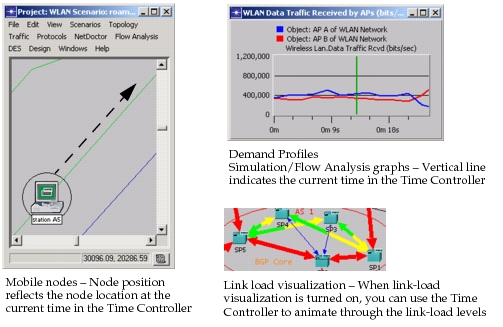
The Time Controller is useful when you want to see how network objects and data change over time. When this window is open, Modeler is in a special time view mode in which the Project Editor shows the network state at a specific time. Examples of time-varying data include trajectories, output-vector statistics, and profile attributes.
Figure 53: Visible Effects of Time Controller: Examples
To open the Time Controller, choose View > Show Time Controller. You can use this window to set and view the current time and to run animations. To specify the time range and other options, click Configure; this opens the Time Controller Settings dialog box. (Unless indicated otherwise by the user interface, all calendar values are shown in local time.)
Figure 54: Time Controller and Time Controller Settings
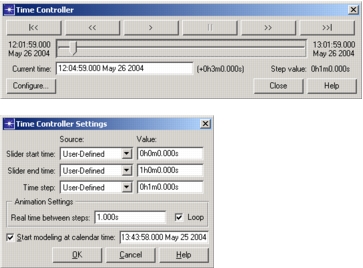
You can specify the start time, end time, and time step either manually (in the Value field) or based on a specific data source present in the scenario (the Source menu).
Note: Time view mode has no effect if the current time is outside the time window of the data set; therefore, it is good practice to choose start and end times from the Source menu, because the values are based on existing data.
When you close the Time Controller, the "current" network time is reset to the network start time, as specified in the "Start modeling at calendar time" field in the Time Controller Settings dialog box.
For more information about how time is modeled, see "Network Time: Calendar, Relative, and Network Start Times" on page 323.