Show Network Browser
The Network Browser organizes and displays network objects in a treeview. The treeview makes it easy to find and edit objects, especially in large networks with multiple layers of subnets.
To display/hide the network browser, choose View > Show Network Browser. The following figure shows a typical Network Browser.
Figure 47: Network Browser and Network Topology
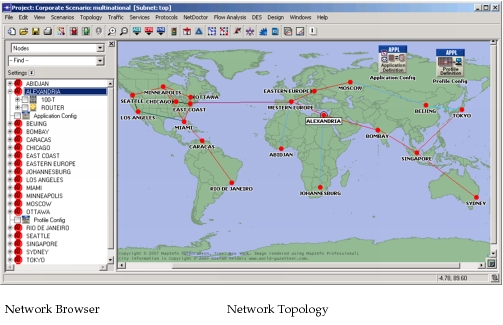
The Network Browser and the Network Topology provide different views of the same network. Thus any changes you make to the network (such as selecting, editing, cutting, or pasting an object) are reflected in both views. The following figure highlights features of the Network Browser.
Figure 48: Network Browser
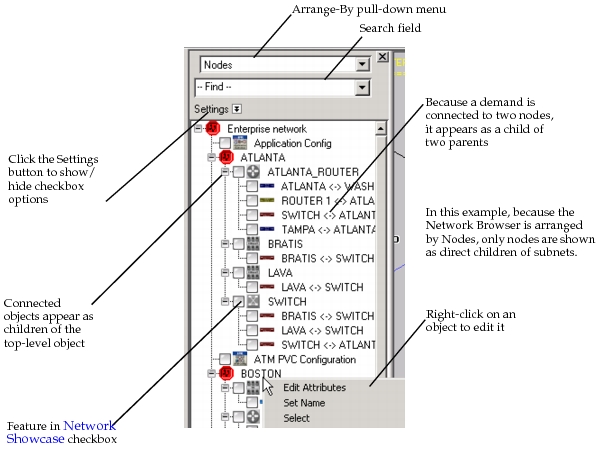
You can do the following in the Network Browser:
-
Search for objects – To search for an object (i.e., subnet or node) by name, enter a string in the Search field and press Enter. Matching objects are selected/highlighted.
-
Type Ahead Searching – Locate items in a treeview by typing the first one or more characters of the name. Type ahead searching starts with the selected item. If you repeat the same characters, the search cycles through the treeview. Note that the type ahead searching feature considers displayed (non-hidden) items only.
-
Select one object – To select one object, click on it.
-
Select multiple objects – To select multiple objects, do one of the following:
- Hold down the Ctrl key and click on each object (for non-consecutive objects).
- Click the first object, hold down the Shift key, and then click the last object (for consecutive objects).
- Click and drag the cursor to select multiple items in the treeview.
- Right-click on an object and choose Select Similar <object_types>.
-
Zoom to an object in the Project Editor – Double-click on an object in the treeview to zoom to that object in the Network Topology.
-
Move nodes or subnets to a new parent subnet – Select one or more nodes in the treeview; then drag the selection to a subnet icon in the treeview or the workspace.
-
Feature in Showcase – To feature network objects in the active showcase, select the corresponding checkbox.
For more information, see Network Showcase.
-
Edit objects – To edit one object, right-click on the object and choose Edit Attributes or Advanced Edit Attributes. To edit multiple objects of the same type, right-click on an object and choose Edit Similar <object_types>s.
-
Show or hide objects in the Network Browser – There are several methods for showing/hiding objects in the Network Browser. (For the methods involving a checkbox, click the Settings button to show/hide the checkbox options.)
- Arrange-by pull-down menu – Use this menu to display only items of interest (such as IP routers or servers).
- Include Hidden checkbox – Check this box to show paths, demands and cell systems that are hidden as a result of settings in the View menu (for example, View > Demands > Hide All).
- Ignore Views checkbox – Check this box to show objects that are excluded from the current network view.
- Show Only Selected checkbox – Check this box to display only those objects that are currently selected.
- Expand Tree checkbox – Check this box to expand the treeview to display the nodes/links. Uncheck this box to contract the treeview.
-
Keyboard Shortcuts – Use the following shortcut keys to quickly navigate through a treeview.
Table 38
Shortcut Key Description + (plus) Expands a treeview node - (minus) Collapses a treeview node <Right Arrow> Expands the treeview node and selects the first child node <Left Arrow> Collapses the treeview node and selects the parent node <Backspace> Selects the parent node -
Organize the treeview with different hierarchies – Set the Arrange-by pull-down menu to organize the treeview by object type or other criteria. For example, suppose the Arrange-by menu is set to Nodes. The treeview then displays all nodes as direct children within each subnet. Any objects connected to a node (such as links, demands or paths) appear as children of the node.
Some of the Arrange-by pull-down menu options, such as “Routing protocols”, display objects in arbitrary groups based on attribute values or other object characteristics. In these arrangements, subnet objects are usually not displayed and all qualifying objects are displayed side-by-side below a group or subgroup folder.
The Network Browser settings are saved with the project, even if the Network Browser is closed. When the Network Browser is opened in a project for the first time, the settings are saved with the project. When the Network Browser is reopened during the current and future sessions, the Network Browser reuses your previous settings.
Note: Search strings and selected objects are not saved with the Network Browser.