Scenario Components Operations
The Scenario Components operations allow you to Import… and Export… the components of a scenario. Components include such things as the network model, requested statistics (probes), and simulation configuration.
Import…
Use this operation to import:
- A complete project, consisting of a network model and, possibly, a probe model, a simulation sequence, an analysis configuration, a traffic import model, a custom model list, an animation history, and a results file. You can import some or all of the scenarios included in the project.
- One or more of the components listed above. If you do not import a complete project, you will, most often, want to import just a network model.
Procedure 89: Importing a Component or a Complete Project
-
Display the destination project (the project you want the project or component imported into).
Caution— Import can be destructive. If you import a component and a component of the same type already exists in the destination scenario, the imported component destroys the existing one. However, importing a complete scenario is never destructive—the imported scenario is added to the destination project.
-
Choose Scenarios > Scenario Components > Import…
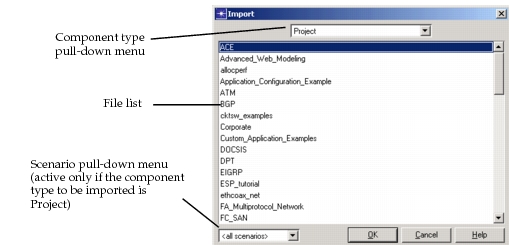
Result: The Import dialog box opens.
Figure 63: Import Dialog Box
-
Follow the appropriate procedure:
- To import a specific component (such as the network model), choose that type of component from the component type pull-down menu. When Network Model (or any component except Project) is chosen, each file of that type is displayed in the file list.
- To import a complete scenario, choose Project from the component type pull-down menu, select the project that contains the desired scenario, then choose either
<all scenarios>or the specific desired scenario from the scenario pull-down menu.
-
Click OK.
Result: The specified components or scenarios are imported into the destination project.
Export…
This operation places a copy of a specific scenario component (network model, probe model, simulation sequence, analysis configuration, traffic import model, custom model list, animation history, or results file) in your primary model directory.
Procedure 90: Exporting a Scenario Component
-
Display the scenario containing the component you want to export.
-
Choose Scenarios > Scenario Components > Export…
Result: The Export dialog box opens.
Figure 64: Export Dialog Box

-
Choose the component type you wish to export from the component pull-down menu.
-
Enter a name in the Model Name field. The file will be stored with this name.
-
Click OK.