显示 Time Controller
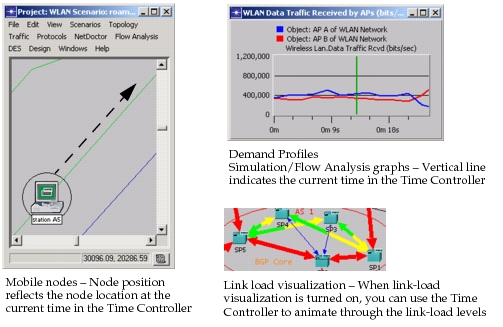
当你想查看网络对象和数据如何随时间变化时,Time Controller 非常有用。当此窗口打开时,Modeler 处于一种特殊的 time view mode(时间视图模式),Project Editor 会在特定时刻显示网络状态。随时间变化的数据的例子包括轨迹、输出向量统计量和 profile 属性。
图 53:Time Controller 的可见效果:示例
要打开 Time Controller,选择 View > Show Time Controller。你可以使用该窗口设置和查看当前时间,并运行动画。要指定时间范围和其他选项,单击 Configure;这会打开 Time Controller Settings 对话框。(除非用户界面另有指示,所有日历时间值均以本地时间显示。)
图 54:Time Controller 与 Time Controller Settings
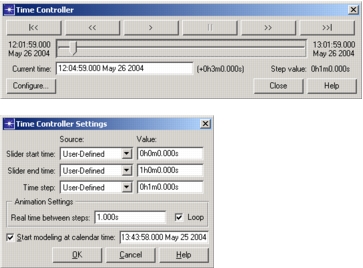
你可以手动指定开始时间、结束时间和时间步长(在 Value 字段中),也可以基于场景中存在的特定数据源(Source 菜单)来指定。
**注意:**如果当前时间位于数据集的时间窗口之外,time view mode 不会产生任何效果;因此,最好从 Source 菜单中选择开始和结束时间,因为这些值基于现有数据。
当你关闭 Time Controller 时,"当前"网络时间会被重置为网络起始时间,即 Time Controller Settings 对话框中 "Start modeling at calendar time" 字段所指定的时间。
有关时间如何建模的更多信息,参见“Network Time: Calendar, Relative, and Network Start Times”(第 323 页)。