Manage Scenarios
This operation lets you view a list of each scenario in your project and its status. Buttons and pull-down menus allow you to:
- Rename scenarios
- Add new scenarios
- Duplicate scenarios
- Delete one or all scenarios
- Run a simulation and collect the specified statistics
- Change the simulation duration and the units of the simulation duration
- Discard/Collect one or all sets of results
- Re-order scenarios in the list
Note: Changes are applied when you click OK to close the dialog box. No changes are applied if you click Cancel.
Procedure 87: Managing Scenarios
-
Choose Scenarios > Manage Scenarios…
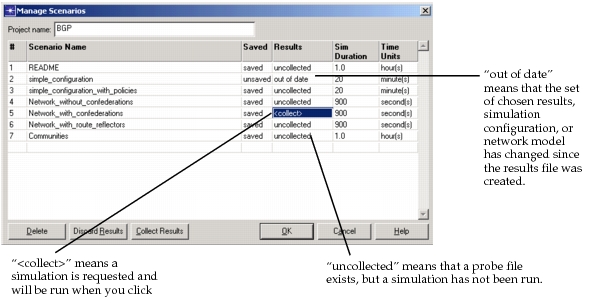
Result: The Manage Scenarios dialog box for the current project displays.
Figure 62: Manage Scenarios Dialog Box
-
Perform the instructions listed in the following table for the desired operation.
Table 44: Manage Scenarios Operations
To… Do this… Rename a scenario Select the scenario to be renamed and type the new name. Add a new scenario Click in the Scenario Name column of an empty row and select the <new>item from the menu.Duplicate a scenario Click in the Scenario Name column of the first empty row and select the duplicate <scenario_name>item from the menu.Delete all scenarios Left-click the table header of the #, Scenario Name, or Saved column and select <delete all>. This option performs the operation on all scenarios.
To cancel, left-click the table header and select<keep all>.Delete scenarios To delete an individual scenario, use either of two methods:
• Select the scenario to be deleted and click the Delete button.
• Click in the Saved column and select<delete>from the menu.
To delete all scenarios, use the following method:
• Left-click the table header in the #, Scenario Name, or Saved column and select<delete all>.
• To cancel, left-click the table header again and select<keep all>.
All files that comprised the deleted scenarios are also deleted.Run a simulation Use either of two methods:
• (One scenario) Select the scenario and click the Collect Results button. The simulation will run when you click OK.
• (All scenarios) Left-click in table header in the Results column and select<collect all>. This will run simulations on all scenarios when you click OK in the dialog box.Change the simulation duration Select the simulation duration and type in the new duration. Select the units for the new simulation duration. Delete results • (One scenario) Select the scenario and click on the Discard Results button. The scenario’s results file and animation history file will be deleted.
• (All scenarios) Left-click the Results table header and select<discard all>.Re-order a scenario in the list Click in the # column of the scenario to be re-ordered, then select the item that indicates the order desired. Select <leave>to keep the scenario in the same position. -
Click OK to close the dialog box and store changes to disk.