Live Object/Attribute Differences
The Live Object/Attribute Difference view option is a visualization mode in which icons are used to identify changes in a network scenario and in individual objects. You can use this option to identify and track
- Differences between the current scenario and a reference scenario
- Changes to the current scenario since the last save
- Future changes to the current scenario (“Track Changes from Now” operation)
- Attribute changes that differ from an object’s creation defaults
Viewing Differences
You can visualize two types of differences:
- Differences in a network (see Object/Attributes Differences)
- Differences in an object (see Object Differences and Text Differences)
Object/Attributes Differences
When Live Object/Attributes Difference mode is enabled, your current scenario is compared with a reference scenario. The reference scenario is one of the following, depending on the view mode:
- A separate scenario (Compare to Network or Compare to Scenario)
- A previous state of the current scenario (Track Changes from Last Save or Track Changes from Now)
The Project Editor window and the Network Browser mark changed objects in the network and show icons to identify
- Objects with relevant differences – You can specify the criteria that is used to determine a “relevant difference” between two objects. For more information, see Live Object/Attribute Difference Operations.
- Objects with no counterparts – An “object with no counterpart” is an object that exists in the current scenario only, and has no corresponding object in the reference scenario.
- Subnets with changed objects – If any object in a subnet has changed, an icon appears over the subnet.
- Subnets that contain objects with no counterparts
- Objects with no relevant differences – These icons appear only when you compare two scenarios, not when you track changes in one scenario.
Figure 59: Live Object/Attribute Difference in Project Editor: Example
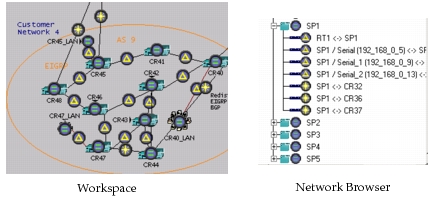
Table 41: Icons Used in Live Object/Attribute Difference Mode
| Icon | Description |
|---|---|
 |
This object has no relevant differences. |
 |
This object has relevant differences. |
 |
This object is in the current network only. |
 |
This subnet contains no objects that differ from the reference subnet. |
 |
This subnet contains objects that differ from the reference subnet |
 |
This subnet contains objects that are in the current network only. |
Object Differences
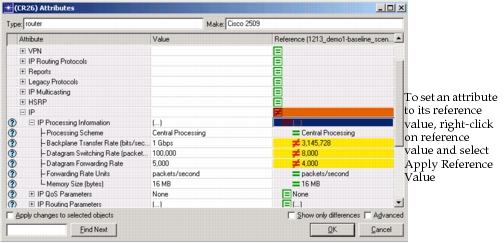
To see changes in an object, right-click on the object and choose Edit Attributes. When Live Object/Attributes Difference mode is enabled, the Attributes dialog box has these additional features:
- A third column (Reference) shows attribute values in the reference object. The reference object is one of the following, depending on the view mode:
- The counterpart object in the reference scenario (Compare to Network or Compare to Scenario)
- The previous state of the current object (Track Changes from Last Save or Track Changes from Now)
- The creation default settings for that object (Track Changes from Creation Defaults)
- The Reference column uses icons and colored rows to indicate attributes with equal settings, attributes with different settings, and compound attributes that contain attributes with different settings.
- This window incudes a “Show only differences” checkbox, so you can see only attributes with different settings.
- If an attribute’s current and reference settings are different, you can reset the current value to its reference setting. To do this, right-click on the reference value and select Apply Reference Value.
For more information about the Attributes dialog box, see “Edit Attributes” on page 361.
Figure 60: Live Object/Attribute Difference in Attributes Dialog Box: Example
Text Differences
You can use Live Object/Attribute Difference to track changes in a text object such as an annotation or a text-based attribute. If Live Object/Attribute Difference mode is enabled, the Text Editor window has a second pane (Reference) that shows differences in the reference text object. The reference text object is one of the following, depending on the view mode:
- The counterpart object in the reference scenario (Compare to Network or Compare to Scenario)
- The previous state of the current object (Track Changes from Last Save or Track Changes from Now)
Live Object/Attribute Difference Operations
The following table lists the operations available on the Scenarios > Live Object/Attribute Difference submenu.
Table 42: Scenarios > Live Object/Attribute Difference Submenu
| Operation | Description |
|---|---|
| Stop Comparing | Turn off Live Difference mode and clear all difference visualizations from the Project Editor window |
| Specify Difference Behavior | Specify the criteria used to define object/attribute differences. For more information, see Specify Live Object/Attribute Behavior Dialog Box. |
| Track Changes from Creation Defaults | Track all attribute settings that differ from the creation defaults for an object. The “creation default” settings for an object are the initial settings of an object when it is created manually (for example, by dragging from the object palette). This view mode marks changes in an object’s Attributes dialog box only, not in the Project Editor window. For more information, see Object Differences. |
| Track Changes from Last Save | Track past changes in the current scenario (since the last time the project was saved) |
| Track Changes from Now | Track future changes in the current scenario |
| Compare to Network | Compare the current scenario to a scenario in a different project |
Compare to Scenario: <scenario_name> |
Compare the current scenario to a scenario in the same project |
| Select Objects with Differences | Select all objects, in all subnets, that are marked as changed. A subnet object is selected only if it has relevant attribute changes. |
| Select Objects without Counterparts | Select objects that are unique to the current scenario and do not have counterparts in the reference scenario. An object has a counterpart if the reference scenario contains an object with the same name, and located in the same subnet, as the current object. |
| Reconcile Selected Object Differences | Reconcile differences for all objects that meet both these conditions: • Are currently selected, or reside within a selected subnet • Have counterparts in the reference scenario In this case, “reconcile differences for an object” means that all relevant settings for the current object are set so that it becomes equivalent to its counterpart in the reference scenario. If a subnet is selected, this operation reconciles all objects in that subnet that have counterparts in the reference scenario. You can undo and redo this operation using the corresponding operations in the Edit menu. |
Specify Live Object/Attribute Behavior Dialog Box
You can use Specify Object/Attribute Difference Behavior dialog box to exclude irrelevant object types and attributes from the comparison and thereby track differences of interest only.
Figure 61: Specify Live Object/Attribute Behavior Dialog Box
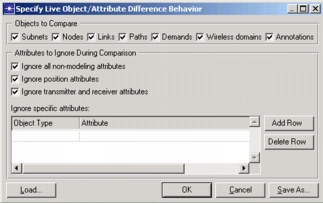
Table 43: Specify Live Object/Attribute Behavior Dialog Box
| Option | Description |
|---|---|
| Attributes to ignore during comparison | Specify attributes to ignore: • Ignore all non-modeling attributes – Ignore attributes that do not affect discrete event simulation or Flow Analysis results (examples: “color”, “line style”, “creation source”) • Ignore position attributes – Ignore attributes that specify physical locations of objects (examples: “x position”, “y position”, “trajectory”) • Ignore transmitter and receiver attributes – Ignore attributes specific to wireless objects (examples: “channel”, “ragain model”, “ber model”) |
| Generate | Generate a difference report based on the current settings |
| Ignore specific attributes table | Ignore specific attributes during the comparison. Ignored attributes are excluded from the final report. In addition, these attributes are ignored when comparing the same object between scenarios. |
| Load | Load difference settings from a template file |
| Objects to Compare | Specify the types of objects to include in the comparison report. |
| Save As | Save difference settings to a template file |