Unmapped Traffic
If traffic cannot be matched to an existing source or destination after an import, you can view and assign the unmapped traffic in the Traffic Center, as shown in the following figure.
Figure 7: Traffic Center with Unmapped Traffic
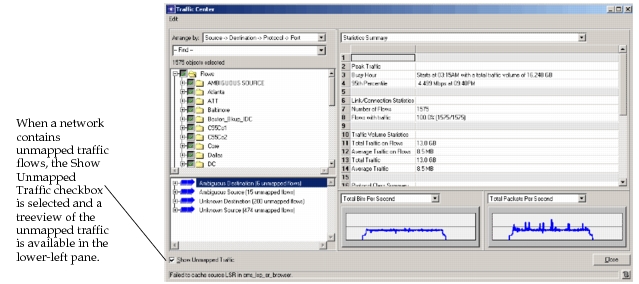
After a traffic import, unmapped traffic can be in your network model for two reasons:
- The traffic source or destination node could potentially be mapped to more than one node in the network model. This unmapped traffic is identified as Ambiguous in the Traffic Center. This can occur if the network was imported by Device Configuration Import (DCI) or import from NetCollector and multiple edge nodes in the model are connected to the same IP subnet.
- The traffic source or destination node is not actually part of the network. This unmapped traffic is identified as Unknown in the Traffic Center. This can occur if a node inside the network communicates to a node outside the network. Traffic from the outside node appears in the traffic file, but there is no corresponding source node in the network model.
Note: Unmapped traffic is ignored by discrete event simulation and flow analysis. If unmapped traffic is relevant to your network analysis, you must assign this traffic to specific sources or destinations using the Traffic Center. You can assign unmapped traffic at any time after the import.
Four possible categories of unmapped traffic are available as top level nodes in the lower-left pane of the Traffic Center, as shown in the following figure.
Figure 8: Unmapped Traffic in Traffic Center
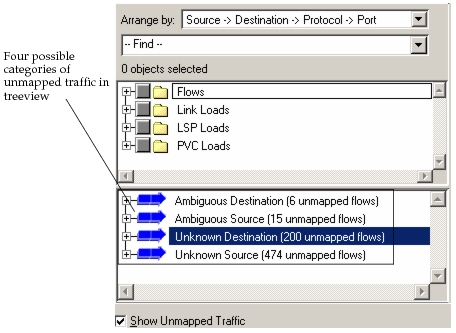
- Ambiguous Source - Traffic sources originating from an address that may be part of the current scenario but cannot be identified uniquely.
- Ambiguous Destination - Traffic destinations terminating at an address that may be part of the current scenario but cannot be identified uniquely.
- Unknown Source - Traffic sources that are unknown to the current scenario that may be part of an external network.
- Unknown Destination - Traffic destinations that are unknown to the current scenario that may be part of an external network.
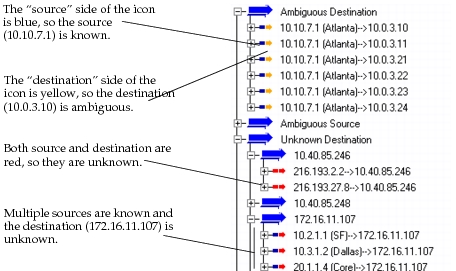
A flow may belong to more than one category. For example, the source is ambiguous and the destination is unknown. You can view this flow in both the Ambiguous Source and Unknown Destination categories.
The lower left pane of the Traffic Center shows examples of ambiguous or unknown sources and destinations. (See Figure 2-8.)
Figure 9: Expanded Unmapped Traffic
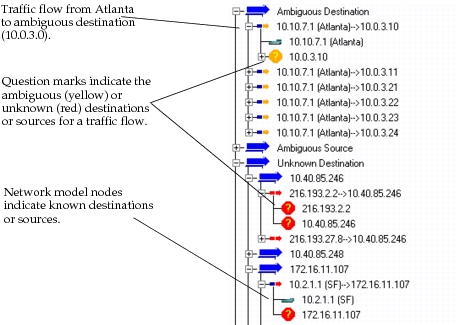
The following figure shows the representation of ambiguous or unknown sources or destinations as question mark icons when you expand a traffic flow icon.
Figure 10: Expanded Traffic Flows
Unmapped Traffic after Import
When a traffic import has unmapped traffic sources or destinations, you can select the View Unmapped Flows button in the Traffic Flows Import Statistics dialog box. The Traffic Center then opens with the Show Unmapped Traffic checkbox selected. The lower left pane of the Traffic Center shows unmapped traffic as Ambiguous or Unknown Sources or Destinations in a treeview. You can assign the unmapped traffic at any time after the import; the unmapped traffic flows are saved with the network model.
Note: In version 11.0 and earlier, you had to assign unmapped traffic to specific nodes using the Unrecognized Traffic Assistant. Once you assigned the unmapped traffic, you had to reimport the traffic flow files. This workflow has been replaced by assigning unknown or ambiguous traffic with the Traffic Center.
Assigning Unknown Traffic
Use the following procedure to assign unknown traffic.This procedure requires that you first import traffic flows. For more information about importing traffic, see Importing Traffic Flows on page ITG-2-20.
Procedure 6: Assigning Unknown Traffic
-
Open the Traffic Center (Traffic > Traffic Center) if it is not already open.
-
Check the Show Unmapped Traffic checkbox in the bottom left corner.
Result: A new treeview pane appears in the bottom left corner and shows the unmapped traffic.
-
Select and expand a top-level Unknown Source or Unknown Destination traffic node in the left pane (see Figure 2-10).
Figure 11: Unmapped Traffic in Traffic Center
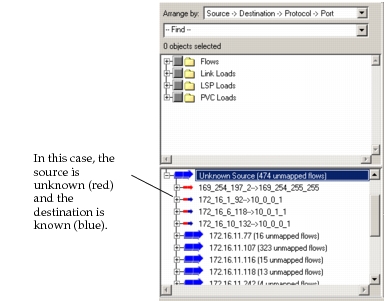
Result: For each object, you must decide if the traffic is necessary for your discrete event simulation or flow analysis and, if so, to which node the traffic will be applied.
If the traffic associated with an external address is significant, match this traffic to an existing network node. If your network has a dedicated router, associate the address with that router; the result is that the router acts as both the source and destination for this traffic. If the traffic associated with an external address is not significant, you can ignore it and it will remain with your network model as unmapped traffic, or you can delete it.
-
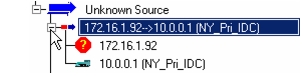
Select and expand a traffic flow node.
Figure 12: Expanded Traffic Flow Node
-
Assign the unmapped traffic:
-
Select the unknown source (or destination node). For example, select the 172.16.1.92 unknown source.
-
Identify a source or destination node in your network model either in the map area or in the upper left pane treeview of the Traffic Center while the unknown source is selected.
-
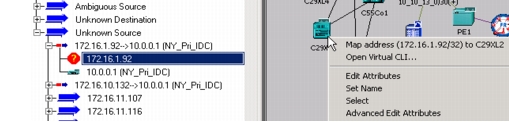
Right-click the identified node (without selecting it) and choose Map address from the pop-up menu.
Figure 13: Map Address
-
Identify another unmapped traffic flow and repeat steps 2-4 (optional).
-
Assigning Unknown Traffic Flows for a Group
Unknown source or destination unmapped traffic is listed based on IP groups. You can assign a group of unknown source or destination unmapped traffic to a single network node. (See Procedure 2-7.)
Procedure 7: Assigning Unknown Traffic Flows for a Group
-
Select the Unknown IP address group in the lower left pane of the Traffic Center.
-
Right-click the node you want to map it to in the network model either in the map area or treeview.
-
Choose Map address from the pop-up menu (see Figure 2-13).
Result: All of the unknown IP address sources or destinations in that group will be assigned to the node you have selected.
Figure 14: Assigning Unmapped Traffic Flows an IP Address Group

Assigning Ambiguous Unmapped Traffic Flows
Suggested source or destination nodes in the same subnet are listed below each ambiguous unmapped traffic flow. When you right-click and select Map address for one of the suggested sources or destinations in the lower left pane treeview, the unmapped traffic for that specific address will be mapped to that node. Use Procedure 2-8 to assign ambiguous unmapped traffic to a suggested node. If you want to make the suggested node a source or destination node for all ambiguous flows in the same subnet, see Procedure 2-9.
Procedure 8: Assigning an Ambiguous Unmapped Traffic Flow to a Suggested Node
-
Select and expand one of the ambiguous source or destination traffic flow question mark icons.
Result: A list of suggested network model nodes will be listed below the yellow question mark icon.
-
Choose one of the nodes that are suggested and right-click.
-
Choose Map Address from the pop-up menu (see Figure 14).
Result: The ambiguous source or destination traffic flow is assigned to the suggested node.
Figure 15: Assigning an Ambiguous Unmapped Traffic Flow to a Suggested Destination or Source
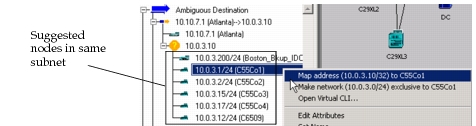
Note: If you do not want to use one of the suggested nodes, select any node in the network model map area or treeview and follow the basic steps previously described in Procedure 2-6, but instead, assign ambiguous sources or destinations.
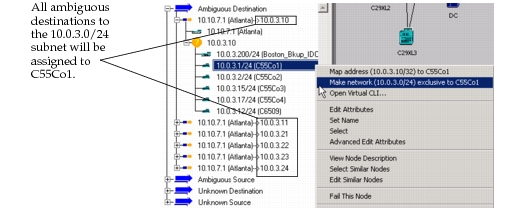
Make Network Exclusive for Ambiguous Traffic Flows
You can assign all the ambiguous sources or destinations in the same subnet to a specific node in that subnet. (See Procedure 2-9.)
Procedure 9: Make Network Exclude for Ambiguous Traffic Flows
-
Select and expand one of the ambiguous source or destination traffic flows.
-
Right-click and select Make network exclusive. (See Figure 16.)
Result: All of the ambiguous IP addresses in the subnet will be assigned to the node you select.
Figure 16: Make Network Exclusive for Ambiguous Unmapped Traffic
Once you assign unmapped traffic in the Traffic Center, discrete event simulation and flow analysis recognize these traffic flows.
Network Changes and Unmapped Flows
When you make changes to the network, such as assign aliases to nodes, you can open the Traffic Center, select the Show Unmapped Traffic checkbox, and then click “Map Flows”. The Traffic Center assigns any existing unmapped traffic using the new information.
Note: In version 14.0 and earlier, the Traffic Center will attempt to map unmapped traffic automatically whenever you select "Show Unmapped Traffic". Beginning in 14.5 PL5, selecting "Show Unmapped Flows" will only show the unmapped flows in the tree view. The Traffic Center will attempt to map the flows only when you click "Map Flows”.
Viewing Link Usage
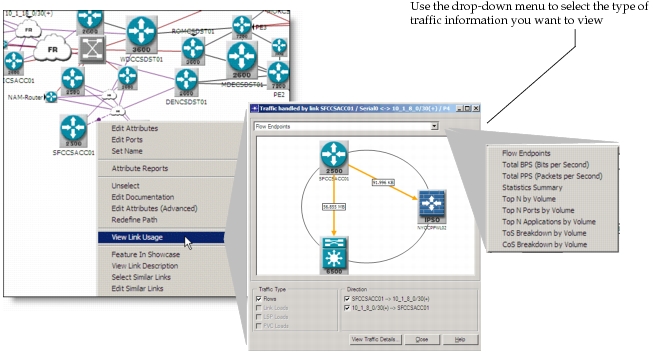
You can right-click and choose View Link Usage to view specific traffic data by Traffic Loads or Flows, LSP Loads, and/or PVC Loads as shown in the following figure.
Figure 17: View Link Usage
IP Multicast Traffic Flows in Traffic Center
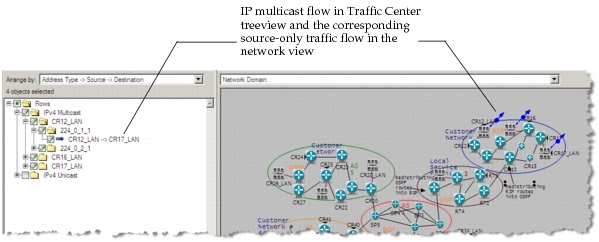
After importing IP multicast traffic, you can view the traffic flows in the Traffic Center, as shown in the following figure. The flow objects are called “source-only” traffic flows—the destination IP address is a multicast address rather than an interface IP address associated with a specific node.
Figure 18: IP Multicast Traffic in Traffic Center
For more information, see “Visualization of Multicast Demands (Flow Analysis)“ in the “IP Multicast“ Model User Guide.
For more information, see: