Verifying Traffic-Flow Imports
It is good practice to verify that the traffic data was imported correctly. You can do two operations to verify an import:
View the Import Log
The Import Log contains diagnostic information about the most recent import. This log describes any parsing or other errors that might have occurred. To open this log, choose Traffic > Import Traffic Flows > Open Import Log.
View Traffic Flows
After you import traffic, you should verify that your imported flows contain the correct traffic intensities. You can do this in one of two ways:
- View flows using the Traffic Center (Traffic > Traffic Center)
- View flows in a spreadsheet (see Using Spreadsheets for Traffic Export/Import)
Validate Imported Traffic Flows
The traffic flow import feature uses the imported aliases and operational forwarding tables generated by device show ip route commands to determine the best fit for the traffic flow source and destination.
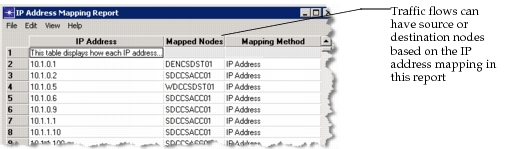
Source and destination IP addresses inside or outside the imported network can be mapped to specific nodes in the network. After importing traffic flows from NetCollector or eXpress Data Import, you can view the IP Address Mapping report to see what IP addresses were mapped to which nodes by choosing Traffic > Import Traffic Flows > View IP Mapping Report.
Figure 19: IP Address Mapping Report
During traffic flow import, operational table based flow mapping is enabled by default. To not consider operational forwarding tables imported from the show ip route command, change the preference resolver.advanced_heuristics_enabled to FALSE.
For more information, see: