Analysis-Panel Annotation Objects
You can create "analysis panel" annotation objects to display simulation results directly in the network (rather than in a separate window).
Analysis-panel annotations behave much like annotations like text, lines, circles, and squares. One major advantage of using panel annotations is that they appear when you export your topology print your topology or export it to bitmaps, Visio files and web reports.
Creating Analysis-Panel Annotations
To create a panel annotation, open an analysis panel and configure it the way you want the annotation to appear. Then right-click in the panel background and choose Make Panel Annotation in Network. You can also create an annotation by double-clicking in the panel background.
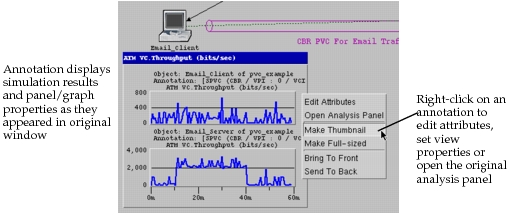
When you create a panel annotation, the original analysis panel window disappears and the annotation displays simulation results as they appeared in the panel window.
Figure 278: An Analysis-Panel Annotation Object
Editing Panel Annotations
You can edit the graph and panel properties of an annotation by double-clicking on it, or by right-clicking and choosing Open Analysis Panel. Either action opens the original analysis panel; at the same time, the message PANEL OPEN appears in the annotation.
After you edit the panel, double-click in the panel background (or right-click and choose Make Panel Annotation in Network). The window again disappears and the annotation displays the updated results.
Annotation View Properties
You can set an annotation's view properties by right-clicking on it. You can specify one of three settings:
- Fixed size (default) – The annotation is fixed at the same size as the original panel window and retains its position in the Project Editor window (regardless of the view's zoom level or location in the network).
- Resizable – The annotation is initially the original panel size but can be manually resized. A resizable annotation has a fixed position in the network, rather than the Project Editor window. As a result, the annotation responds to changes in the view (by resizing in response to changes in the zoom level, and by staying "pinned" to a particular network object when you scroll or move to a different subnetwork).
- Thumbnail – The annotation is reduced to a small fixed-size icon. Like the resizable annotation, a thumbnail annotation is pinned to a specific location in the network. Thumbnail icons are useful for creating "placeholders" to objects for which you want to view results. You can create a thumbnail icon next to a node or link, and then simply click on the thumbnail to open the a panel and view results for that object.