Rapid Configuration
This operation allows you to build regularly structured network topologies quickly and easily. You can select the type of network configuration to be built—such as a ring or bus—and specify its node models, link models, and arrangement all at once, without having to create and specify each network component individually. There are seven types of topological configurations available through this operation. They are:
- ring
- star
- bus
- tree
- full mesh
- randomized mesh
- unconnected network
The Rapid Configuration operation presents dialog boxes allowing you to select the type of configuration to be created, the number of nodes, and the node and link models. You can also control how the nodes will be arranged and their location within the workspace. After the specifications are entered, the configuration is constructed in the workspace.
Procedure 118: Building a Rapid Configuration
-
Choose Topology > Rapid Configuration…
-
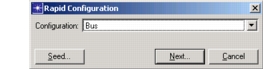
The Rapid Configuration dialog box appears.
Figure 88: Rapid Configuration Dialog Box
-
-
Choose a topology from the Configuration pull-down menu.
-
If you are creating a network that uses random nodes and connections and you want to specify a random number other than the default (as described in Random Number Seeds), click the Seed… button. Otherwise, click Next… and go to step 5.
-
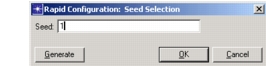
The Rapid Configuration: Seed Selection dialog box appears for entering a random number seed.
-
-
Type a number in the Seed text entry area or click the Generate button randomly produce a number. Click OK and then click Next…
-
The Rapid Configuration:
<topology>dialog box appears. The dialog box input fields vary, depending on the selected topology.Figure 89: Rapid Configuration:
<topology>Dialog Box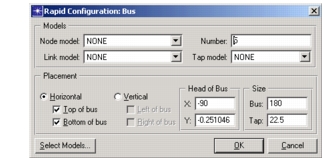
-
-
If you want to reduce the number of models that will appear in the model pull-down menus, click the Select Models… button and select keywords or a custom model list for the models you want to see. This process is identical to setting keywords or custom model lists in the object palette, as described in Open Object Palette.
-
Enter input parameters for the rapid configuration. These may include the node and link models to be used, the number of nodes, the types of links, and the placement of the configuration in the workspace. The types of parameters required vary depending on the topology to be generated. The following table lists the parameters needed for each topology.
Table 53: Parameters for Rapid Configuration Topologies
Topology Model Parameters Placement Parameters Bus Node model
Number of nodes
Link model
Tap modelHorizontal or vertical layout of bus
Node position around bus
X and Y coordinates for head of bus
Size of bus and tapsFull mesh Node model
Number of nodes
Link modelX and Y coordinates for center node
Radius of full meshRandomized mesh Node model
Number of nodes
Link model
Type of linkNumber of connections per node (minimum and maximum)
X and Y coordinates for center node
Radius of randomized meshRing Node model
Number of nodes
Link model
Type of linkX and Y coordinates for center of ring
Radius of ringStar Center node model
Periphery node model
Number of periphery nodes
Link modelX and Y coordinates for center of star
Radius of starTree Intermediate node model
Leaf node model
Link modelNumber of levels in tree
X and Y coordinates for center of tree
Number of splits per level (minimum and maximum)
Width and height of treeUnconnected network Node model
Number of nodes
Node typeX and Y coordinates for top-left corner of network
Width and height of unconnected networkNote: Placement parameters are in units of the subnetwork. See the subnetwork’s grid to determine appropriate x, y coordinates and sizes (turn on the grid if it is not visible).
-
Click OK when you are done entering parameters.
- he configuration is drawn in the workspace. It can be modified and saved like any other network model.
Random Number Seeds
Some rapid configuration topologies, such as the tree and randomized mesh, allow you to create a network composed of a random number of nodes or links. To create such topologies, a sequence of random numbers is generated based on a random number seed. Different seeds produce different sequences of random numbers, thus resulting in different network configurations. The seed can be a default value, a number you enter, or a randomly-generated number.
If you always enter the same random number seed, the number of random nodes and links for a given configuration will be the same each time you create it. For example, to ensure that an unconnected network always contains the same number and placement of nodes, specify the same random number seed each time you need the resulting network configuration.