Creating Subnetworks
A subnetwork is typically the first object you create when building a new network model. Subnet objects are containers for other network objects. The subnet icon for fixed-positions is always available from Object Palettes. If you have the Wireless module license, then mobile and satellite subnet icons are also available.
A subnet can contain nodes located anywhere in the world. Because subnets are spanless, you can easily perform the following:
- Place objects in any subnet without having to modify the subnet’s span.
- Reposition subnet objects without changing the geographical location of the network objects contained in the subnets.
The following procedures describe how to create a subnetwork object (from the menu and the Object Palette), view the contents, and return to the parent subnetwork.
Procedure 96: Creating a Subnetwork from the Topology Menu
-
Choose Topology > Subnets.
-
From the submenu, choose one of the following:
- Create Fixed Subnet…
- Create Logical Subnet…
- Create Mobile Subnet…
- Create Satellite Subnet…
Note: The mobile and satellite subnet options are available only if you have the corresponding functionality.
-
Place the subnet in the Project Editor by clicking on the position where you want to place the subnet icon.
- A dialog box requests the subnet name.
-
Enter the subnet name and click OK.
Procedure 97: Creating a Subnetwork from the Object Palette
-
Open the Object Palette.
For more information, see Open Object Palette.
-
Select the subnet icon in the object palette.

- A square icon outline and movement cursor appear over the
subneticon.
- A square icon outline and movement cursor appear over the
-
Drag the icon outline to the desired location in the Project Editor workspace, then release the mouse button.
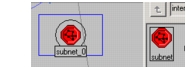
- A subnetwork is drawn in the workspace and assigned a default name. The subnet can contain network objects located anywhere in the world.
-
Optionally, reposition the cursor and click to create additional subnetworks.
Note: The object palette might be set to create only one object, depending on its creation mode. If so, repeat steps 2 and 3 to create additional subnetworks (ignore steps 4 and 5). For more information about creating single vs. multiple objects, see "creation_mode".
-
When you finish creating subnetworks, right-click to end the operation.