Verify Links
This operation allows you to verify that a link is properly connected before executing a simulation. This operation checks two primary model components to ensure link consistency:
- Data rates of the transmitter, receiver, and link are set to compatible values. Note that data rates can be set to the value “unspecified”, allowing them to be compatible with other data rates of any value.
- Supported packet format lists defined for the transmitter, receiver, and link have at least one format in common. The supported packet format list for any of these objects can include the “unformatted” and/or the “all formatted” values. These choices specify that all unformatted packets are supported by the link, and that all formatted packets are supported, respectively.
For more information about link consistency criteria and the mechanisms used to automatically create consistent links when possible, see Chapter 7 “Network Domain” on page 292.
Procedure 125: Verifying Links
-
With a model in the editor window, choose Topology > Verify Links…
- The Check Links dialog box appears.
-
Select the Verify links radio button and click OK.
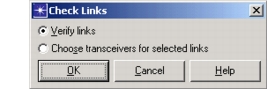
- Link consistency is verified. Each inconsistent link is identified with an “X” mark.
-
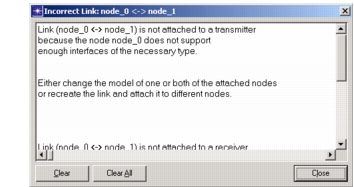
Double-click the “X” mark.
- A dialog box appears with information about the incorrect link.
-
Based on the information in the dialog box, you may have to re-assign a node’s “model” attribute or use a different type of link to correct the problem. The following table lists common problems and solutions related to link consistency.
Table 55: Common Link Inconsistency Problems & Solutions
Problem Solution Inconsistent data rates between the transmitter, receiver, and link. Compare the “data rate” attribute value of the link with that of each node. The values should match. Note that the “data rate” attribute may not be visible unless it was promoted from lower model levels. Packet formats are inconsistent between the link and the transmitter or receiver and link. Check to see which packet formats have been defined for the link. The link must support the types of packets that are supported for the nodes. Link inconsistent due to a missing bus transmitter. Check the Model Description dialog box to see what kind of transmitter and receiver are present in the objects connected to the link. Either change the type of link used to one that supports the transmitter and receiver present, or change the connected nodes to ones that contain a transmitter and receiver supported by the link. Link inconsistent due to a missing bus receiver. Link inconsistent due to a missing point-to-point transmitter. Link inconsistent due to a missing point-to-point receiver. The transmitter and receiver are not in the same node. A subnetwork is incorrectly connected to a duplex point-to-point link in a third-party network model. Contact the model developer. -
Click the Clear button to remove the inconsistency mark over the current link or click the Clear All button to remove all inconsistency marks.
You can choose to leave the marks visible. In this case, the marks are removed automatically the next time that the Verify Links operation is invoked, assuming the links are then consistent.
Note: If you change the “model” attribute of a node, it is possible that some of the links attached to that node may become inconsistent. It is always a good idea to check the consistency of network links whenever any network topology changes are made.