Editor Windows
The program is composed of multiple editors, each of which opens in its own window. You can open as many different editors as you like. The system window, which opens when you first start the program, is also an editor window.
Because editor windows are opened in the context of your workstation’s window manager, they must be manipulated by the window manager’s rules. See your system documentation for instructions about how to move or resize a program window.
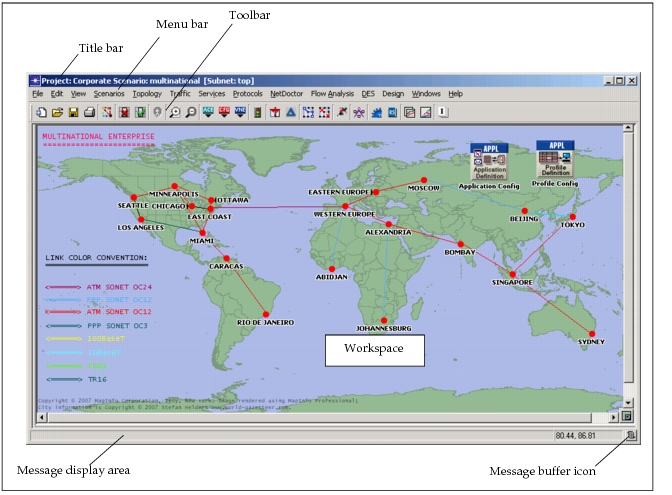
The editor window includes five parts:
- The title bar, which shows at least the name of the editor. The Project Editor title bar shows the name of the project, scenario, and subnet that is displayed.
- The menu bar, which contains pull-down menus giving access to all editor operations.
- The toolbar, which contains buttons used to invoke certain operations.
- A message display area, which conveys information about editor operation.
- The workspace, where you do all work in the editor.
Note: This manual describes the standard editor environment. However, the external tool support allows value-added resellers (VARs) to make changes to this environment. If you are using a VAR-modified version, there may be additional menus or changes to the function of some operations. See the documentation provided by the VAR for information about changes or additions.
Figure 1: Editor Environment
Menus
The menu bar provides access to editor operations through conventional pull-down menus. Each menu contains menu items that invoke an operation, present information, or change the program display. The menus and available operations vary by editor.
Shortcuts
Some of the menu items list a shortcut you can use to invoke the corresponding operation from the keyboard. For example, the Close item on the Project Editor’s File menu has the shortcut “Ctrl+w”, meaning you can close the window by typing <Control>+w.
Pop-Up Menus
In addition to the menu bar menus, editors have context-sensitive pop-up menus that appear when you right-click in various places. These menus include many operations from the menu bar menus, along with some additional operations that apply to the context within which the menu was invoked. Pop-up menus are described with the editor in which they appear.
Tooltips
A context-sensitive tooltip appears when the cursor has pointed at an object for a few seconds. A tooltip explains the button or menu item and, for some operations, prompts for expected input.