Finding and Replacing Text
You can search for a text string. The search is conducted from the cursor location either forward or backward, as you specify. The cursor stops at the first occurrence of the specified string. You can configure your search to find complete words ("do" but not "undo") and/or to make the search case-sensitive ("Project" but not "project").
The Find Next operation on the Edit menu is equivalent to the Find Next button in the Find dialog box. Use this operation to repeat a defined search operation without reopening the Find dialog box.
Procedure 15: Finding Text
-
Choose Edit > Find…
Result: A Find dialog box appears.
-
Enter the desired text. Specify the search direction (forward or backward), the match criteria (whole words or case), and press Find Next.
Result: The cursor jumps to the first occurrence of the specified text, if it exists. If no matching string is found, the cursor does not move.
-
Click the Find Next button to repeat the find.
Procedure 16: Replacing Text in a Text Edit Pad
-
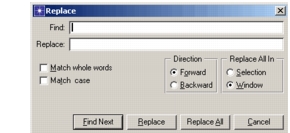
Choose Edit > Replace…
Result: A Replace dialog box appears.
Figure 8: Replace Dialog Box
-
Enter the text to find and the replacement text.
-
Optionally, specify the match criteria (whole words or case), the search direction (forward or backward), and the search region (selection or window).
-
Click the button for the an operation (find next, replace, replace all).
Result: The specified string is highlighted (if you specified find next) or replaced, if it exists. If no matching string is found, the cursor does not move.