Creating Custom Documentation for Network Objects
You can create custom documentation for individual network objects. Each node, link, and subnet object has a Documentation attribute that can specify plain-text descriptions and external files that include additional documentation. Examples of useful documentation might include:
- A plain-text description that describes important configuration settings for a router
- An external code or data file used to configure an object
- An image file that shows the topology of a subnet
To view and edit custom documentation for an object, right-click on the object and choose Edit Documentation. In the resulting dialog box (shown in the following figure), you can enter a plain-text description and/or attach external files such as images, data files, and Word documents.
Figure 542: Edit Documentation Dialog Box, “Attachments” Tabbed Page
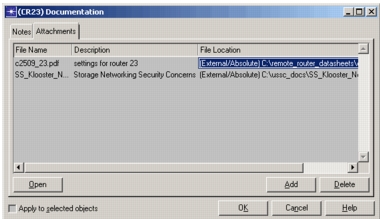
Table 232: “Edit Documentation” Dialog Box
| Item | Description |
|---|---|
| Notes tabbed page | Use this page to view and edit plain-text descriptions. You can use the standard keyboard combinations for cutting, copying, and pasting text. |
| Attachments tabbed page: | |
| - File Name | Name of the external file. This field is not editable. |
| - Description | Enter a description of the external file here. |
| - File Location | Location of the external file. You can specify one of the following options from the pull-down menu: - Local to Scenario--When you initially add an external file, the software retains a link to the file. If you select the Local to Scenario option, Modeler creates a local copy of the file in the scenario directory. (The copy occurs after you click OK.) This option is useful if you want to move the scenario to another location, or if you want to edit the external file with information that applies to a specific set of network objects. - External/Absolute--Retains a link to the external file; the location is specified using an absolute path. Use this option if you do not need to create a local copy of the file. Note: If you select External/Absolute or External/Relative and the external file is moved or renamed, the link will be broken. - External/Relative--Retains a link to the external file; the link is specified using a relative path from the current scenario directory. You might want to use this instead of External/Absolute if you store your files in an external directory that always has the same relative path from the scenario directory. For example, you might want to add a /doc subdirectory to the project directory (which is the parent of the scenario directory). In this case, you could use relative links ( ./doc/<filename>) and then move the entire project without breaking those links. |
| “Apply to selected objects” checkbox | Specifies to apply the documentation to all selected objects. |