Scenario Web Reports
The Generate Scenario Web Report operation (in the Project Editor only) generates a set of HTML pages that allow you to view your network topology using a web browser. When you choose this operation from the Scenarios menu, a file browser lets you specify the top-level HTML page name (top.html is the default) and home directory for the generated files. You can also specify a Report Server to which to send the report, if applicable. When you click OK in the file browser, Modeler generates a set of HTML and GIF files that display every subnetwork and object in the scenario. After you click OK, Modeler generates a set of HTML and GIF files that show every subnetwork, object, and attribute list in the scenario.
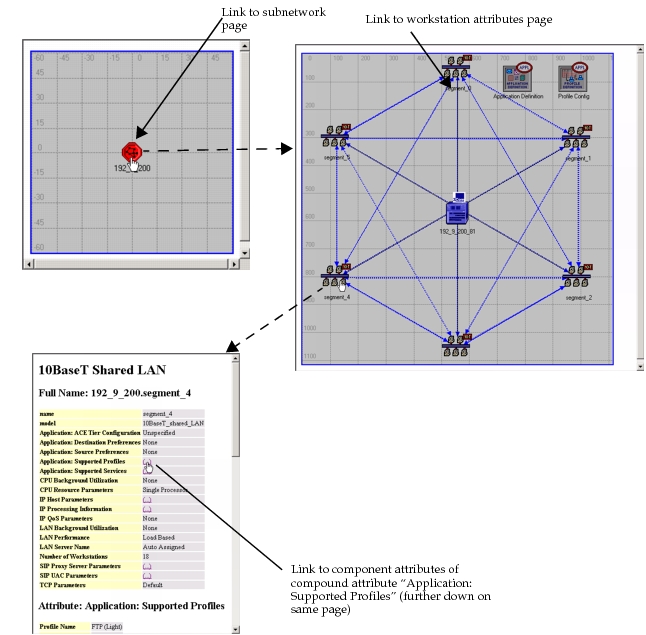
Traversing these pages in a Web browser is similar to traversing a scenario in the Project Editor, as shown in the following figure. Click on each subnet object to enter that subnetwork and click on each link or node object to view its attributes. Use the browser’s Back key to return to the previous view.
Figure 532: Viewing a Network Topology in a Web Browser
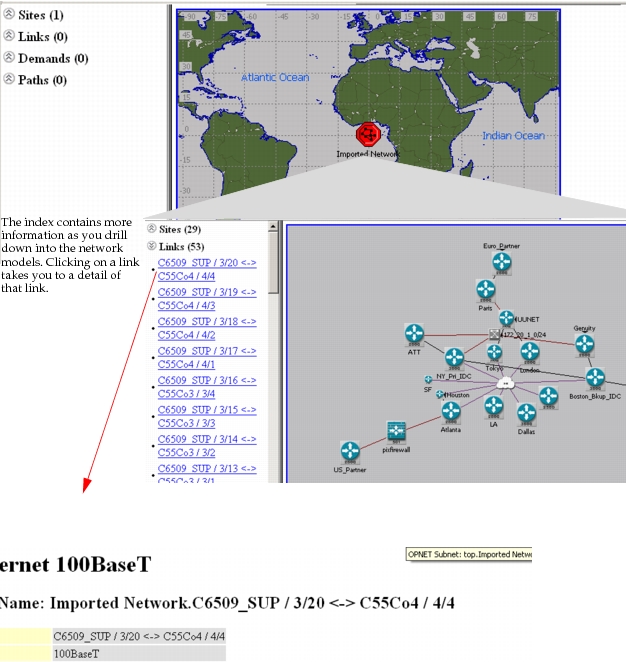
If you have a large number of sites or nodes in your network model, you may want to set the preference "Generate Objects Index in Scenario Web Report" to TRUE. When this preference is set to TRUE, a left-side navigation frame with a list of sites, links, demands, and paths is included in the report, making it easier to accurately select an object to view in the report. For an example, see the following figure.
Figure 533: Viewing an Index of Scenario Objects in Web Report
Additional preferences that control the appearance of the report are listed in the following table.
Table 228: Scenario Web Report Preferences
| Preference | Description |
|---|---|
subnet_contents_area_min_horizontal_margin |
Minimum horizontal margin of subnet contents area, in pixels |
subnet_contents_area_min_vertical_margin |
Minimum vertical margin of subnet contents area, in pixels |
html_export_min_image_width |
Minimum width of the exported HTML page. |
html_export_max_image_width |
Maximum width of the exported HTML page. |