Object/Attribute Difference Reports
An object/attribute difference report compares the attributes of objects in two networks from the same project or from different projects. Object/attribute difference reports are useful when you want to see exactly how a network has evolved from one scenario to the next or how networks imported from different sources vary.
The object/attribute difference report lists
- All objects that appear in both networks but have different attribute settings
- All objects that only appear in the primary network (the scenario from which the report was generated)
- All objects that only appear in the other network
- All objects that have identical attributes in both networks
Note: Modeler determines the presence of a network object by comparing the full hierarchical names of objects in both scenarios. The full hierarchical name includes the object name and every parent subnet. An object is considered to be the “same object” in both scenarios if and only if the object has the same hierarchical name in both scenarios.
Procedure 62: Generating an Object/Attribute Difference Report
-
Open one of the scenarios you want to compare.
-
To define the objects and attributes you want to exclude from the report, choose Scenarios > Object/Attribute Difference Report > Define Report. (For more information, see Defining an Object/Attribute Difference Report.)
-
Open the Generate Object/Attribute Difference Report dialog box by doing one of the following:
- Choose Scenarios > Object/Attribute Difference Report > Generate Report
- In the Define Object/Attribute Difference Report dialog box, click the Generate button.
-
Specify the second scenario to compare, the difference behavior file, and the target directory for the difference data (for more information, see Table 231 Generate Object/Attribute Difference Report Dialog Box (with Automation.) Then click Generate.
Result: Modeler compares the two scenarios and generates one or more XML data files to store the results.
Result: The Object/Attribute Difference Tree Viewer shows the results of the difference operation. For more information, see Viewing an Object/Attribute Report.
Defining an Object/Attribute Difference Report
You can exclude some types of objects and attributes from a comparison report. For example, you might want to ignore differences in annotations or wireless domains. Similarly, you might want to ignore specific types of attributes. The resulting report is more concise and easier to navigate.
To exclude objects or attributes from a difference report, choose Scenarios > Object/Attribute Difference Report > Define Report. This opens the Define Object/Attribute Difference Report dialog box, shown in the following figure.
Figure 535: Define Object/Attribute Difference Report Dialog Box
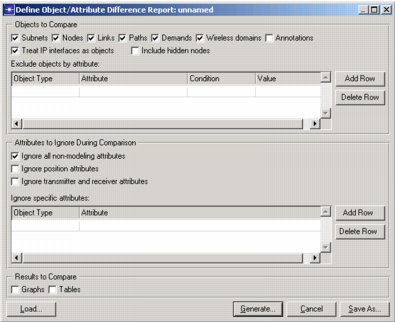
Table 229: Define Object/Attribute Report Dialog Box
| Option | Description |
|---|---|
| Objects to Compare | Specify the types of objects to include in the comparison report. |
| Include hidden nodes | If selected, the difference operation considers nodes that are not part of the network topology, but are stored in the network (nt.m) file. For example, a Flow Analysis run might create a “run configuration” node that stores the settings for that run. This option has no effect on nodes that might be hidden by a network view. |
| Treat IP interfaces as objects | If this option is selected, Modeler compares the interfaces based on the interface names, and the difference report shows interfaces as children of the nodes to which they belong (that is, as network objects). If this option is cleared, the report shows interface information in the attribute treeview/tables of individual nodes. |
| “Exclude objects by attribute” table | Specify attributes and conditions to restrict the set of objects in the comparison. Attributes are specified within a hierarchical path (i.e. AAA Parameters ➘ Status). |
| Attributes to ignore during comparison | Specify attributes to ignore: - All non-modeling attributes – Ignore attributes that do not affect discrete event simulation or Flow Analysis results (examples: “color”, “line style”, “creation source”) - Position attributes – Ignore attributes that specify physical locations of objects (examples: “x position”, “y position) - Transmitter and receiver attributes – Ignore link attributes that describe how the link attaches to its end-point objects. (examples: “transmitter”, “transmitter a”, “receiver b”) |
| “Ignore specific attributes” table | Ignore specific attributes during the comparison. Attributes are specified by a hierarchical path (example: IP Routing Parameters ➘ OS Version). |
| Results to Compare | Specify whether to include output results in the report: - Graphs – Compare generated graphs in each scenario and report differences, if any. - Tables – Compare generated tables in each scenario and report differences, if any. |
| Save As | Saves the current settings to a behavior file. |
| Load | Loads report settings from a behavior file. |
| Generate | Generates a difference report based on the current settings. |
Generating an Object/Attribute Difference Report
To generate an object/attribute difference report, choose Scenarios > Object/Attribute Difference Report > Generate Report. You can also generate a report by clicking the Generate button in the Define Object/Attribute Difference Report dialog box. Either action opens the Generate Object/Attribute Difference Report dialog box, shown in the following figure.
Figure 536: Generate Object/Attribute Difference Report Dialog Box (without Automation)
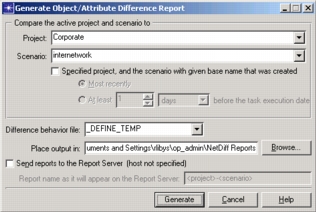
The controls are listed in the following table.
Table 230: Generate Object/Attribute Difference Report Dialog Box (without Automation)
| Option | Description |
|---|---|
| Compare | The current project and scenario are automatically displayed (not selectable). |
| To | Choose the scenario to compare with the current/active scenario. You may choose a scenario from any of your projects. |
| Difference behavior file | Use the difference criteria defined in the selected behavior file. You can create a difference behavior file in the Define Object/Attribute Difference Report dialog box. For more information, see Defining an Object/Attribute Difference Report. |
| Place output in | Target directory for the generated difference data. |
| Send reports to… | Send a copy of the generated report to the Report Server (specified by the report_server_name preference).Note: If using Report Server 2.0 or earlier, Object/Attribute Difference reports will only be listed under the product-specific folder. On the Report Server webpage, click on “View by Products” and then the product name. |
| Report name… | File name of the report sent to the Report Server. You can use two variables (“<project>” and “<scenario>”) in this field. Thus, you could enter the following string: “Mary’s <project>-<scenario>”. If you run a report from project Corporate and scenario Internetwork, the resulting report will be named “Mary’s Corporate-Internetwork”.This option is available only when the “Send reports to…” option is selected |
| Generate | Generates the report. |
If you have the Automation module enabled in Riverbed Modeler, the Generate Object/Attribute Difference Report dialog box appears as shown in the following figure.
Figure 537: Generate Object/Attribute Difference Report Dialog Box (with Automation)
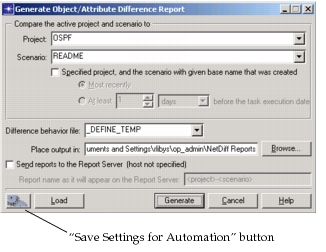
The controls are described in the following table.
Table 231: Generate Object/Attribute Difference Report Dialog Box (with Automation
| Option | Description |
|---|---|
| Compare the active project and scenario to… | Choose the scenario with which you want to compare the active scenario. |
| Specified project, and… | Compare the active scenario with a scenario created before the task execution date. |
| Difference behavior file | Use the difference criteria defined in the selected behavior file. You can create a difference behavior file in the Define Object/Attribute Difference Report dialog box. For more information, see Defining an Object/Attribute Difference Report. |
| Place output in | Target directory for the generated difference data. |
| Send reports to… | Send a copy of the generated report to the Report Server (specified by the report_server_name preference).Note: If using Report Server 2.0 or earlier, Object/Attribute Difference reports will only be listed under the product-specific folder. On the Report Server webpage, click on “View by Products” and then the product name. |
| Report name… | File name of the report sent to the Report Server. You can use two variables (“<project>” and “<scenario>”) in this field. Thus, you could enter the following string: “Mary’s <project>/<scenario>”. If you run a report from project Corporate and scenario Internetwork, the resulting report will be named “Mary’s Corporate/Internetwork”.This option is available only when the “Send reports to…” option is selected. |
| Save Settings for Automation | Saves the current settings to an automation (.af) file. |
| Load | Loads settings from an automation (.af) file. |
| Generate | Generate the report. |
Viewing an Object/Attribute Report
The Object/Attribute Difference Tree Viewer, shown in the following figure, opens automatically after generating a difference report. You can view the last generated report by choosing Scenarios > Object/Attribute Difference Report > View Last Report.
Figure 538: Object/Attribute Difference Tree Viewer
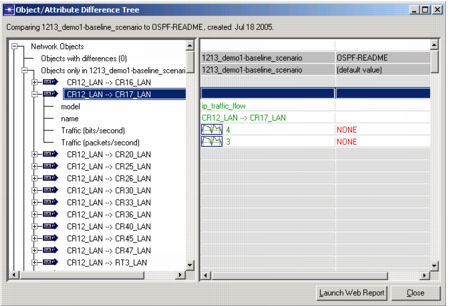
You can generate a web report from this viewer. The results are stored in the same directory as the difference data files.