Creating Traffic Flows and Profiles
For information on creating traffic flows and profiles, see
- Traffic Flows and Demands
- Traffic Profiles
- Creating Traffic Flows
- Unicast Flows
- IP Multicast Flows
- VoIP Flows
Traffic Flows and Demands
You create traffic flows in your network using traffic flow objects. A traffic flow is a network object that connects two nodes (like a link object) and specifies:
- A traffic source and a traffic destination
- A period of simulation time, which can be divided into time slots
- The mixture of the traffic that specifies all background traffic, all explicit traffic, or a percentage of explicit to background.
- The rate of traffic (in bits-per-second, packets-per-second, or some other measure) from source to destination during each time slot
Traffic flows are a type of demand object. Demands are used to model potentially variable relationships between nodes. Traffic flows are useful for defining IP and ATM end-to-end traffic; therefore, this section focuses on this type of demand.
You can browse, view and edit the traffic flows in your network using the Traffic Center, which is described in “Using the Traffic Center“.
Traffic Profiles
Every flow’s attribute list includes one or more traffic profiles that specify the traffic intensity for that flow object. “Traffic Intensity,” in this case, means the rate of source-to-destination traffic for a given simulation time period. A traffic profile stores a series of x-y value pairs, in which
- X values represent time slots, in seconds
- Y values represent rates of traffic (in bits/second, packets/second, or some other measure) for each corresponding time slot
When you view or edit a profile attribute, that attribute’s values display using both a table and an x-y graph, as shown in the following figure.
Figure 4: Traffic Profile Attribute for a Flow Object
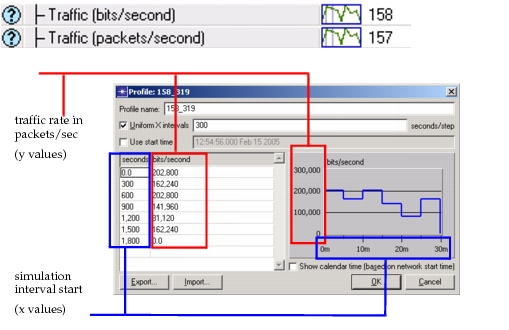
All time values (x entries) in a profile use relative start times (0 seconds, 300 seconds,...) which are offsets from the network start time. The network start time is an attribute of the network scenario, and is not recorded in profiles.
Traffic profiles can include “undefined” for one or more Y values, indicating that the value is not known for the corresponding time period. During simulation, undefined values are treated as either 0.0 or a continuation of the previous numeric Y value, depending on the setting of the traffic_profile_undef_value_treat_as_zero preference.
A flow specifies traffic from a source to a destination; it may also include a path object to specify that the traffic takes a certain route. If a flow does not include a path, the routing protocols used in the network determine the routes used by the traffic. (Path objects are covered in detail in Using Paths to Represent Virtual Circuits.)
The following figure shows a network with all three types of connection objects: links (solid line/two arrowheads), flows (blue dashed arrows), and paths (solid green line/one arrowhead indicates direction of path).
Figure 5: Example Network with Links, Demands and Paths
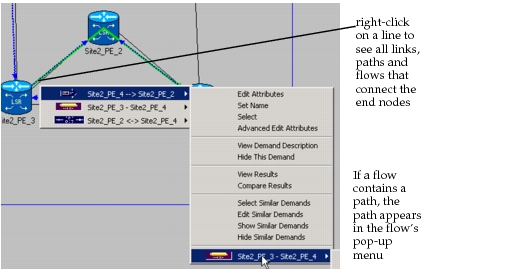
When you right-click on a traffic flow, the pop-up menu operations see “demands” rather than “flows.” A traffic flow is a type of demand object; when you right-click on a traffic flow and choose “Show Similar Demands,” for example, all flow objects that use the same underlying model are shown.
Creating Traffic Flows
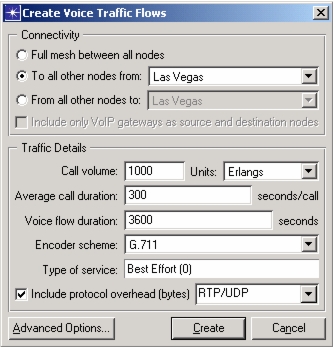
The menu operations within Traffic > Create Traffic Flows let you create IP Unicast, IP Multicast, and voice over IP (VoIP) traffic flows. These operations are useful for quickly loading a network with a particular type of traffic. The traffic flows created have different characteristics based on the type of demand (unicast, multicast, or VoIP). The demands created from a single Create IP Flows operation are configured identically. You can modify individual demands by editing the attributes of the demand.
Note: You can edit the mixture of background to explicit traffic in the Traffic Mix attribute of the flow.
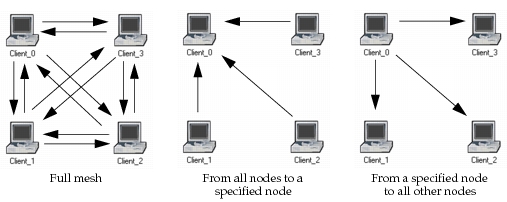
You can create traffic flows in a full mesh, from a single node to all other nodes, or from all nodes to a single node, as shown in the following figure.
Figure 6: Connectivity Options
Unicast Flows
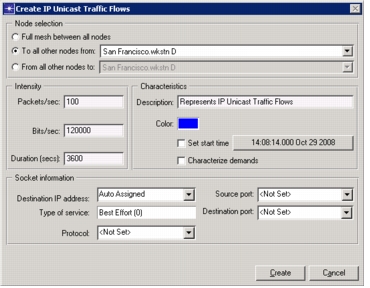
Unicast flows represent traffic between two specific IP addresses. Traffic intensity is configured in packets/sec and bits/sec and packet size is computed as a ratio of these two values. You can also configure socket information such as port and protocol. The destination IP address for the demands can be set explicitly or automatically assigned an IPv4 (Auto Assigned) or IPv6 (Auto Assigned v6) address.
Figure 7: Configuration Options for Creating Unicast Traffic Flows
IP Multicast Flows
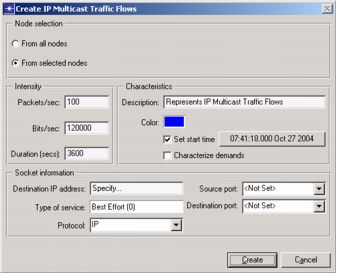
Multicast flows represent traffic between a node and multiple receivers with multicast IP addresses. Traffic intensity is configured in packets/sec and bits/sec and packet size is computed as a ratio of these two values. You can also configure socket information such as port and protocol. When setting the destination field, make sure that the address is a valid multicast address.
Figure 8: Configuration Options for Creating Multicast Traffic Flows
VoIP Flows
VoIP flows are configured between IP nodes, VoIP gateway nodes, or a combination of these two. When configuring VoIP flows, traffic intensity is specified using erlangs, CCS, or calls/hour—traffic intensity is converted internally and represented on the demands as packets/sec and bits/sec.
Figure 9: Configuration Options for Creating VoIP Traffic Flows