Topology Options for Import from NetCollector
This section describes the parameters you can use to specify the network topology data you want to import from NetCollector.
Import from NetCollector Import Mode
Specify the import mode you want to use, based on the following table.
Table 7: NetCollector Import Modes
| Import Mode | Usage | Description |
|---|---|---|
| Create/Replace network using the most recent NetCollector data | Also referred to as a “full import”. Use when starting a new scenario or when you want to erase all existing information in the current model to replace with NetCollector data. | If checked, the current NetCollector data is used to create a network model. “Create” appears if you are in a new scenario; “Replace” appears if you are in an existing scenario. |
| Incrementally update network using the most recent NetCollector data | Also referred to as an “incremental import”. Use when you want to update the current model with any changes that have occurred in NetCollector since the last import. | If checked, NetCollector updates the current network model with all recorded changes in NetCollector since the original import. |
| Replace network using an existing archive¹ | Use when you want to replace the current model with information contained in a NetCollector archive file. | If checked, a network model is created using the archived network specified in the drop-down menu. This menu is populated based on available archives from NetCollector. |
Note 1: This option does not allow you to import collected configuration files.
Import from NetCollector Options Tab
Specify the import options in the Options tab as follows:
-
Include collected output files – Gathers the available output files of the devices to be imported along with all other import data. When you select this checkbox, the
Selectbutton is activated. Click on the Select button to choose the files you want to include in this import.Note: When this option is used, you can right-click on any imported node for which a configuration file exists and select Post Import Operations > View Collected Output Files”.
Note: The string shown in parentheses under “Selected Files” is the file type that is configured on the NetCollector and is used to identify different types of output. Only the configurations available on the NetCollector appear in the “Available Files” pane.
-
Generate import log – Creates a log of actions during the import. You can access the log through the object or workspace pop-up menus after the import.
-
Model Assistant (optional) – If the “Use the following model assistant files:” checkbox is selected, you can choose model assistant files that specify certain import-related information (i.e., data rates, connectivity).
- For more information about model assistant files, see “Model Assistant“ on page 1.
- Two workflow documents related to model assistant files can help you create more : “Using a Model Assistant File to Create Hierarchy in the Model“ on page 287 and “Using a Model Assistant File to Specify Link Information in the Model“ on page 296.
Import from NetCollector Topology Tab
The Topology tab lets you specify the content you want to import and the way you want the content to be processed.
Figure 4: Import from NetCollector Topology Tab
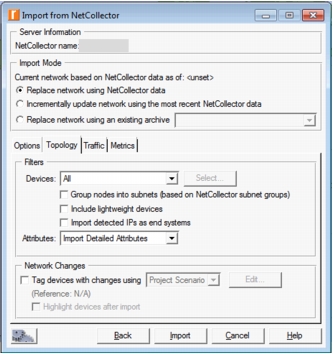
Specify topology-related import options as follows:
- Filters – Set filters to include the devices, groups, and attributes you want to use in building the imported model, as described in the following table.
Table 8: Import from NetCollector: Filters
| Name | Description |
|---|---|
| Devices | - All – (default) Includes all devices, regardless of grouping - Selected Groups – Includes devices in the groups you select. Click on the Select button to choose the available NetCollector device groups you want to include |
| Group nodes into subnets (Based on NetCollector subnet groups) | Import will place the devices into subnet groups in the network model when this is selected. You can then drill-down into the subnet to view and manage the devices. These node groupings are created in NetCollector. See Importing Groups as Subnets from NetCollector for more information. |
| Include lightweight devices | When this checkbox is selected, all devices found in NetCollector are imported, although some are not parsed. Only devices for which configuration files or MIB data are parsed during import. Lightweight devices can be useful for network auditing workflows, such as running Network Difference reports. Note: Lightweight devices cannot be used in simulations. |
| Include detected IPs as end systems | Detected IPs are based on information obtained during the collection of network data in NetCollector using various sources, including ARP. Select this checkbox to include the detected IPs from NetCollector during import as end systems or hosts. Including these detected IPs as end systems is useful for the purposes of analysis but a visible node is not placed in the project editor. For more information, see Include Detected IPs as End Systems |
| Attributes | Select “Import Detailed Attributes” to import all available attribute information; select “Import Minimal Attributes” to import only the attributes required to represent the node. For more information, see Concise Import from NetCollector—Attributes Filter. |
Note: If you filter based on groups and do subsequent incremental imports, changes and additions in the groups are respected, but deletions from the original node grouping are not considered.
- Network Changes – In an incremental import from NetCollector, network changes are automatically detected and tagged. In a full import from NetCollector, you can indicate that you want to detect and tag new, modified, or deleted devices for auditing purposes. See the table below for a description of the selection criteria you can specify. See Figure 5 for an example of these selections in the GUI.
Table 9: Tag Network Changes for Auditing
| Network Change | Description |
|---|---|
| Tag devices with changes using | Project Scenario – Specify the project/scenario to which you wish to compare the imported model |
| Calendar Time – Specify the date/time after which you wish to start tagging changes | |
| Relative Time – Specify the number of weeks, days, hours, or minutes before the current date/time for which you wish to tag changes | |
| Reference | This string shows what baseline time (relative or absolute) or reference project is being used. It is modified based on what you set with the "Edit" button in the Network Changes section. |
| Highlight devices after import | Select this checkbox if you want to see an indicator in the project editor on devices that are new or have been modified. This checkbox is active only when you have selected “Tag devices with changes using”. |
Figure 5: Tag Network Changes
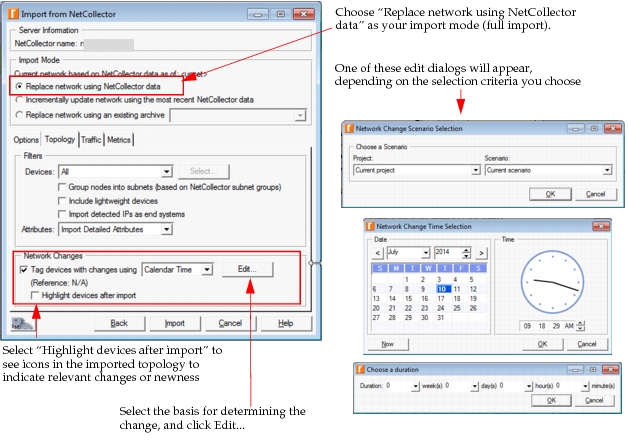
If a device has changed or is new, and if you selected the “Highlight devices after import” checkbox, the device will be marked with an indicator in the network model. A legend guides you to the meaning of each symbol.
Importing Groups as Subnets from NetCollector
You can specify how you want grouped nodes handled during import from NetCollector. Selecting the checkbox “Group nodes into subnets (based on NetCollector subnet groups),” as shown in the following figure, sets the value of the related preference to TRUE. You can choose the groups you want to include by setting the “Devices:” selection to “Include Selected Groups” as we have done in the example. Then click the Select button and choose the groups of interest.
Figure 6: Import NetCollector Groups as Subnets
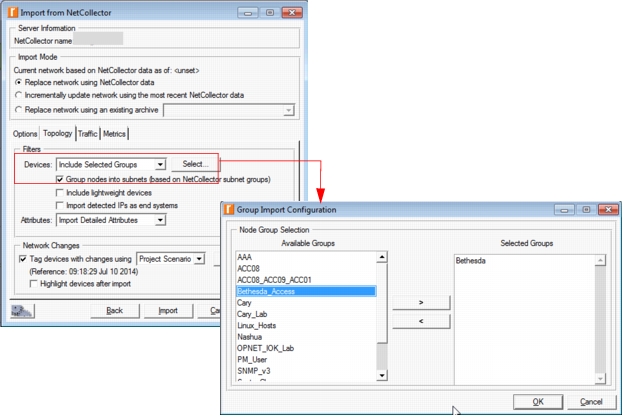
The following preference lets you define how you want groups handled on a regular basis:
- Subnet Nodes per VNES Group – Specifies whether to consider groups on the NetCollector when importing into NetPlanner. Values are as follows.
- TRUE – (default) The groups on NetCollector are imported into subnets on NetPlanner during import from NetCollector
- FALSE – The NetCollector groups are not imported into subnets
For information about using the Group Hierarchy configured on NetCollector for NetPlanner reporting, see “Using the Group Hierarchy File“.
Including Collected Output Files
You can import the device configuration files along with the network model during an initial import, subsequent import (replacing the topology), or incremental import. See the following figure for specific configuration information.
Figure 7: Include Collected Output Files
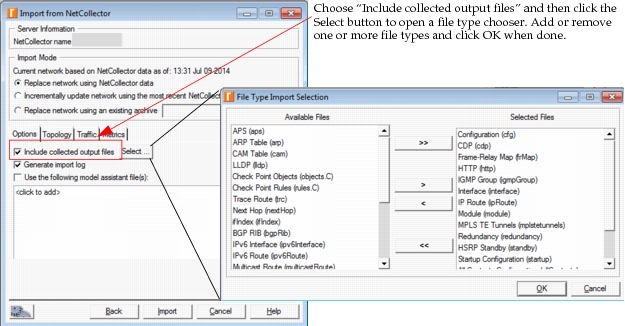
Note: This feature does not apply to import from archive file.
Include Detected IPs as End Systems
When you select the “Import detected IPs as end systems” checkbox on the Topology tab during import from NetCollector, end systems are created for the detected IPs collected from Layer-2 and Layer-3 data in the NetCollector. The resulting end systems will not appear in the Project Editor, but will be listed in Network Inventory reports.
End System Import Preferences
Preferences control the way detected IPs as end systems are imported.
- Host Import Active Time Window – Specifies the number of days that hosts remain active for the purposes of import after being detected (default: 14 days). This can reduce the number of hosts recognized and processed during import, thereby reducing the import time.
- Import Non-Managed Hosts – Specifies whether or not to import non-managed hosts (e.g., detected IPs).
- Import Only Connected Hosts – Specifies whether to import both connected and unconnected hosts. The default value is TRUE, which imports connected hosts only.
Key Concept—In NetCollector, the concept of a connected host means that Layer-2 information is known. Therefore it is known to which device and port the detected IP is connected. Otherwise, the detected IP, for which only Layer-3 information is available, is considered to be an unconnected host.