Detected IPs as End Systems
During import from NetCollector, you can include detected IP addresses as end systems. For details about this option, see “Include Detected IPs as End Systems“ on page 29. This section contains information about the workflows available for end systems after import.
What Can I Do with End Systems After Import?
When you include detected IPs as end systems during import, a variety of workflows are available to view and analyze the end systems in the project. Although the end systems are not visible in the project editor, they do appear in features such as the Network Browser.
View End Systems in Output Table
You can view the end systems in the output tables associated with the scenario. Choose Scenarios > View Associated Output Tables.
Figure 27: Viewing End Systems in Output Tables
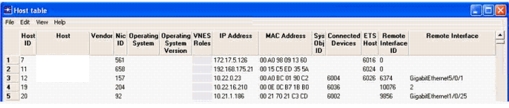
You can also use Topology > Import Topology > Show End System Data to generate a report with a more focused set of fields relevant to end systems (i.e., no Operating System column, as detected IPs might not contain that information).
View End Systems in the Network Browser
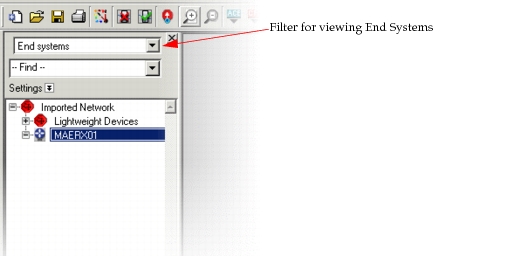
When import is complete, you can view the end systems in the Network Browser (View > Network Browser or Ctrl+B) and can filter by “End Systems”.
Figure 28: Viewing End Systems in the Network Browser
Assigning Roles to End Systems
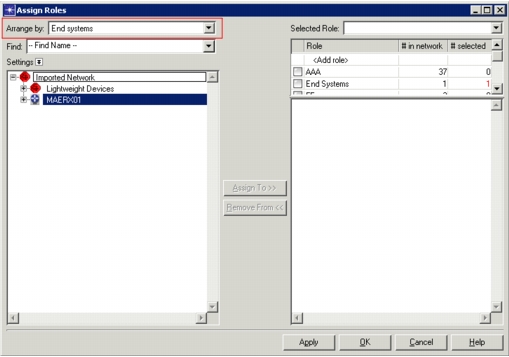
You can assign roles to end systems that have been imported into your project to effectively group them by function. Select Topology > Role Assignment > Assign Roles to bring up the following dialog box. Notice that you can filter the list of devices by End Systems, using the “Arrange by” drop-down menu, as shown. For more information, see “Using the Role Assignment Utility“ on page 1.
Figure 29: Assign Roles to End Systems
Storing Roles to End Systems in Model Assistant File
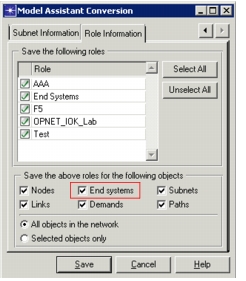
You can store assigned roles for end systems when you create a model assistant file. Select Topology > Model Assistant to manage model assistant files. Notice that when you select “Save Current Topology to File...”, End Systems are selectable objects in the “Role Information” tab. For more information about model assistant files, see “Model Assistant“ on page 1.
Figure 30: Roles Assigment in Model Assistant File for End Systems
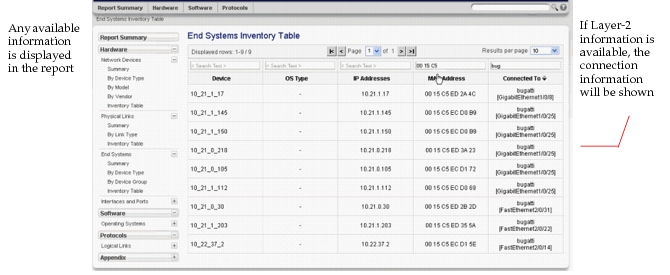
View End Systems in the Network Inventory Report
In the Network Inventory report, described in “Introduction to Inventory Reports“ on page 1, you can view more details about the information collected about the end systems, as shown below. This report provides a simple and effective way to review all of the end systems that are part of your imported network.
Figure 31: End Systems Inventory Table