View and Edit Configuration Files
After an import in which you chose to include collected device configuration files, you can view the files in the Project Editor. To do this, select View Device Configuration Source Data from the node object’s pop-up menu.
Procedure 4: Editing a Configuration File of a Device
-
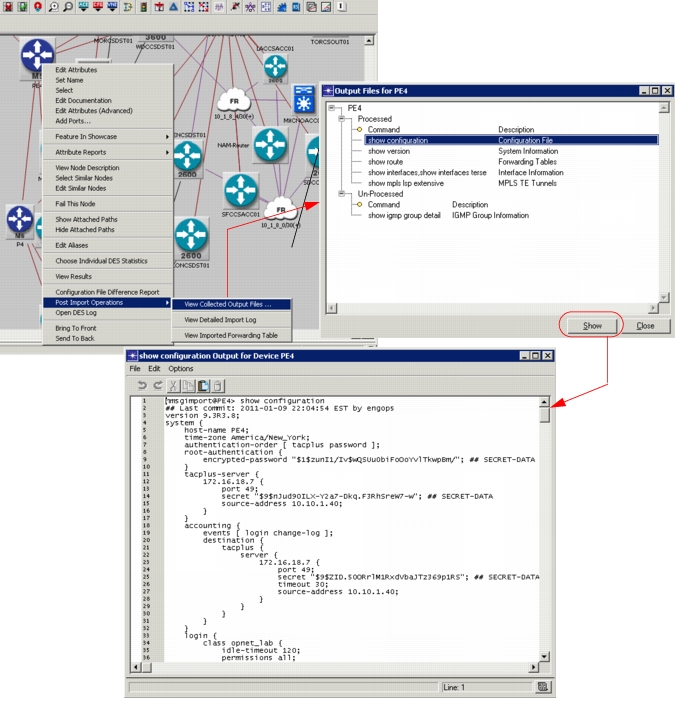
Right-click on the device in the Project Editor workspace, and select Post Import Operations > View Collected Output Files... from the menu.
Result: The list of output files appear in a dialog box. Click on the file you want to edit and click the Show button. The file opens in a text editor.
-
Edit the configuration file.
-
Choose File > Save.
-
Close the text edit pad.
Figure 25: Viewing the Collected Output File after Import
Viewing Forwarding Tables After Import
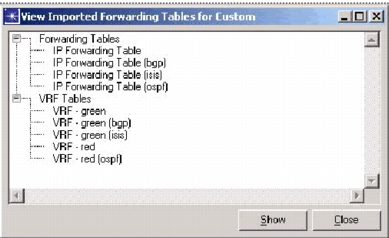
If forwarding tables were imported, you can access the output of show ip route, show ip route protocol, show ip route vrf vrf, and show ip route vrf vrf protocol commands from the right-click Post-Import Operations > View Imported Forwarding Table menu option. If you have multiple forwarding tables or VRF tables, a table, such as the one shown in the following figure, will appear. You can click on the forwarding table you want to view and drill down to see more information.
Figure 26: Viewing Multiple Forwarding Tables