Configure Link Delays from Measured Delay Information
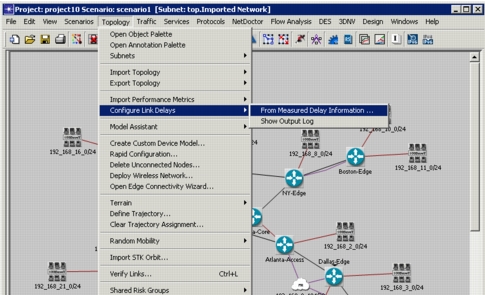
After you import measured performance data, you can configure link delays based on information that is stored in the Performance Metrics > Delay, Jitter and Loss > Round Trip Delay attribute. This lets you use information from your real network during a simulation instead of distance-based delays. Therefore, you can perform a meaningful simulation of end-to-end delay without having to import traffic. Use the menu item Topology > Configure Link Delays > From Measured Delay Information…, shown in the following figure, to modify the values populated from the import.
Figure 38: Configure Link Delays
The dialog box, shown below, lets you specify how you want to configure link delays based on information from the operational network.
Figure 39: Configure Link Delays Dialog Box
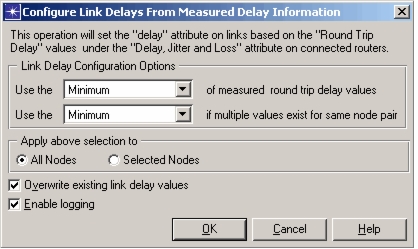
Configure the dialog box as follows:
-
Link Delay Configuration Options – In this section of the dialog box, specify the Round Trip Delay value to use and how to configure the delays if multiple values exist for a given node pair:
- Use the ___ of measured round trip delay values – Maximum, Minimum, Average, or 95th percentile.
- Use the ___ if multiple values exist for the same node pair – Maximum, Minimum, or Average.
-
Apply above selection to – All nodes or Selected nodes. Select multiple nodes in the network by using Ctrl-click.
-
Overwrite existing link delay values – Select this checkbox if you want the selections configured in this dialog box to overwrite any existing values for link delays.
Note: Links with the delay values set to the default (“Distance Based”) will always be modified regardless of this checkbox.
- Enable logging – An output log will be created which contains details of skipped “Delay, Jitter and Loss” information, as well as a configuration summary. To view the output error log, click on Topology > Configure Link Delays > Show Output Log.