Import Performance Metrics from Text File
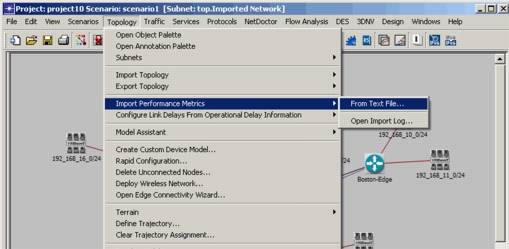
You can apply performance metrics information from a text file over an existing network model after an import, using the menu option Topology > Import Performance Metrics > From Text File (highlighted below). This option allows you to import and evaluate operational performance metrics from a comma-separated value (CSV) file. An example of the CSV file is shown in Figure 35.
Figure 33: Import Performance Metrics from Text File
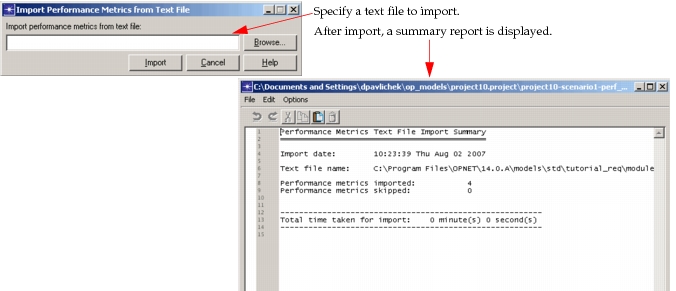
When you select this menu option, a dialog box (shown below) opens in which you can browse for the text file you want to import. A summary report is displayed after the import to show the metrics that were imported. See Importing Performance Metrics: Example Files for examples.
Figure 34: Import Performance Metrics from Text File Dialog Box and Import Summary
Importing Performance Metrics: Text File Fields
The following fields are supported for the CSV file. Note that while not all fields are required to contain a value, a comma separator must be in place for each field, whether or not a value exists for that field.
Note: The source and destination must be specified—either by using hostnames, IP addresses, or both—in the first four fields.
- Source hostname
- Source IP address
- Destination hostname
- Destination IP address
- Minimum round-trip latency (msecs)
- Maximum round-trip latency (msecs)
- Average round-trip latency (msecs)
- 95th round-trip percentile latency (msecs)
- Minimum source-destination packet loss (%)
- Maximum source-destination packet loss (%)
- Average source-destination packet loss (%)
- 95th percentile source-destination packet loss (%)
- Minimum source-destination jitter (msecs)
- Maximum source-destination jitter (msecs)
- Average source-destination jitter (msecs)
- 95th percentile source-destination jitter (msecs)
Importing Performance Metrics: Example Files
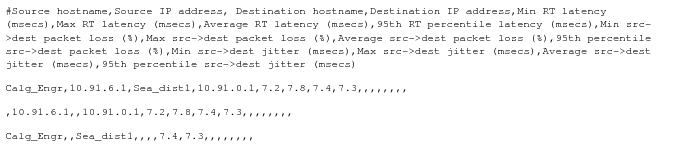
The following figure shows a text file containing the header information (preceded by the # sign) and the values for each field. Note that commas must be present to separate each field, even those with null values. If the text file is not in this format, the performance metrics will not be imported as expected.
Figure 35: Example Text File for Importing Performance Metrics
An example of a performance metrics file, in an Excel file format, is shown below. This example is easier to read and understand. Note that all records contain the IP addresses of the source and destination; some contain the hostnames of the records as well. At least two of the first four fields must be filled in to specify a source and destination pair.
Figure 36: Sample .CSV Performance Metrics File

Importing Performance Metrics: Import Log
The import log is an important source of information for troubleshooting. For each problem encountered during an import, a line is written to the import log. You can select Topology > Import Performance Metrics > Open Import Log... to see an import log dialog box like the one shown below.
Figure 37: Import Log
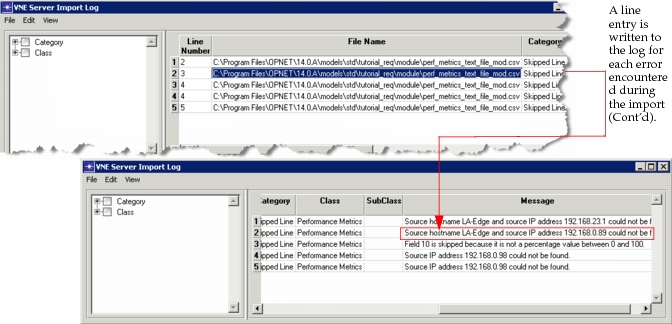
With this information, you can return to the file and make any necessary changes before trying to import the performance metrics again.