Extended Attributes
As described in Attributes, all network objects (subnets, nodes, and links) have built-in attributes that provide basic information about them. Node and link objects also receive additional attributes from the models associated with them; these model attributes define the object’s behavior in a network model.
Extended attributes are optional attributes that you can add to a network object; these customize an object’s behavior further in a network model. Support for an extended attribute must be built into a model used by at least one of the objects in the network model. This support is provided by the model developer and should be described in the model documentation.
Creating Extended Attributes
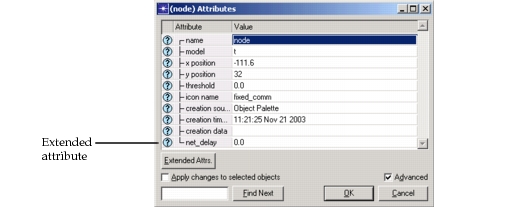
When creating an extended attribute, you can add it to any network object that may need it. Extended attributes become primary attributes of an object and automatically appear in the object’s Attributes dialog box.
Procedure 2: Creating An Extended Attribute
-
Select Edit Attributes from the object pop-up menu to display the object’s Attributes dialog box, then check the Advanced checkbox.
-
Left-click the Extended Attrs. button

-
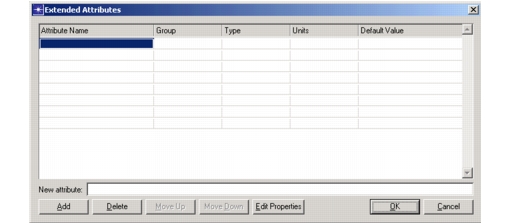
The Extended Attributes dialog box pops up with a data table for creating new attributes.
-
Enter the name of the attribute in the New Attribute text entry area and left-click the Add button. You can also type directly in the data table by left-clicking a cell in the Attribute Name column. Be sure the name meets the requirements listed in Table 27.
Result: The attribute is added to the table and automatically assigned a type and default value.
-
Under the Type column, select an appropriate data type from the pull-down menu. Possible data types are listed in the following table.
Table 29: Attribute Data Types
Data Type Description integer Positive or negative whole numbers with a magnitude less than 2³¹–64. double Positive or negative double-precision floating point numbers with a magnitude less than 10¹⁰⁰. These attributes typically represent precise numerical quantities. string Characters representing the name of an object or property. The string can be any length, but no more than 2048 characters will be displayed. Valid characters depend on context. toggle Value representing an “enabled” or “disabled” state. typed file Character string representing a file that is part of Modeler’s system of managed files. These refer to a specific type of file identified by a .gdf suffix at the end of the file name, as seen in your model directories. For more information about typed files and their suffixes, see “System Environment” on page 1. compound A grouping of several attributes into one attribute value. Compound attributes allow you to describe a complex set of characteristics for an object by defining typical values for one compound attribute. For instructions on defining compound attributes, see Compound Attributes. profile An attribute value that specifies a vector of x-y value pairs and labels for the x and y axes. For instructions on defining profiles, see Chapter 14 “Profile Library Editor” on page 550. color An attribute value that specifies the color used to draw an object. -
Type the units to associate with the attribute, if any.
-
Type a default value for the attribute.
-
Left-click OK to save the information and close the dialog box.
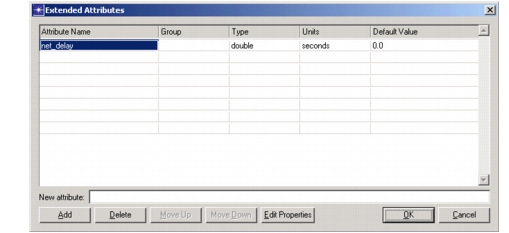
Result: The new attribute appears as a primary attribute of the object.
Deleting Extended Attributes
The Extended Attributes dialog box also allows you to delete extended attributes. To delete an extended attribute, select it and click the Delete button.
Editing Extended Attribute Properties
You can edit the properties of extended attributes using the standard (editable) version of the Extended Attributes dialog box.
Procedure 3: Editing the Properties of an Extended Attribute
-
Left-click the Edit Properties button in the Extended Attributes dialog box.
Result: An editable version of the Attribute Properties dialog box pops up.
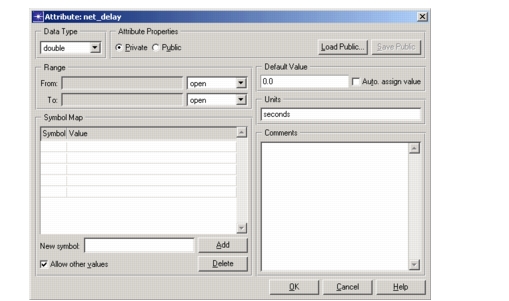
Note: Only private attribute properties can be edited.
-
Change the extended attribute’s properties as desired. Descriptions of the properties appear in the table Attribute Properties. Instructions for changing the range, symbol map, and comments properties appear in the following subsections.
-
Click OK when you are done editing the attribute’s properties.
Range
The range property allows you to specify a range of allowed values for the attribute. If you specify a range, only values within this range can be assigned to the attribute. Any value specified for the default value property must also be within this range. You can create symbols with values outside the specified range, but you will not be able to assign such symbols to the attribute.
You can specify a range of values only for attributes with a data type property of integer or double. The range property is inactive for all other data types.
Procedure 4: Specifying a Range of Values
-
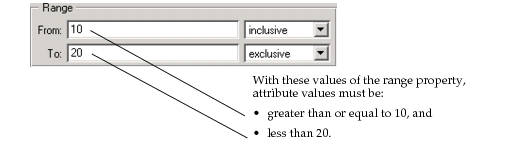
In the pull-down menus following the From and To fields, specify whether the beginning and end of the range of values are “inclusive”, “exclusive”, or “open”:
- Inclusive indicates that the specified number is included with the range of values.
- Exclusive indicates that the specified number is excluded from the range of values.
- Open indicates that there is no limit for the corresponding field.
The default value for both fields of the range property is “open”, indicating that the attribute value has no lower or upper limits.
-
In the From field, enter a number for the beginning of the range or leave the field empty for a lower limit of negative infinity.
-
In the To field, enter a number for the end of the range or leave the field empty for an upper limit of positive infinity.
Figure 51: Range Example
Symbol Map
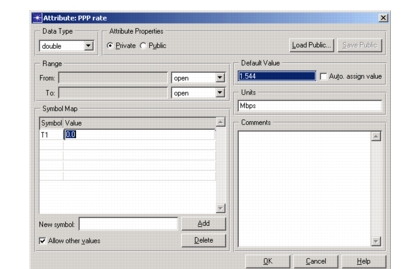
The symbol map property allows you to define symbolic names for specific attribute values. The names used in symbol maps can represent common or frequently used values of the attribute described by this property. For example, you could define a symbol called T1 for the data rate attribute of a model and assign the value 1.544 Mbps to that symbol. Users of the model could then specify the T1 data rate without having to remember its actual value. Symbol maps are particularly valuable when used with compound attributes (described in Compound Attributes), where they allow you to specify an extensive configuration with one symbolic value.
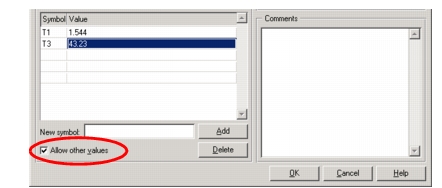
In addition to serving as an enumerated list of common values, a symbol map can also restrict attribute values to only those values in the list. If the Allow other values checkbox is deselected (the default), only attribute values in the symbol map are permitted.
The following restrictions apply to symbol maps:
- If you specify a range of allowed values with the range property, you can create symbols with values outside this range, but you will be unable to assign such symbols as attribute values.
- If you use the symbol map to restrict attribute values, the value of the default value property must be one of the symbolic values.
Procedure 5: Creating a Symbol Map
-
Type a name into the New Symbol text entry area of the Attribute Properties dialog box and click the Add button. (You can also enter new symbols to the table by typing directly in an empty cell of the Symbol column.)
Result: The symbolic name is added to the Symbol Map data table.
-
Enter a value for the symbol in the adjacent cell of the Value column. If a range is specified, this value must be within it.
-
Repeat steps 1 and 2 for each symbol desired.
-
Specify whether attribute values other than those in the symbol map are allowed.
-
To allow the attribute to have assigned values other than those in the symbol map, select the Allow Other Values checkbox.
Result: The model user can assign attribute values that are defined by the symbol maps.
-
To restrict attribute values to only those in the symbol map, deselect the Allow Other Values checkbox.
Result: The model user is now restricted to selecting those attribute values that are defined by the symbol maps.
-
If you restricted the attribute values in the preceding step and the current default value is not one of the allowed values, select a new default value from the Default Value pull-down menu. Any symbols that have been defined will appear on this menu.
Comments
The comments property provides a way to describe an attribute to users of a model. Information you type in the text entry area provided will be available to anyone viewing the attribute properties. The comments you provide in this property should include a definition of the attribute, how it is used by an object, and any other information that may be helpful to the model user.