Connections
What Are Connections?
Every UI control has a set of connections that manage the size and position of the control. You can set the Container Editor to display connections by choosing Connection > Show. You can then see the connections when you select the control.
It is important to choose the right type of connections because the connections determine how controls are re-sized and re-positioned when:
- the user re-sizes the dialog box
- the dialog box is displayed on different platforms
Connections also determine the minimum size of the dialog box.
Connections come in three basic types:
-
Fixed-length struts—A fixed-length connection that keeps a control at a constant distance from another object (either the container wall or another UI control). It specifies an exact pixel length. It can be edit-locked so casual dragging in the editor does not change the value. It is drawn as a thin, straight blue line with caps (dashed if locked).
-
Natural-length struts—A variable-length connection that specifies a context-sensitive length. It is drawn as a thick, straight green line. In most cases, use a natural-length strut to “attach” a control to the side of dialog. You will also typically use a natural-length strut for the width and height connections of labels, icons, buttons, and checkboxes. Natural-length struts allow these controls to grow and shrink based on the size of the text they contain. This may occur when the application is ported to a different platform.
-
Springs —A variable-length connection that expands or contracts to fill the space between the control and another object. Springs allow controls to move when a user re-sizes the dialog box.
A spring always has a strut component, though a simple spring (as shown below) has a zero-length strut component. A spring is drawn as a jagged blue line. It may be attached to a non-zero, fixed-length strut (straight blue) or a natural-length strut (straight green).
Springs and struts work with the borders of the dialog: they are the fixed points for the spring and strut system.
You can change a connection’s type by selecting it and then choosing the desired type on the Connections menu. You can also toggle an outside connection between spring and strut by double-clicking on it.
Figure 21: Control Connections in the Container Editor
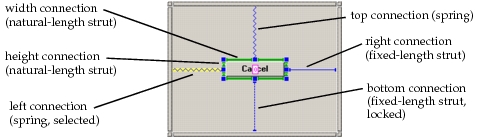
Each control has eight connections. The width and height connections (two of each) define the object’s size. The outside connections (left, right, top, bottom) place the control in relation to the four sides of the container. Note that there are really only six connections of interest, because the two width connections will match each other, as will the two height connections.
Generally, springs and fixed-length struts are most useful for outside connections and natural-length struts are most useful for defining an object’s height and width. See Dialog Box Controls for recommendations on choosing connections for specific controls.
Connection Examples
You can center a control within a container by using springs for all four outside connections. The control stays centered in the container even when the dialog box window is re-sized.
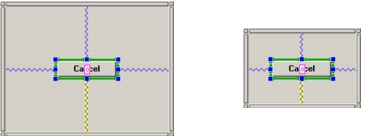
You can keep a control near a container wall by using three springs and a strut:
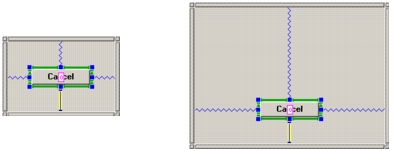
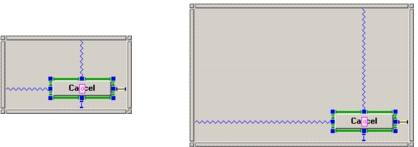
You can keep a control anchored in a corner by using two struts and two springs:
Invalid Connections
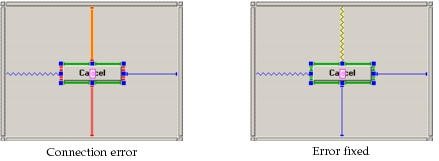
Every chain of connections must include at least one spring. If you specify an invalid series of connections, the connections appear as large, “hollow” lines.
In the following diagram, the top and bottom connections are both struts. This is an error because the control cannot “move” if the user changes the height of the dialog box. Changing either connection to a spring fixes this problem.