Focus, Keystrokes, and Controls
The Order Items window in the Container Editor allows you to control the sequence of the various controls within a container. Specifically, you can perform the following functions in this window:
- Assign default focus to a specific control, so the control is ready to edit when the container is selected.
- Associate keystrokes (specifically the Enter, Escape, and Tab keys) with specific controls.
Default Focus
When a control is the default focus item, it automatically gains focus whenever its container is selected. Generally you assign default focus to the control that the user is likely to edit first.
To specify a control as the default focus item, select that control in the Order Items window of the Container Editor; then choose Item > Default Focus Item.
Tab Order
The tab order determines the order in which controls are selected when a user repeatedly presses the Tab key.
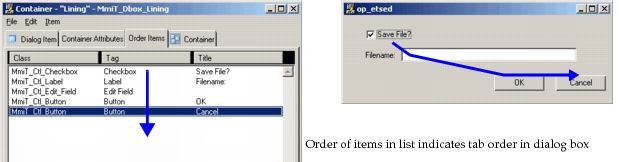
You establish a tab order by ordering the control list in the Order Items window. You can do this by dragging items up and down the list with the mouse. In Figure 20, the order of items in the list (top to bottom) indicates the tab order in the dialog box: checkbox, edit field, OK button, and Cancel button.
Figure 20: Tab Order Example
Confirm and Cancel Controls
A confirm control is selected when you press the Enter key; in most cases it corresponds to buttons like OK, Confirm, or Next. To specify a control as the confirm control, select the control in the Order Items window and choose Item > Confirm Item.
A cancel control is selected when you press the Escape key; in most cases it corresponds to buttons like Cancel and Abort. To specify a control as the cancel control, select the control in the Order Items window and choose Item > Abandon Item.