OPNET Development Kit Runtime Environment
File Organization
Your application will probably use custom icons, splash screens, ETS files, and menu files. You can:
-
Keep these files in the user’s op_models directory. Choose this option if you have only a few custom files.
-
Integrate these files into the directory structure. Your custom icons, for example, can be placed in the
<install_dir>/<release>/sys/iconsdirectory. If you choose this organizational method, see “File System Organization“ on page 2 and “System Directory (sys)“ on page 4 for a description of the file system.This can be a good option if your application is similar to NetPlanner, because it makes use of the ready-made file structure.
-
Create your own structure, independent of the NetPlanner structure. A sample structure is as follows:
Figure 1: Sample File Organization
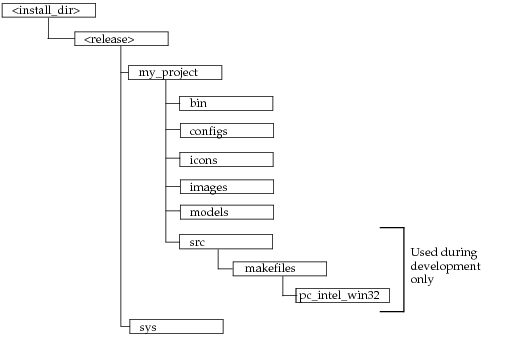
If you choose this option and need to include the
netbiz.etsfile, place it in theconfigsdirectory.
Runtime Execution
Preferences
Preferences (also known as environment attributes) are described in detail in Chapter 2 “Preferences” on page 30. This section describes a few points most relevant to application developers.
OPNET Development Kit applications offer several different mechanisms for specifying preferences. You can:
-
Specify the preference on the command line, as follows:
netbiz -prefs_file my_prefs_file -
Use shell variables.
-
Use the values in the default preferences file (
<home>/op_admin/opnet-<rel>.prefs) or modify the file. -
Specify preferences and values in an environment (
.ef) file. Environment files are located in<reldir>\sys\configs\global_prefs. -
Use the registry (Windows only).
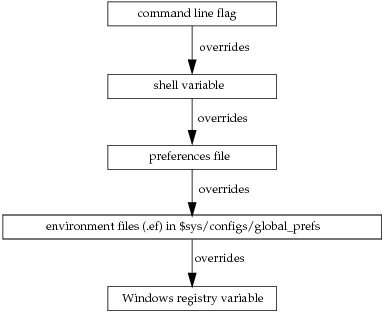
With five different mechanisms for passing preferences, there is a possibility that the same preference will be assigned via more than one mechanism. The order of precedence for preference passing mechanisms is shown in the following figure. This precedence is fixed and unmodifiable. Preference assignments that are overridden by higher precedence mechanisms have no effect.
Figure 2: Preference Precedence
Pre-pending the name of the executable (your_application, for example) to a preference allows the same preference to have different settings. Pre-pending the name creates, in effect, two different preferences.
For example, suppose you have one preferences file that you use both for your_application, which uses the splash screen your_splash_screen, and NetPlanner, which uses the splash screen modeler_splash_screen. Your preferences file can include the preferences modeler.splash_image (with a value of modeler_splash_screen) and your_application.splash_image (with a value of your_splash_screen). The correct splash screen will display when either application is launched.
If a preference is defined both with the current executable’s name (your_application.splash_image, for example) and without any executable name (splash_image), the value of the former has precedence, regardless of where the values are defined.
For example, suppose that your_application.splash_image is defined as cool_splash_screen in the preferences file, but splash_image is defined as boring_splash_screen in an environment file. The value of your_application.splash_image takes precedence and is displayed, even though preferences in an environment file typically take precedence over preferences in a preferences file.
Frequently Customized Preferences
The following list describes some preferences that are frequently customized by application developers.
-
prefs_file – Specifies the name of a preferences file to use. This can be either the complete path to a file or just the file name if the file is in the default location (
<HOME>/op_admin/). If this preference is used, it must be on the command line and must be specified first.You can use one preferences file while developing the application, but prepare a different one for the deployment environment. You might also have yet a third preferences for NetPlanner or other analysis software.
-
ets_options – Specifies the ETS library (
op_*.<environment>.<arch_suffix>.ets.<type>) that contains theenv_db_enhance()function. If, for example, your library is namedop_my_app.gui32.i0.ets.so, thenets_optionsshould be set tomy_app.If the preferences file doesn’t exist, the core of your OPNET Development Kit application creates one. This preferences file might or might not be sufficient for your application. For this reason, you might want to supply an
env_db_enhance()function that modifies the preferences file appropriately. The ets_options preference tells the OPNET Development Kit application where to look for your function. See Creating a Custom Preferences File for details on theenv_db_enhance()function. -
icon_dbs – Specifies the names of the icon database files (
*.icons) to be used. These can also be specified in the main editor configuration file.You will probably have created custom icon databases for your application; these will be specified in this preference.
-
opnet_user_home – specifies the location of the op_admin and op_models directories. By default, NetPlanner looks in the
<HOME>directory to find these directories. This preference must be specified from the command line.
General Preferences
You may also need to customize one of the preferences listed below. You can use any of the mechanisms described earlier to customize these preference values.
- console – turns the console window (where you can print debug information) on or off.
- console_exit_pause – pauses during program exit before the console window is destroyed.
- expanded_subnets_iconic – specifies whether subnets, when expanded, are displayed as icons or as bounded rectangles.
- expanded_subnets_thickness – specifies thickness of the bounded rectangles of expanded subnets.
- mod_dirs – lists the directories in which your application will look for model files.
- network_add_world_map_to_new_models – adds the world map to the top subnet of new network models (scenarios).
- network_links_infer_threshold – specifies whether a link should determine its thickness based on the threshold of its endpoints or use the value of its
thicknessattribute. - network_palette – specifies the palette file (
*.cml) that is used. For a file namedmy_palette.cml, this should be set to the string list (custom_model_list, my_palette). You should always enter the stringcustom_model_list, then enter the name of the.cmlfile (my_palettein this case). - network_palette.fixed_subnet_icon – specifies the icon to be used for the fixed subnet on the palette. To remove the fixed subnet from the palette, set this to the empty string “”.
- network_palette.mobile_subnet_icon – specifies the icon to be used for the mobile subnet on the palette. To remove the mobile subnet from the palette, set this to the empty string “”.
- network_palette.satellite_subnet_icon – specifies the icon to be used for the satellite subnet on the palette To remove the satellite subnet from the palette, set this to the empty string “”
- network_show_links_to_parent_subnet_objects – specifies whether a link connecting an object in the current subnet to an object not in the current subnet is displayed.
- network_use_trx_prompt – specifies whether the user is prompted to input the transmitting and receiving nodes when drawing a link.
- opnet_dir – root directory for analysis software. Riverbed looks for model directories in this directory tree when the preferences file is being recreated.
- product – specifies what type of license to get and what main editor configuration file (
modeler.ets, netbiz.ets) is used. - product_options – specifies which modules (such as ESP and ACE) to use. A separate license is generally required for each module.
- prof_track – specifies whether to track and print profiling statistics. Profiling statistics are used in debugging. To generate profiling statistics your code must include FIN and FOUT statements and must be compiled with VOSD_PROFILE defined.
- prof_track_func – name of function for which detailed profiling statistics are collected.
- program_resources – names of the resource files (
*.wrc) that are used. These can also be specified in the main editor configuration file. - splash_image – name of the image file (
*.image) that is used in the system window. - tooltip.link_attributes – names of the link attributes that are displayed in the link tooltip. A link tooltip is displayed when the user holds the mouse over the link.
- tooltip.site_attributes – names of the site (node or subnet) attributes that are displayed in the site tooltip. A site tooltip is displayed when the user holds the mouse over the site.
- use_startup_wizard – specifies whether the Startup Wizard is invoked for a new project. This must be set to TRUE to use an ets_startup function. The ets_startup function is specified in the main editor configuration file.
- use_tooltip_as_link_title – specifies whether the attribute “tooltip” or the attribute “name” is used for the link’s title when it is displayed. See the function Ets_Obj_UI_Status_Set() on page 1060 for information on displaying a link’s title.
Creating a Custom Preferences File
The default preferences file that an OPNET Development Kit application creates may be inappropriate for your application. To replace the preferences file “on the fly” (after the OPNET Development Kit application has started), you can create a custom env_db_enhance() function. This function allows you to add preferences to the preferences file or to modify existing ones.
If an env_db_enhance() function exists, the following sequence of events takes place after the default preferences file is built:
-
The application creates a copy of the default preferences file.
-
The application calls the
env_db_enhance()function. The argumentfile_nameis the name of the preferences file copy. -
The
env_db_enhance()function runs. A typical implementation of this function does the following:a) Creates a temporary file (
env_db_temp_name, in the example in Figure 3). b) Writes statements to the temporary file for each preference that should be in the enhanced preferences file, including those to be changed or added. c) Copies the temporary file to the file given in the function call (file_name). d) Deletes the temporary file. -
The application automatically replaces the default preferences file with
file_name.
Your function enhances whichever preferences file is currently being used by the OPNET Development Kit application, regardless of its name. When writing your function, observe these guidelines:
-
Your function name must follow the pattern
<lib name>_env_db_enhance. For example, if you compile this function into a library namedmy_lib.gui32.i0.ets.dll, you would name the functionmy_lib_env_db_enhance(). -
The prototype for your function is as follows:
DLLEXPORT int <lib name>_env_db_enhance (char* file_name) -
The library containing this function must be in one of the ODK application’s core directories (either a standard model directory or a core software directory). The recommended location is
sys/configs. -
If you are using C++ code, your function must be declared as an extern C function, with all required conventions.
-
The file passed as an argument (
file_name) is the full path and file name of a copy of the preferences file. This file becomes the preferences file when the function completes. Do not modifyfile_namedirectly; instead, replace it at the end of the function with the temporary file. -
When this function completes, the original preferences file is automatically replaced by
file_name. This means that you must be sure that your temporary file:- sets all variables (including all mod_dirs)
- does not remove anything in the original preferences file that might be needed by the ODK application
Note that, until you replace
file_name, you can use it to access the contents of the original preferences file. By parsing this file, you can obtain the default information and settings. -
Your function should return 1 (or any positive number) if successful or 0 (or any negative number) if unsuccessful.
Figure 3: Sample env_db_enhance Function
//compile this function into my_lib.gui32.i0.ets.dll

extern "C"
{
DLLEXPORT int
my_lib_env_db_enhance (char* file_name)
	{
	FILE*		env_db_temp_file_ptr;
	FILE*		env_db_file_ptr;
	char		env_db_temp_name [256];

	FIN (my_lib_env_db_enhance (file_name));

	/* Open temporary preferences file that we will be reading from */
	if  ((env_db_file_ptr = fopen (file_name, "r")) == NULL)
		{
		printf ("\nUnable to open file for reading: %s \n", file_name);
		FRET (0);
		}

	/* Open temporary preferences file that we will be writing to */
	sprintf (env_db_temp_name, "%s_temp", file_name);

	if  ((env_db_temp_file_ptr = fopen (env_db_temp_name, "w")) == NULL)
		{
		printf ("\nUnable to open file for writing: %s \n", env_db_temp_name);
		FRET (0);
		}

	fprintf (env_db_temp_file_ptr,"#My Application Environment File\r\n\r\n\r\n");
	fprintf (env_db_temp_file_ptr,"arch_prog\t\t  : arch_msvc\r\n");

	fprintf (env_db_temp_file_ptr,"tooltip.link_attributes\t\t  : \r\n");
	fprintf (env_db_temp_file_ptr,"\t\t\t    tooltip, name\r\n");

	fprintf (env_db_temp_file_ptr,"tooltip.site_attributes\t\t  : \r\n");
	fprintf (env_db_temp_file_ptr,"\t\t\t    tooltip, name\r\n");
	fprintf (env_db_temp_file_ptr,"network_palette\t\t  : custom_model_list,\r\n");
	fprintf (env_db_temp_file_ptr,"\t\t\t    internet_toolbox\r\n");

	fclose (env_db_file_ptr);
	fclose (env_db_temp_file_ptr);
	my_file_copy (env_db_temp_name, file_name);

	/* Delete the temp file. */
	_unlink (env_db_temp_name);

	FRET (1);
	}
}