External Tool Support Scripts
The External Tool Support (ETS) package allows a model developer to augment the user-interface and behavior of GUI programs through the use of ETS scripts.
ETS scripts allow the developer to control two basic aspects of the user interface of a GUI program:
- Scripts can specify that menu items, termed operations, be added to an GUI program’s menus. The developer then defines in the script the ETS operation that is performed for each custom menu item selection.
- Scripts can specify, through an action definition, that ETS operations be performed when a custom button in an object’s attributes dialog box is clicked.
In addition, ETS scripts can define the contents of custom palettes and custom menus (explained later in this chapter). In all, there are six types of ETS scripts: editor configuration, operation list, menu definition, palette definition, action definition, and program execution.
Operation Definition
Standard and custom operations for Riverbed programs and editors are defined in special ETS script files called operation list files. Operation list files typically have names of the form std_<editor>_operations.ets or std_<editor>_<menu>_operations.ets. Any number of custom operations can be specified for an editor.
For example, customized operations for the Network Editor might be added to the operation list file called std_network_network_operations.ets or to a new, developer-defined file. For an operation list file to work, it must be referenced in the entry for an editor in the editor configuration file.
Operation List File
The operation list file declares a series of menus, submenus, and operations that appear in an editor. An operation entry can refer to a built-in function or to an ETS file. When referring to a built-in function, the guidance string field is optional. The icon, shortcut, and separator fields are always optional. The fields in each entry can appear in any order. A reference to the operation list file must appear in the editor configuration file for any menu items to appear.
For example, the Scenarios menu in Figure 7 can be defined by the sample operation list file in Figure 8.
Figure 7: Sample Menu
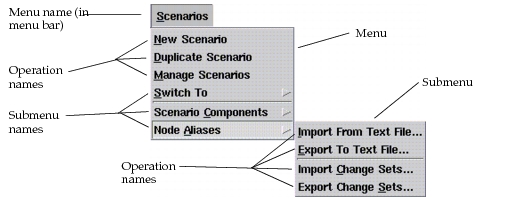
Figure 8: Sample Operation List File
File format: operation list
start_operation
	title:					"Scenarios"
	position:					3
end_operation

#########################################

start_operation
	operation:					exec_builtin new_scenario
	menu string:					"New Scenario"
	menu header:					"Scenarios"
	position:					100
	separator:					before
end_operation

start_operation
	operation:					exec_builtin duplicate_scenario
	menu string:					"Duplicate Scenario"
	menu header:					"Scenarios”
	position:					110
end_operation

start_operation
	operation:					exec_builtin manage_scenarios
	menu string:					"Manage Scenarios"
	menu header:					"Scenarios”
	position:					120
end_operation

start_operation
	submenu:					"Scenarios:Scenario"
	menu string:					"Switch To"
	menu header:					"Scenarios"
	position:					130
end_operation

#########################################

start_operation
	submenu:					"Scenarios:Components"
	menu string:					"Scenario Components"
	menu header:					"Scenarios"
	position:					200
	separator:					before
end_operation

start_operation
	operation:					exec_builtin import
	menu string:					"Import..."
	menu header:					"Scenarios:Components"
	position:					100
	separator:					before
end_operation

start_operation
	operation:					exec_builtin export
	menu string:					"Export..."
	menu header:					"Scenarios:Components"
	position:					110
end_operation

start_operation
	submenu:					"Scenarios:Aliases"
	menu string:					"Node Aliases"
	menu header:					"Scenarios"
	position:					300
end_operation

start_operation
	operation:					exec_builtin import_aliases_from_text
	menu string:					"Import From Text File..."
	menu header:					"Scenarios:Aliases”
	position:					300
end_operation

start_operation
	operation:					exec_builtin export_aliases_to_text
	menu string:					"Export To Text File..."
	menu header:				 	"Scenarios:Aliases”
	position:					310
end_operation

start_operation
	operation:					exec_builtin import_alias_sets
	menu string:					"Import Change Sets..."
	menu header:					"Scenarios:Aliases"
	position:					320
	separator:					before
end_operation

start_operation
	operation:					exec_builtin export_alias_set
	menu string:					"Export Change Sets..."
	menu header:					"Scenarios:Aliases"
	position:					330
end_operation
Operation List File Structure
Operation list files have the following structure:
- The first line identifies the ETS script as an operation list file.
- Following the first line are blocks of menu, submenu, and operation entry definitions. Each definition begins with the line “
start_operation” and ends with the line “end_operation”. In between, attributes describing the menu, submenu, or operation are presented in the form<attribute name>: <attribute value>. - Menus are described by two attributes, which can appear in any order in a menu definition block.
- title. This attribute indicates that this entry is for a menu. The title, which must be in quotes, will appear in the editor’s menu bar.
- position. This attribute specifies the menu’s position in the menu bar, from left to right. You can specify a position from right to left by putting “R” after the value; for example, “2R” would be the second item from the right.
- Submenus are described by four attributes, which can appear in any order in a submenu definition block.
- submenu. This attribute indicates that this entry is for a submenu. The value of this attribute, which must be in quotes, is used when specifying submenu items.
- menu string. This attribute specifies the name of the menu item. The value must be in quotes.
- menu header. This attribute specifies the parent menu for this submenu. The value must be in quotes and should match the parent’s title or submenu attribute value.
- position. This preference specifies the submenu’s position in the parent menu, from top to bottom. This value, together with the position preferences of all other submenus and operations in the parent menu, determines the sequence of items in the parent.
- Operations are described by a number of attributes, which can appear in any order in an operation entry definition block.
- operation. This attribute indicates that this entry is for an operation. It specifies what should happen when the item is selected. The value of this attribute must be one of the operations listed in Table 4.
- menu string. This attribute specifies the name that will appear in the menu. The value must be in quotes.
- menu header. This attribute specifies the parent menu for this operation. The value must be in quotes and should match the parent’s title or submenu attribute value.
- position. This attribute specifies the operation’s position in the parent menu, from top to bottom. This value, together with the position attributes of all other submenus and operations in the parent menu, determines the sequence of items in the parent.
- shortcut. This attribute specifies a key combination that will invoke the operation. The value must be in quotes. The shortcut can be any valid combination of keys on the keyboard, such as “ctrl+a”, “alt+k”, “F5”, “shift+F9”, or “ctrl+shift+c”.
- separator. This attribute specifies a line in the menu either before or after the operation. If the value is “yes” or “after”, a line appears in the menu item after the operation name. If the value is “before”, a line appears before the operation name.
- toggle. This attribute enables a checkmark that will toggle on and off in front of an operation name each time the operation is selected. The value can be “no”, “yes”, or “exclusive”.
- icon. This attribute specifies the name of an icon graphic to display in an editor’s button bar. This can be an icon that is in the standard icon databases or a customized icon created by the developer. If this attribute is not included, the operation will appear only in the menu specified in the menu header attribute.
- guidance string. This attribute defines the text that will appear in a pop-up tool tip when the cursor is over the operation name in a menu or its button in the button bar. This attribute is optional if the button results in a built-in function.
- If a “#” character is the first character of an ETS script line, the rest of the line is considered a comment and is ignored.
Table 4: Operation Parameters
| Operation | Purpose |
|---|---|
exec_builtin <builtin_function_name> |
Executes one of the functions built into the software. The available functions are listed in Table 5 Built-In Functions. |
go_file <ets_config_file> |
Executes a file containing ETS code defining a dialog box (an internal execution script). Note: This represents an old format; new dialog boxes should be created using the dialog box editor and called with the “load_dialog” operation. |
exec_file <ets_program_name> |
Executes a file containing ETS code that doesn’t use dialog boxes. |
load_dialog <dialog_name> |
Executes a file containing ETS code with a dialog box obtained from a resource file. Dialog box resource files can be created with the dialog box editor (as described in Chapter 3 “Dialog Box Resource File Editor” on page 65. |
exec_function <library_name> <symbol_name> |
Calls the specified function (with no arguments and no return value) from an ETS library (a .ets.so or .ets.dll file) or a Python file. |
exec_browser <url> |
Launches a web browser with the specified URL. <url> must have a valid non-null URL format, otherwise the operation will not appear in the menu. |
exec_pdf <help_card_name> |
Launches Acrobat Reader and displays the specified PDF help card file. <help_card_name> should not include a directory or extension. |
You can add operations to an editor by using the following procedure.
Procedure 9: Adding an Optional Operation
-
From the system prompt, move to the
<reldir>/sys/configsdirectory. -
Using a text editor, open the operation list file to which you want to add an optional operation. The operation list files used by ODK applications are listed in the editor configuration file (
<product>.ets, where<product>is the analysis software product being customized, such asmodeler,itguru,spguru, ornetbiz). -
Add the following lines to the file. The optional operation will appear in the specified menu either in the position specified by the position attribute or in the order in which it appears in the file.
start_operation operation: exec_builtin <builtin_function_name> menu string: "<name of menu item>" menu header: <menu name> end_operation -
Save the changes to the file, close the text editor, and start the application. The optional operation will appear in the specified editor.
As an example, assume a model developer wants to add three actions to the Network Editor. If the model developer does not want to add the new operations directly to the std_network_network_operations.ets file, a new operation list file can be created (called network_extra_operations.ets in this example).
The first action is called “Administration Network” and displays a dialog box of arguments. The user needs to be able to modify the arguments before executing a program to create a network model based on the “administration database”.
The next action is “Executive Network” and executes a program to create a network model based on the “executive database”. The application waits while this program executes. When the program finishes, a text edit pad opens so the user can record comments.
The third action is “Engineering Network” and executes a program to create a network model based on the engineering database. This program executes in the background.
The model developer is not sure how to present these actions, so will experiment by creating three Network menu items, each demonstrating a different approach. The first operation will display a palette containing the three actions as icons. The second operation will display a menu containing the three actions as menu items. The third operation will directly execute the third action, “Engineering Network”.
In Figure 9, three custom operations are defined by the operation list ETS script. This code could be stored in a file named network_extra_operations.ets.
Figure 9: Example of Operation Definition File
File format: operation list

# sample operation entry definition blocks follow

start_operation
	menu string:					"Custom Database Palette"
	menu header:					"Network"
	guidance string:					"Obtain custom database derived network"
	operation:					load_dialog custom_palette
end_operation

start_operation
	menu string:					"Custom Database Menu"
	menu header:					"Network"
	guidance string:					"Obtain custom database derived network"
	operation:					exec_file custom_menu
end_operation

start_operation
	menu string:					"Execute Custom Database"
	menu header:					"Network"
	operation:					exec_file custom_trans_engineer
	guidance string:					"Load Engineering Net"
end_operation
When the file directory for the preceding example is included in the user’s preferences file, and once network_extra_operations.ets is added to an editor entry in the editor configuration file, the listed menu items appear in the Network menu of the editor in question.
Built-In Functions
The following table lists built-in functions. The description column contains either the function menu name (the menu string attribute value) or a description (in lower case) of the function.
Table 5: Built-In Functions
| Menu String or Description | Built-in Function Name |
|---|---|
| Add Image… | add_bkg |
| Add Image Map… | add_map |
| annotation: create ellipse | create_annot_ellipse |
| annotation: create line | create_annot_line |
| annotation: create rectangle | create_annot_rect |
| annotation: create text | create_annot_text |
| Background | background |
| Clear Model | clear_model |
| Close | close_projectquit |
| Collapse Selected Subnets | collapse_subnets |
| Components: Export… | export |
| Components: Import | import |
| Copy | copy |
| Cut | cut |
| Declare External Object Files | declare_ext_files |
| Delete Models… | delete_models |
| Delete Projects… | delete_projects |
| Device Creator | m3dc_gen_palette |
| Duplicate Scenario… | duplicate_scenario |
| duplicate selected objects | duplicate |
| Edit/View Comment Log | open_comment_log |
| ETS Scripting | network_ets_scripting |
| Exit | exit |
| Expand Selected Subnets | expand_subnets |
| Export to Visio | visio_export |
| Find Node… | find_node |
| From XML File… | import_xml_topology |
| generate EMA C code for all scenarios of the project | gen_full_ema_code |
| Go To Parent Subnet | previous_subnet |
| Hide All | vc_hide_all |
| License Management | flm_tool |
| Manage Scenarios… | manage_scenarios |
| Map Edit Mode | edit_bkg |
| Model Documentation | view_pdf_doc |
| New… | new_model |
| New Network… | new_network |
| New Scenario | new_scenario |
| Open… | open_model |
| Open Annotation Palette | open_annot_palette |
| Open Edit Pad | open_edit_pad |
| Open Network… | load |
| Open Object Palette | open_palette |
| Page Setup… | page_setup |
| Paste | paste |
| Paths | path |
| Preferences | admin_tool |
| Print… | printprint_preview |
| Print All Subnets… | all_subnets_print_preview |
| Print Text Report | print_report |
| Rapid Configuration | rapid_config |
| Redraw | redraw |
| Refresh Model Directories | rehash_dirs |
| Save | save |
| Save As... | save_project_as |
| Select Objects… | select_logical |
| Set Border Map… | load_map |
| Set Grid Properties… | set_grid_props |
| Show All | vc_show_all |
| Show Annotations in Subnet | hide_annots |
| Show Maps in Subnet | hide_map_bkg |
| Show Network Browser | net_object_browsernt_network_browser_show |
| Startup Wizard | startup_wizard |
| To Bitmap… | image_capture |
| To HTML… | export_to_html |
| To Rectangle | zoom |
| To Selection | zoom_selected |
| To Spreadsheet… | net_summary_report |
| To Window | zoom_full |
| To XML… | xml_export |
| Traffic Browser | net_object_browser_traffic |
| Undo | undo |
| Unzoom | unzoom |
| Verify Links… | check_links |
| zoom to all objects in subnet | zoom_to_all |
Dynamically Updating Operation Status
The appearance of an operation (menu, menu item, or tool button) might need to change in the GUI depending on the state of the application. For example, an operation might:
- Be disabled part of the time (disabled operations appear dimmed).
- Have a checkmark before its name to indicate an active status.
- Change names at various times (for example, a menu item might toggle between “Show windows” and “Hide windows”).
You can control these appearance changes by providing a command query procedure and associating it with an operation in the ETS script file. There are five attributes that support command queries.
- query id. This attribute specifies a string that is passed to a query procedure to identify the affected operation.
- query procs library. This attribute specifies a file containing the query procedures.
- query enabled state proc. This attribute specifies the name of a procedure used to determine the enabled state of the operation. The prototype for this procedure is given in EtsT_Command_Query_Enabled_State_Proc on page 586.
- query checkmark state proc. This attribute specifies the name of a procedure used to determine the checkmark state of the operation. The prototype for this procedure is given in EtsT_Command_Query_Checkmark_State_Proc on page 587. (The operation must be defined with its “toggle” attribute set to “yes” or “exclusive” to enable display of a checkmark.)
- query title proc. This attribute specifies the name of a procedure used to determine the name to display for the operation. The prototype for this procedure is given in EtsT_Command_Query_Title_Proc on page 588.
An example operation definition is shown in Figure 10. The query attributes in this example specify a procedure to control when a checkmark is displayed in front of the “Map Edit Mode” menu item.
Figure 10: Example Operation Definition Using an Operation Query
start_operation
	operation:							exec_builtin edit_bkg
	menu string:							"Map Edit Mode"
	menu header:							"View:Background"
	toggle:							yes
	query library:							my_query_procs
	query id:							map_edit_operation
	query checkmark state proc:							map_edit_checkmark_state_get
	position:							130
end_operation