Simulation Sequences
The main use of the promoted attribute and simulation attribute mechanisms described above is for conducting studies in which attributes are varied over a range of values. For each new attribute configuration, a new simulation is executed and, if stochastic behavior is involved in the model, multiple simulations can be run with different random number seeds. Therefore, the complete study is based on a sequence of simulations. Each simulation in the sequence records simulation output in vector, scalar, or animation form, for later analysis. In general, scalars are used when sequences of simulations are executed because this is the form of output data designed for parametric studies. However, it might be interesting to observe dynamic behavior for certain simulations in the sequence by also storing vector data.
Simulation sequences can be achieved by manually running individual sequences, one at a time. However, in general, there can be many simulations in the required sequence and some automation of the process is desirable. It is particularly useful to be able to run simulation sequences without human intervention over long periods of time, such as overnight or over several days.
There are three approaches to automating execution of simulation sequences. The first is supported within the Project Editor, through the standard Configure/Run DES workflow. The second uses the Simulation Sequence Editor, which provides a graphical user interface for configuring a sequence and running it. The third approach relies on the fact that discrete event simulations are ordinary programs and therefore can be executed under the control of other programs or scripts.
Simulation Sequence Editor Sequences
In the Simulation Sequence Editor, a sequence consists of one or more simulation sets. Each set can represent one or more simulation runs for a particular network model (due to attributes having multiple values or ranges). Additional simulation sets can specify simulations for other network models, or for the same one, if needed. The simulation sets have attributes that configure various aspects of each simulation run. The primary attributes (set via the Configure/Run DES dialog box) are listed in the following table.
Table 127: Simulation Set Attributes
| Attribute | Description |
|---|---|
| Simulation Program | Program to be executed. In general, this is op_runsim for dynamically linked simulations. If a simulation program is statically linked, this is the name of the simulation (“.sim”) program file. |
| Network Model | Name of the network model that will be simulated. The simulation program loads the model to determine which objects are present and how they are configured. |
| Probe File | Name of an optional probe list which specifies which output data should be collected during the simulation(s). |
| Vector File | Name of the output vector (OV) file(s) that output vectors and scalars will be directed to. OV files can later be loaded to create plots. |
| Duration | The nominal duration of the simulation in simulated seconds. Other events, such as the exhaustion of the event list, or a specific request by user-defined code, may cause the simulation to end earlier. However, the simulation cannot continue beyond the time specified by this attribute. |
| Update Interval | The interval of simulated seconds separating progress reports issued by the simulation. |
| Seed | The integer value of the random seed used to set the initial state of the Simulation Kernel’s built-in random number generation. |
| Model Attributes | Attributes promoted by the model, or provided as simulation attributes. Each of these attributes’ values can be assigned a specific value, a range of values, or a discrete set of values. |
| Animation Attributes | Support the recording or “live” (simultaneous) playing of animation during the simulation. For live animation, parameters related to communication with the animation utility can be specified. For post-simulation animation, the animation history file name is specified. |
| Environment Files | A set of files that support specification of attributes for the simulation program. Primarily used for model attribute specification, but other attributes can be specified in these files as well. Environment files have the “.ef” suffix. See Chapter 2 “Preferences” on page 30for information about environment files. |
| Default Mode | The Use default values for unresolved attributes checkbox instructs Modeler to automatically supply default values rather than prompt the user when an attribute’s value has been left unspecified. Default values for attributes are inherent in their definition. See Chapter 4 “Modeling Framework” on page 80. |
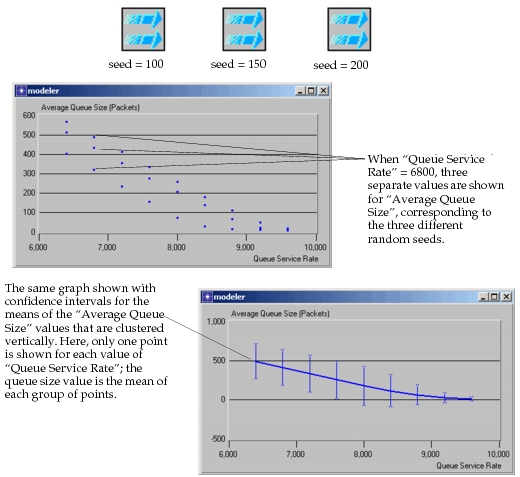
In typical simulation studies involving stochastic behavior, it is desirable to run several differently-seeded simulations (typically two to three dozen) for each configuration of the model. Changing the random number seed over several scenarios helps to establish confidence in the results that are obtained. Because each simulation object provides specification for only one seed value, such sequences require multiple simulation objects. Each simulation object can still represent multiple simulations: these correspond to the different configurations of the system independent of random number generation.
The following figure shows such a simulation sequence specification, and shows typical output scalar graphs that may result.
Figure 247: Use of Simulation Sequence to Generate Output Scalars and Confidence Intervals
Scripted Sequences
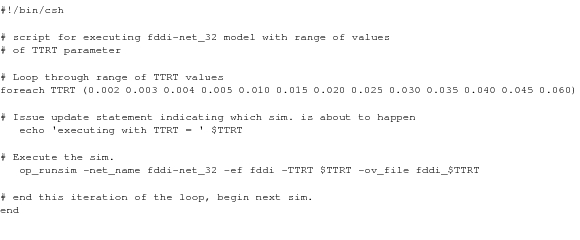
Scripts or programs provide a convenient method of executing simulation sequences when outside the Project Editor. A script provides a very general environment for executing programs and commands and can be used to design complex simulation drivers, possibly incorporating inputs from other programs. However, for most simulation studies, scripts can be used in a very simple manner, by executing one simulation per line in the script, or by forming loops that vary attribute values automatically. Examples appear below of each of these approaches implemented in the Linux C-shell environment. See your host computer’s documentation for more information on script programming.
Figure 248: Example Simulation Script with One Command per Simulation
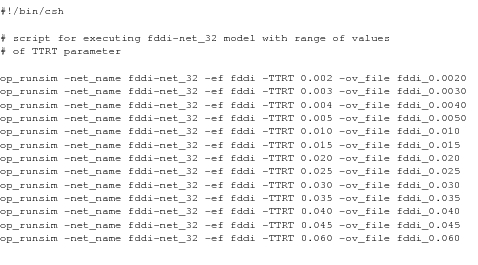
Figure 249: Example Simulation Script using Loop and Attribute Value Table