Active Attributes
Active attributes allow you to create ETS code that executes when a user changes an object's attribute settings. You can create handler functions to customize the attribute-change dialog or perform specialized tasks—for example, displaying a dynamic menu based on an object's state, or performing specialized validation routines. You can create attribute handler functions for five different events in an attribute value change:
- When a user clicks on an attribute in the Edit Attributes dialog box (a click handler)
- After a user has changed a value in a pull-down menu (a new value handler)
- After a user has clicked OK in an attribute dialog box (a confirm handler)
- When an attribute dialog box is drawn or redrawn (a display handler)
- When the application needs to determine whether an attribute should be visible in the GUI (a hide handler)
In addition, you can specify that changes to a particular attribute should trigger reevaluation of the handlers for all attributes of the node. This, in conjunction with the hide handler, enables the value of one attribute to affect which attributes are shown in the Edit Attributes dialog box.
When an application calls an attribute event handler, it passes all arguments to that handler. You must save all handler functions for an attribute in the same file and include that file's directory in your mod_dirs preference. See Attribute Handler Function Descriptions for more information on the various types of handlers.
You normally assign attribute handlers from within the Process Editor (see Procedure 10). When you assign ETS handlers to an attribute in a process model, those changes affect every object using that model. However, the process model handlers can be overridden for all instances of a particular node model by reassigning the ETS handlers in the Node Editor (see Procedure 11).
Procedure 10: Assigning ETS Attribute Handlers in a Process Model
-
Open a process model in the Process Editor.
-
Choose Interfaces > Model Attributes.
The Model Attributes dialog box opens.
-
Select the attribute in the Attribute Name column and click the Edit Properties button.
The Attribute Properties dialog box opens.
-
Click the ETS Handlers… button.
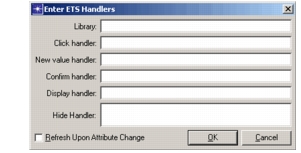
The Enter ETS Handlers dialog box opens.
-
Enter the name (minus suffixes) of the file containing your handler functions in the Library field, and any handler function names in the Click Handler, New Value Handler, Confirm Handler, Display Handler, and Hide Handler fields.
Note: You must indicate a valid file name in the Library field to assign handler functions.
-
Select the Refresh Upon Attribute Change checkbox if the Edit Attributes dialog box should be redrawn when this attribute changes (thus reevaluating the handlers for other attributes of the node model).
-
Click OK in the Enter ETS Handlers, Attribute Properties, and Model Attributes dialog boxes.
Procedure 11: Assigning ETS Attribute Handlers in a Node Model
-
Open a node model in the Node Editor.
-
Choose Interfaces > Node Interfaces.
The Node Interfaces dialog box opens.
-
Select an attribute in the Attribute Name column and click the Edit Properties button.
The Attribute Properties dialog box opens.
-
Click the ETS Handlers button.
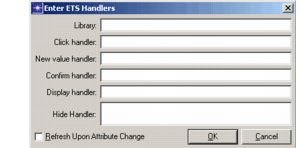
The Enter ETS Handlers dialog box opens.
-
Enter the name (minus suffixes) of the file containing your handler functions in the Library field, and any handler function names in the Click Handler, New Value Handler, Confirm Handler, Display Handler, and Hide Handler fields.
Note: You must indicate a valid file name in the Library field to assign handler functions.
-
Select the Refresh Upon Attribute Change checkbox if the Edit Attributes dialog box should be redrawn when this attribute changes (thus reevaluating the handlers for other attributes of the node model).
-
Click OK in the Enter ETS Handlers, Attribute Properties and Node Interfaces dialog boxes.
Attribute Handler Function Descriptions
The following pages describe the characteristics and requirements of the various types of attribute handlers. See also "Building a Code Library" on page 13 for information on creating library files.