Model Handlers
Model handlers allow a model developer to override the default behavior of the user interface when a model instance (such as a node or link object) is clicked, created, or destroyed.
You can create model handler functions for the following events:
- When a user left-clicks, middle-clicks, or double-clicks an object in a network (a click handler)
- When a user right-clicks an object in a network (a menu display handler)
- When a user selects an item from an object pop-up menu (a menu choose handler)
- When an object is created (an object creation handler)
- When an object is destroyed (an object destruction handler)
These handlers apply to specific instances of a model. In addition, ETS contains support for model-wide click handlers (listed in Table 7). If a model-wide click handler is registered, that handler intercepts the click event BEFORE the per-object click handler does. If the model-wide handler returns a status code that tells the ODK application to continue processing the click, the per-object click handlers can get invoked.
Table 7: Model-Wide Click Handlers
| Handler | Registered by |
|---|---|
| Click | Ets_Nt_Click_Callback_Register() |
| Double click | Ets_Nt_Double_Click_Callback_Register() |
| Menu define (right click) | Ets_Nt_Menu_Define_Callback_Register() |
| Menu select | Ets_Nt_Menu_Select_Callback_Register() |
Handler function names are stored with their model and are associated with a specific object when an instance of that model is created in the Network Editor.
Note: Changes to the ETS handler information in a model definition affect all instances of that model, including those model instances that have already been created.
Use Procedure 12 to specify a model handler.
Procedure 12: Specifying Model Handlers
-
Open the Enter ETS Handlers dialog box using one of the following methods.
For a node
1.1 In the Node Model Editor, choose Interfaces > Node Interfaces.
1.2 In the Node Interfaces dialog box, click the ETS Handlers button.
The Enter ETS Handlers dialog box for node interfaces appears. 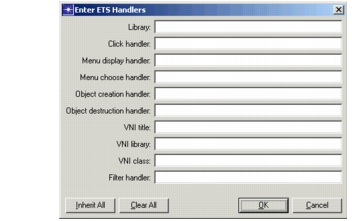For a link, path, or demand
1.1 In the Link Model, Path Model, or Demand Model editor, click the ETS Handlers button.
The Enter ETS Handlers dialog box for link, path, and demand interfaces appears. 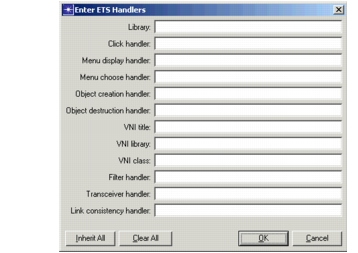 -
In the Enter ETS Handlers dialog box, enter the following information.
- In the Library field, enter the name (minus suffixes) of the file containing your handler functions.
- In the handler fields, enter any handler function names.
Note: You must indicate a valid file name in the Library field to assign handler functions.
-
Click OK.
Note: Changes to the ETS handlers do not take effect until you save the model.
Model Click Handler Flowchart
The flowcharts on the following pages (Figure 12 to Figure 14) diagram the sequence of events that occurs when the user clicks the mouse in the workspace. The type of click (right, left, single, or double), the object that was clicked on (node, link, subnet, or menu), and whether or not the click handler was defined internally or by the user all help determine the subsequent actions that occur.
The numbers in the following description refer to matching numbered steps in the flowcharts.
When a user clicks the mouse, Riverbed first checks if a click callback was registered with Ets_Nt_Click_Callback_Register() (1). If so, the user-defined callback is invoked (2). If this callback returns a non-zero value, Riverbed assumes that the click was handled and exits the click code block (3). If the callback returns 0, Riverbed next considers the type of click, and takes the appropriate action (4).
Double click
If the user double-clicks in the workspace, Riverbed first checks to make sure a double-click callback has been registered using Ets_Nt_Double_Click_Callback_Register() (5). If so, the registered callback is invoked (6); if it returns 0, the click is considered handled (7). If the callback returns 1, or if a callback was not invoked because no callbacks were registered, the click is handled internally and default behavior occurs.
If an internal function handles the click, Riverbed first checks to see what type of object was clicked (9). If the object was a subnet, then all selected network objects are deselected, and the view in the network editor changes to show the contents of the double-clicked subnet (10). If the object was something other than a subnet, Riverbed checks to see if a handler has been defined by the “model” of the site being clicked (11). If so, the site “click” callback is invoked (12). This callback returns either EtsC_Obj_Click_Handled, which means that the click was successfully handled (13), or EtsC_Obj_Click_Continue, in which case Riverbed handles the click in the default manner (14). The same behavior occurs if there is no site click callback registered.
Right click
When the user right-clicks on an object, Riverbed creates an initial pop-up menu text list (15). Then Riverbed checks to see if a menu define callback has been registered using Ets_Nt_Menu_Define_Callback_Register() (16). If so, the global menu display callback EtsT_Nt_Menu_Define_Callback() is invoked (17). If the return value of the global menu display callback is 0, it is assumed that the click was not handled and the sequence exits (18). On the other hand, if the return value is nonzero, or if a global menu display callback is not registered, then Riverbed checks to see if a model-specific menu display callback has been registered (19). Because the callback is defined by the model of the object being clicked, it is internal to a specific object instance. If a model-specific menu display callback has been registered, the model-specific “menu display” callback is invoked (20). If this callback returns EtsC_Obj_Click_Handled, the click was correctly handled and the code exits (21). If EtsC_Obj_Click_Continue is returned, or if no model-specific menu display callbacks were registered, then the menu is displayed and Riverbed waits for the user’s response (22).
Once the user makes a selection, Riverbed checks to see if a global menu select callback has been registered with Ets_Nt_Menu_Select_Callback_Register() (23). If so, the global “menu select” callback is invoked (24), and if it returns a nonzero value, then the selection was successfully handled and the code exits (25). If the callback returns zero or if a global menu select callback was not registered, Riverbed checks to see if the model’s menu select callback was registered in the Menu Choose Handler option in the ETS Handlers dialog box (this callback is internal to the site instance model) (26). If a callback has been registered, the model’s “menu select” callback is invoked (27). Returning EtsC_Obj_Click_Handled means that the callback completed successfully and the code then exits (28); returning EtsC_Obj_Click_Continue means that Riverbed processes menu item selection internally and the click has been handled (29). Riverbed also processes menu item selection if the site menu select was not registered.
Left click
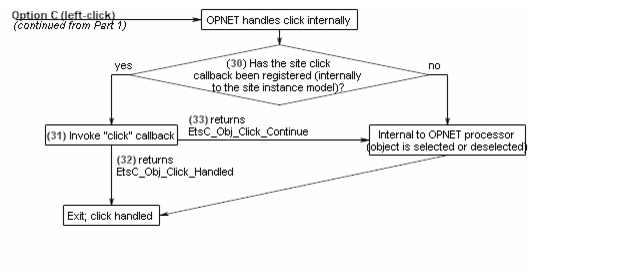
If a left click is detected, the click is usually handled internally by Riverbed. However, Riverbed does first check to see if a site click callback has been registered (30) and, if so, it invokes that callback (31). If the callback returns EtsC_Obj_Click_Handled, the click was correctly handled and the code exits (32). If the callback returns EtsC_Obj_Click_Continue (33), or if no callbacks were registered, Riverbed handles the code internally, with the resulting action of the object that was clicked on (either a node, link, or path) either being selected or deselected.
Figure 12: Model Click Handler Flowchart (Part 1)
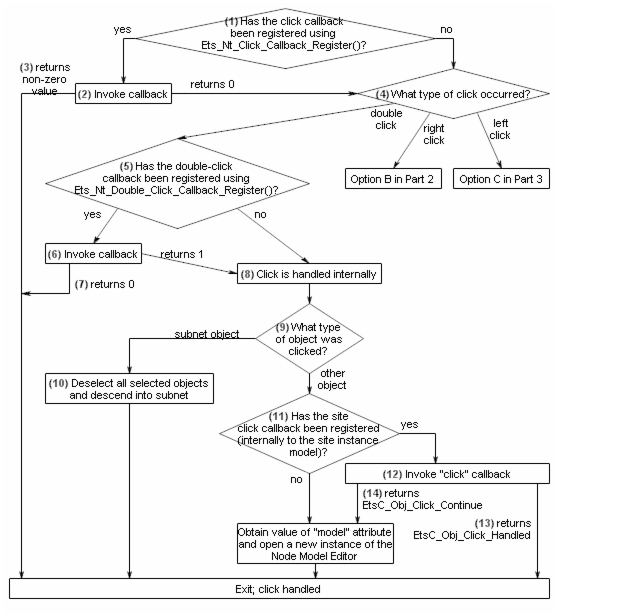
Figure 13: Model Click Handler Flowchart (Part 2)
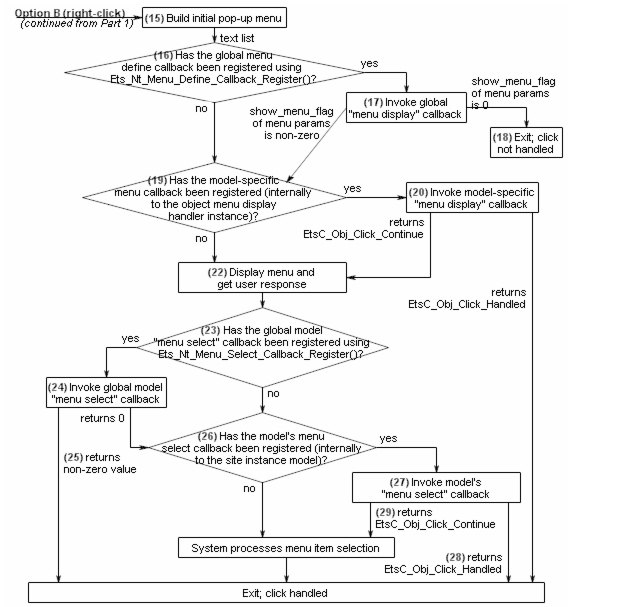
Figure 14: Model Click Handler Flowchart (Part 3)
Model Handler Function Descriptions
The following tables describe the characteristics and requirements of the five types of model handler functions. See also "Building a Code Library" on page 13 for information on creating library files.