Importing Cisco Firewalls: After the Import
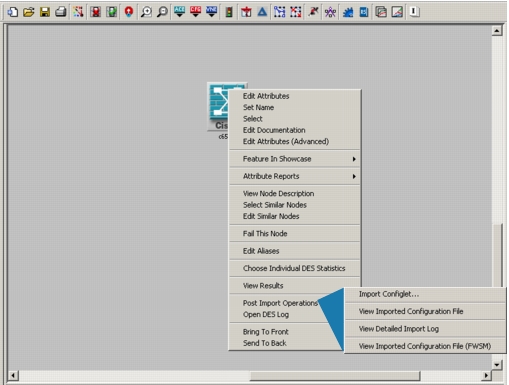
Once the firewalls are imported into the network model, certain attributes are populated with the information from the configuration files. Information from the “show version” command populates the System Information attributes, as shown in Figure 153.
Figure 153: Firewall System Information
Attributes: PIX Firewall Appliance
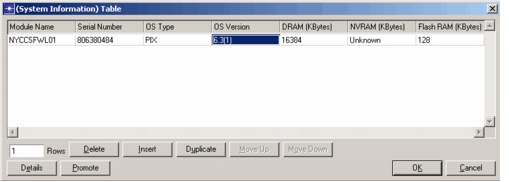
The information from the “show running-config” command for a PIX firewall appliance populates the Firewall Parameters compound attribute, as shown in Figure 154.
Figure 154: Firewall Parameters Attribute
Attributes: ASA
The imported attributes from the ASA appear under Security > PIX Parameters, if running in multiple-context or in single context, transparent mode (see the attributes expanded in Figure 154_. The attributes appear under Security > Firewall Parameters, if running in single context, routed mode (see the attributes expanded in Figure 155).
Attributes: FWSM
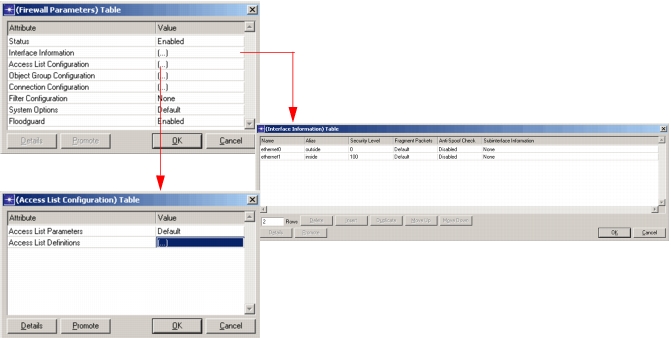
The imported attributes from an FWSM appear under Security > PIX Parameters, as shown expanded in Figure 155. Modes supported include both Transparent Firewall and Routed Firewall. The security configuration of the FWSM is contained in the Context Parameters compound attribute. Both single and multiple context configurations are supported.
Figure 155: FWSM Attributes
Post-Import Operations
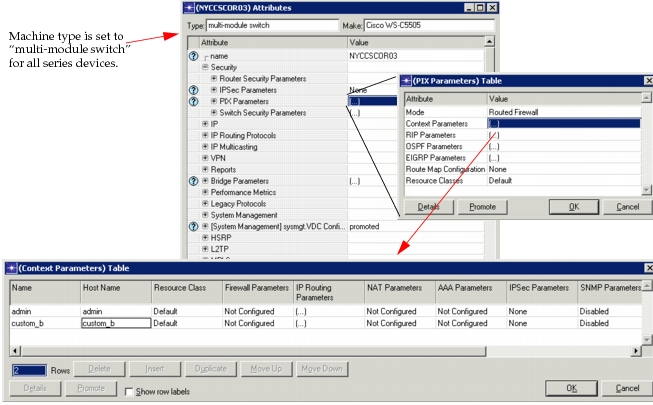
If you selected the “Include collected configuration files” checkbox during import from NetCollector, you can view the configuration files from the Post-Import Operations right-click menu, as shown in Figure 156. Depending upon the type of device you imported, you may see the IOS configuration file (Layer-3 or PIX), the CatOS configuration file (Layer-2), or the FWSM configuration file.
Figure 156: Post-Import Operations Menu