Operations
This section describes the operations available on the various menus of the Simulation Sequence Editor:
Create Simulation Set
This operation adds a new simulation set to the simulation sequence. The attributes of a simulation set specify the configuration of one or more simulation runs, including what statistics and animation data are collected during a run and what outputs are generated. Other attributes determine the length of the simulation run, the seed value for random number generation, and the values of various promoted and user-defined attributes. To edit the attributes of a simulation set, right-click on the set and choose Edit Attributes.
Edit Attributes
This operation lets you configure the attributes of a simulation set. It opens a Simulation Set dialog box (similar to the detailed Configure/Run DES dialog box).
For a description of the dialog box, see "Configure/Run DES Dialog Box (Detailed)" on page 399.
Execute…
The three Execute… operations on the Simulation Sequence Editor pop-up menus all start one or more simulation runs, as follows:
- Execute All Runs in Set – Starts execution of every simulation run in the simulation set that was right-clicked, whether or not the run is selected.
- Execute Run – Starts execution of the simulation run that was right-clicked.
- Execute Selected Runs in Set – Starts execution of every selected simulation run in the simulation set that was right-clicked.
Open DES Log
This operation allows you to view the log of errors and significant simulation events produced during a simulation. This simulation log is written to a tab-delimited ASCII file. Because there can be many events in a simulation log, a simulation log browser is provided so that you can view only those events of interest to you.
For a description of the simulation log browser, see "Open DES Log" on page 297.
Run Simulation Sequence
This operation executes the current simulation sequence, as defined by the attributes of the defined simulation sets. Only simulation sets and runs that are selected in the treeview will be executed.
For more information, see "Monitoring Simulation Progress" on page 406.
Show… Info
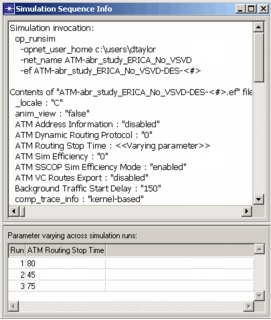
The Show Run Info and Show Set Info operations on the Simulation Sequence Editor pop-up menus open a window that displays information about the configuration of the simulation set or run that was right-clicked. This information includes the simulation invocation, contents of environment files, and all attribute values. This information is available also by clicking the Preview Simulation Sequence button in the Configure/Run DES dialog box.
Figure 239: Simulation Sequence Info Window